EasyManua.ls Logo

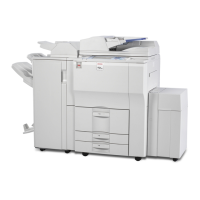
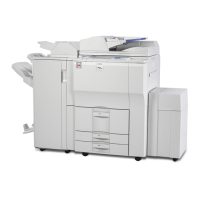
Ricoh Pro 8120 - User Manual

Ricoh Pro 8120
44 pages
Print Icon
To Next Page IconTo Next Page
Loading...
Read this manual carefully before you use this machine and keep
it handy for future reference. For safe and correct use, be sure to
read the Safety Information in this manual before using the
machine.
For information not in this manual, refer to
the HTML/PDF files on the supplied
CD-ROM.
Appendix
Other Information for This Machine
Safety Information for This Machine
Manuals Provided with This Machine
Read This First

Other manuals for Ricoh Pro 8120

Questions and Answers

  • M
    Mary ParkerSep 4, 2025
    How to turn on the display on Ricoh Pro 8120?
    • C
      Chad LynchSep 4, 2025
      If the display is off on your Ricoh All in One Printer, the machine could be in Sleep mode. Press the [Energy Saver] key or the [Check Status] key to exit Sleep mode.
  • K
    Kellie SotoSep 18, 2025
    Why is the fold position incorrect on Ricoh All in One Printer?
    • B
      Brian PatelSep 18, 2025
      If the fold position is incorrect when Letter Fold-in is applied to a B5 JIS sheet on your Ricoh All in One Printer, Multi-sheet Fold may have been specified when only one sheet is being printed. In [Output/Customize Function/Finisher] on the initial copier screen, under [Folding Unit], select [Letter Fold-in]. Press [Change], and then set "Multi-sheet Fold" to [Off]. When using the printer function, change the printer driver Letter Fold-in settings so that Multi-sheet Fold is not specified.
  • A
    anthony04Sep 16, 2025
    Why the function does not run on Ricoh Pro 8120?
    • K
      Karen Calhoun DVMSep 16, 2025
      If a function on your Ricoh All in One Printer does not run, it could be because the function cannot be performed while the Address Book is being backed up from Web Image Monitor or other tools running on the computer. Wait a while until the Address Book backup is complete, then the function will be performed.
  • E
    Elizabeth HancockSep 14, 2025
    Why does Ricoh Pro 8120 All in One Printer power off automatically?
    • M
      Monica HoffmanSep 14, 2025
      If your Ricoh All in One Printer turns off automatically, the Weekly Timer setting may be set to [Main Power Off]. Change the Weekly Timer setting.
  • K
    Kelly MaynardSep 13, 2025
    What to do if a function does not run on Ricoh Pro 8120?
    • R
      Ryan DavidSep 13, 2025
      If a function on your Ricoh All in One Printer does not run or cannot be used, it may be that the machine is currently being used by another function. Wait until the current job is completed before trying again.
  • E
    Erin FarleySep 12, 2025
    Why I cannot print in duplex mode on Ricoh Pro 8120 All in One Printer?
    • J
      Judith BarrettSep 12, 2025
      If you cannot print in duplex mode on your Ricoh All in One Printer, it could be because you have selected a paper type that cannot be used for duplex printing. In [Tray Paper Settings], select a paper type that can be used for duplex printing.
  • A
    Ashley AlvaradoSep 9, 2025
    How to enable duplex printing on Ricoh All in One Printer?
    • Y
      Yvonne HillSep 9, 2025
      If you cannot print in duplex mode on your Ricoh All in One Printer, it might be because you have selected a paper tray that is not set for duplex printing. Change the setting for "Apply Duplex" in [Tray Paper Settings] to enable duplex printing for the paper tray.
  • K
    kathryn49Sep 7, 2025
    Why are original images printed on the reverse side of the paper with Ricoh Pro 8120 All in One Printer?
    • S
      Shane WalkerSep 7, 2025
      If original images are being printed on the reverse side of the paper by your Ricoh All in One Printer, the paper may have been loaded incorrectly. Load the paper correctly.
  • C
    christopher03Sep 6, 2025
    What to do if nothing happens when pressing [Check Status] or [Energy Saver] key on Ricoh Pro 8120?
    • L
      lesliegriffithSep 6, 2025
      If nothing happens when you press the [Check Status] key or the [Energy Saver] key on your Ricoh All in One Printer, the power might be turned off. Ensure the main power indicator is off, and then turn on the power.
  • Z
    zcowanAug 21, 2025
    Why are documents not printing from my Ricoh All in One Printer?
    • K
      Katherine CalhounAug 21, 2025
      If documents and reports are not printing from your Ricoh All in One Printer, it might be because the paper output tray is full. Remove the prints from the tray. Alternatively, the printer may be out of paper. In this case, load paper into the printer.

Ricoh Pro 8120 Specifications

General IconGeneral
Print Speed (Black)Up to 120 ppm
Print Resolution1200 x 1200 dpi
Dimensions1, 020 x 1, 020 x 1, 250 mm
WeightApprox. 130 kg
Maximum Paper SizeA3
Duplex PrintingYes
Memory4 GB
Operating System CompatibilityWindows, macOS, Linux
ConnectivityEthernet, USB
Supported Media SizesA3, A4, A5, B4, B5
Warm-up TimeLess than 30 seconds
First Print Speed4.5 seconds
Supported Paper Weights52-300 gsm
Network ConnectivityEthernet 10 base-T/100 base-TX/1000 base-T

Related product manuals