EasyManua.ls Logo

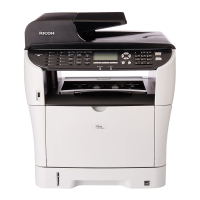
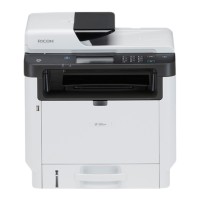
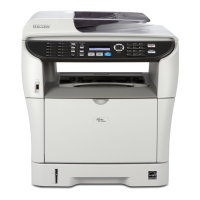
Ricoh SP 3510SF - User Manual

Ricoh SP 3510SF
476 pages
Print Icon
To Next Page IconTo Next Page
Loading...
Operating Instructions
User Guide
For safe and correct use, be sure to read "Safety Information" before using the machine.

Table of Contents

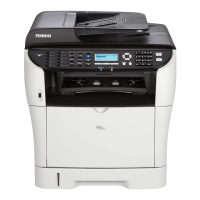
Other manuals for Ricoh SP 3510SF

Questions and Answers

  • V
    Vanessa CrossSep 3, 2025
    Why is the printed paper from my Ricoh All in One Printer curled?
    • B
      Brittany YoungSep 4, 2025
      If the printed paper from your Ricoh All in One Printer is curled: * Try loading the paper upside down in the paper tray. * Take prints from the output tray more frequently if the curl is severe. * Use paper that has been stored properly to avoid dampness.
  • D
    Dwayne WrightSep 18, 2025
    Why is the volume of sounds produced by Ricoh All in One Printer too quiet?
    • C
      Christopher MasseySep 18, 2025
      If the volume of the sounds from your Ricoh All in One Printer is too quiet, adjust the volume of the beep, ring, speaker and alarm sounds in the system settings.
  • S
    Sarah MillerSep 16, 2025
    Why is the volume of sounds produced by Ricoh SP 3510SF too loud?
    • B
      Barbara ReynoldsSep 16, 2025
      If the volume of the sounds from your Ricoh All in One Printer is too loud, adjust the volume of the beep, ring, speaker, and alarm sounds in the system settings.
  • M
    Mark BarnettSep 14, 2025
    What causes distorted scanned images on Ricoh SP 3510SF All in One Printer?
    • K
      Kelsey ChristensenSep 14, 2025
      If the scanned image from your Ricoh All in One Printer is distorted or out of position, it may be because the original was moved during scanning. Ensure the original remains still throughout the scanning process.
  • P
    Paul MasonSep 12, 2025
    Why are copied pages too light from Ricoh SP 3510SF?
    • T
      Todd DownsSep 12, 2025
      If copied pages are too light from your Ricoh All in One Printer, low room temperature may be the cause. Try selecting [Long] for [Scan Warm-up Time] under system settings to improve scanning quality.
  • T
    tonyajohnsonSep 12, 2025
    Why is photocopied paper blank on Ricoh SP 3510SF All in One Printer?
    • J
      Jessica EdwardsSep 12, 2025
      If photocopied paper is blank when using your Ricoh All in One Printer, ensure the original is placed correctly. Place originals copy side down on the exposure glass or copy side up when using the ARDF or ADF.
  • A
    Amy FernandezSep 9, 2025
    How to fix photocopied pages that are not in correct order on Ricoh All in One Printer?
    • B
      Bradley MortonSep 9, 2025
      To correct the order of photocopied pages on your Ricoh All in One Printer, change the [Sort] setting under copy settings on the control panel to collate the pages as needed.
  • T
    Todd MartinezSep 7, 2025
    Why is there a delay between print command and printing on Ricoh All in One Printer?
    • L
      Lisa HernandezSep 7, 2025
      If there's a delay between the print command and actual printing with your Ricoh All in One Printer: * Processing time depends on data volume; graphics-heavy documents take longer. * If "Processing..." is displayed, the machine is receiving data; wait for a while. * Reduce the printing resolution in the printer driver to speed up printing.
  • K
    Kristina RiveraSep 5, 2025
    Why are images printed diagonally on Ricoh All in One Printer?
    • R
      Robert MitchellSep 5, 2025
      If images are printed diagonally on the pages from your Ricoh All in One Printer, adjust the paper guides to remove any gaps between the paper and the guides.
  • S
    Sean EvansAug 20, 2025
    How to fix Ricoh SP 3510SF All in One Printer that does not turn on?
    • R
      Rhonda GrossAug 21, 2025
      If your Ricoh All in One Printer doesn't turn on, ensure the power cord is properly connected to both the printer and a working wall outlet. You can verify the outlet's functionality by plugging in another device.

Summary

1. Guide to the Machine

Guide to Components

Lists the names and functions of the parts of the machine.

2. Getting Started

Installing the Machine

Describes steps required to install the machine and prepare it for use.

Connecting the Machine

Describes connecting the machine to a computer and a telephone line.

Loading Paper

Explains how to load paper into the paper tray and bypass tray.

3. Using the Printer Function

Basic Operation in Printer Mode

Explains the procedure for performing basic printing operations.

4. Using the Copier Function

Basic Operation in Copier Mode

Describes the basic procedure for making photocopies.

5. Using the Scanner Function

Registering Scan Destinations

Describes how to register scan destinations in the Address Book using Web Image Monitor.

6. Using the Fax Function

Registering Fax Destinations

Describes how to register fax destinations in the Address Book.

Sending a Fax

Describes transmission modes and basic operations for sending a fax.

Receiving a Fax

Describes fax reception functions and how to select reception modes.

7. Configuring the Machine Using the Control Panel

Copy Settings

Describes how to configure the copy settings.

Scanner Settings

Describes how to configure the scanner settings.

Fax Transmission Settings

Describes how to configure the fax transmission settings.

Network Settings

Describes the network settings.

Administrator Settings

Describes administrator settings.

8. Configuring the Machine Using Web Image Monitor

Using Web Image Monitor

Allows checking machine status and changing settings via a Web browser.

9. Troubleshooting

Ricoh SP 3510SF Specifications

General IconGeneral
Print TechnologyLaser
Print Resolution1200 x 1200 dpi
Scan Resolution600 x 600 dpi
FaxYes
Paper Capacity250 sheets
Automatic Document FeederYes
FunctionsPrint, Copy, Scan, Fax
Duplex PrintingYes
Maximum Paper SizeA4
ADF Capacity35 sheets
Memory128 MB
Fax Transmission Speed33.6 Kbps
ConnectivityUSB 2.0, Ethernet
Operating System CompatibilityWindows

Related product manuals