Proton — User’s Guide
Managing tasks and appointments — Using the Tasks function
70
2. The
7DVNV
screen appears. Click the trackwheel to view the
menu. Scroll to and click
New Task
.
3. The
1HZ 7DVN
screen appears, where you can type the informa-
tion for the task. Press
ENTER
after each field.
4. Click to view the menu then select
Save Task
by clicking again.
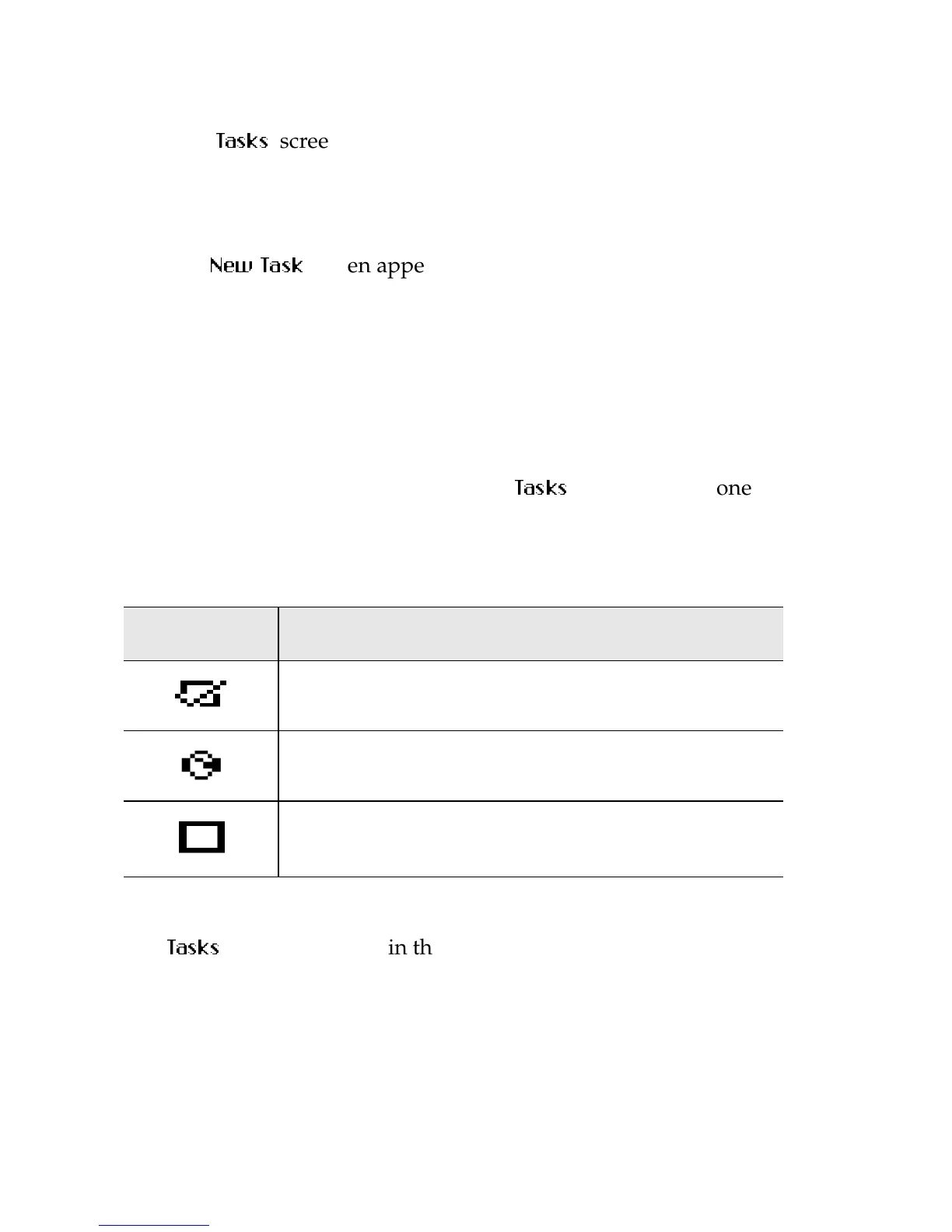
Your new task will be listed in the
7DVNV
screen, with one of
following three icons beside it, depending on the task’s status.
Tasks entry fields
The
7DVNV
screen will contain the following entry fields:
Task: Enter the subject of the task.
Icon Description
The task has been completed.
The task has been deferred or is waiting.
The task has not been started or is in progress.



 To Next Page