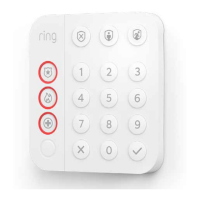
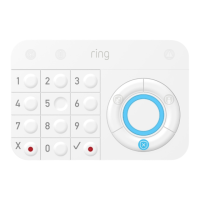
Ring Alarm Keypad User Manual
Note:
• This product can be operated in any Z-Wave network with other Z-Wave certified devices from other manufacturers. All mains
operated nodes within the network will act as repeaters regardless of vendor to increase reliability of the network.
• This is a SmartStart enabled product which can be added into a Z-Wave network by scanning the Z-Wave QR Code present
on the product with a controller providing SmartStart inclusion. No further action is required and the SmartStart product will be
added automatically within 10 minutes of being switched on in the network vicinity. This product can also be operated in any
Z-Wave network with other Z-Wave certified devices from other manufacturers.
Z-Wave Instructions
Z-Wave Device Type: Entry Control Keypad
Role Type: Listening Sleeping Slave
• GENERIC_TYPE_ENTRY_CONTROL (0x40)
• SPECIFIC_TYPE_SECURE_KEYPAD (0x0B)
Ring Alarm Keypad Inclusion
Adding Ring Alarm Keypad to a Z-Wave Network
Ring Alarm Keypad can be added via SmartStart or Classic inclusion mode.
Note: When prompted for the QR Code or PIN, you may find them on the device, on the box, or on a card inside the box. Keep the
device nearby. You’ll be prompted plug the device in to power on the device and enter setup mode.
SmartStart Inclusion Steps:
1. Initiate the add flow for Security Devices in the Ring mobile application – Follow the guided add flow instructions provided in
the Ring mobile application.
2. When prompted by the mobile application, scan the QR code found on the package of the Keypad. The QR code can also be
found on the device itself.



 To Next Page
 Loading...