06 07
Connecting to Power
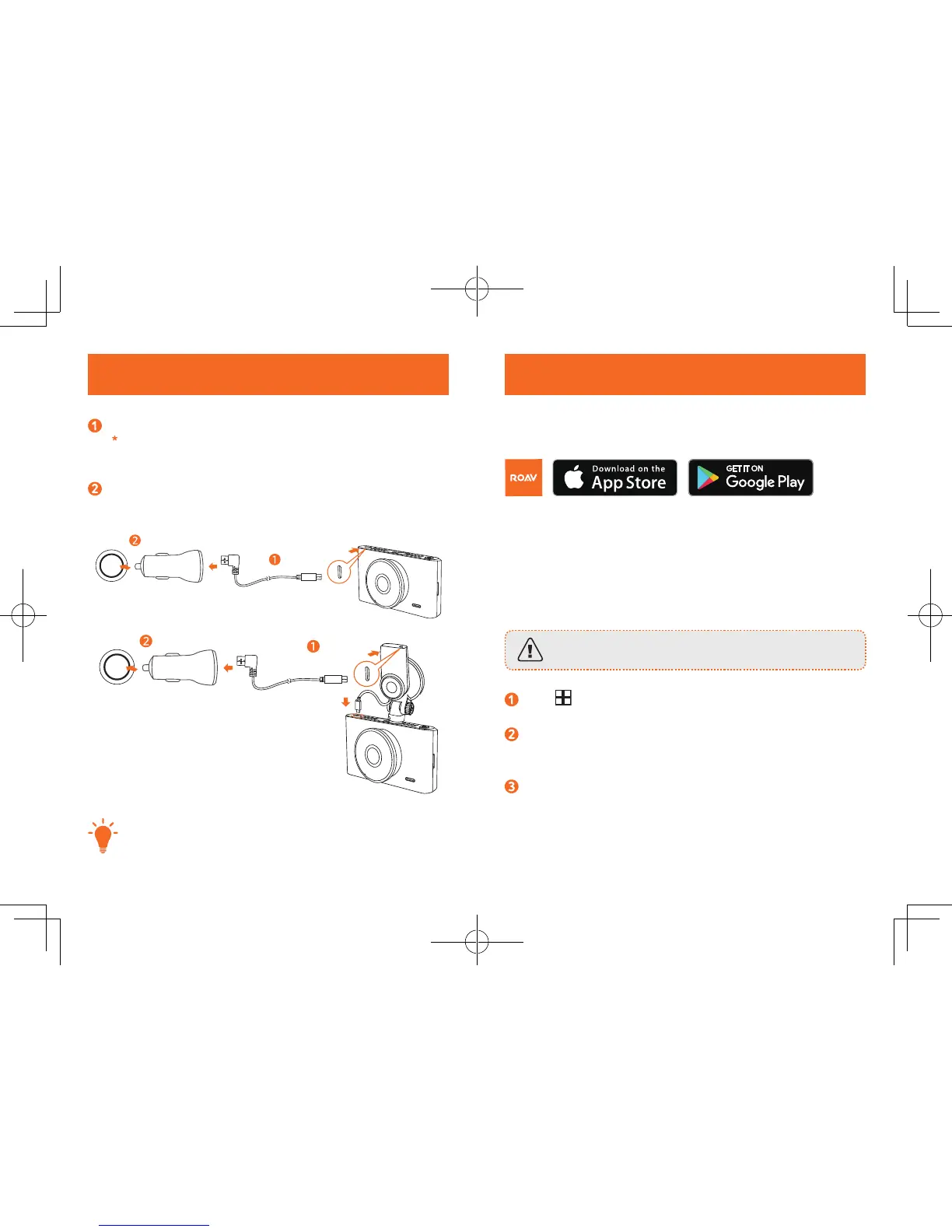
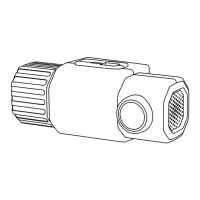
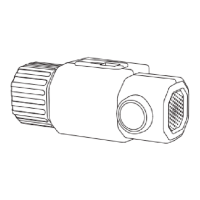
Connect the car charger and DashCam by using the charging cable.
(*
When using the GPS suction mount, plug the micro-USB cable
attached to it into the DashCam first, then connect the car charger
and the GPS suction mount by using the charging cable.
)
Plug the other end of the car charger to your vehicle’s cigarette
lighter socket.
T
Once the car engine is started, DashCam will automatically
power on and start recording. Once the car engine is shut
down, DashCam will automatically save the recording and
turn o.
Downloading Roav App
Download the Roav app from the App Store or Google Play.
Connect DashCam with Smartphone
When successfully connected with your smartphone via
built-in Wi-Fi, you can save and playback the driving recording
videos on your smartphone. You can also change settings of
the DashCam via Roav app.
When successfully connected, DashCam stops recording.
Press (Menu) , select "WIFI" > "On" to enable WiFi on
DashCam.
Enable WiFi on your smartphone, find “Roav DashCam
C2 Pro” on the list and connect it, enter password (initial
password: goroavcam) if required.
Follow the instructions on your smartphone to complete the
connection.


 To Next Page