Robo Support Documentation, Release 0.1.0
3.1.8 Removing the test print
When the test print is complete and cooled down, remove the print bed with the finished print still in place by lifting
the bed up and away from the magnets.
Slowly slide the print bed out of the machine with both hands.
Now, carefully flex the print bed from several positions to help loosen the print from the print bed.
Repeat this process until the most of the print is loose from the bed.
Carefully remove the print from the print bed with your hand.
Note that if the print is not coming loose after flexing the print bed, put the bed back in Robo C2 and use the provided
spatula to carefully remove the print at its borders. Then slowly work your way underneath the print until it’s loose.
Don’t force the print loose by pulling it up directly up from the print bed, since this may cause your print to break.
3.1.9 Connecting to Wi-Fi
We highly recommend connecting Robo C2 to your Wi-Fi network. Doing so provides you with necessary updates
that allows for a more enjoyable 3D printing experience.
Note: You can also use the provided Ethernet cable (LAN) to connect Robo C2 directly to your Wi-Fi network.
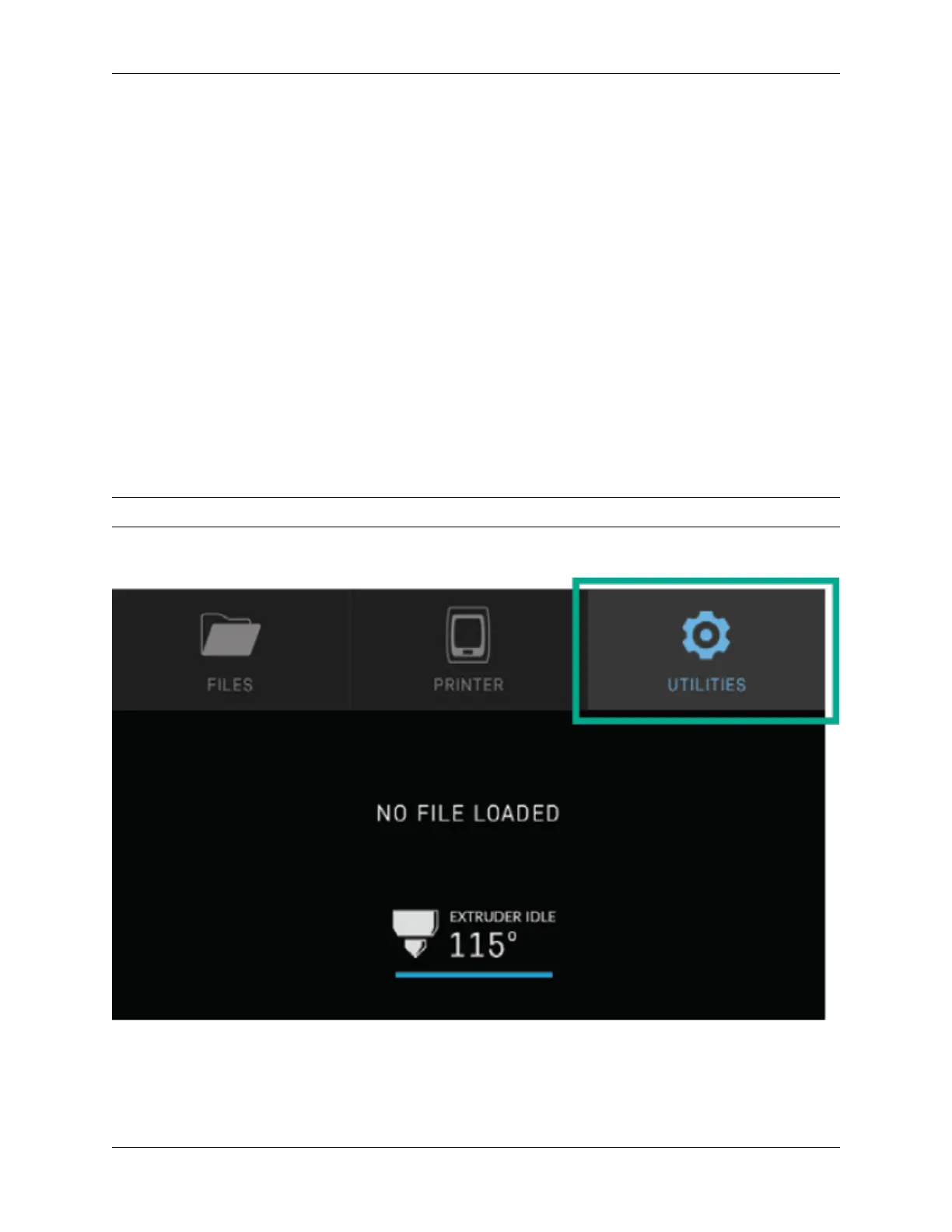
To begin connecting to your Wi-Fi network, Select UTILITIES on home screen.
Select NETWORK.
24 Chapter 3. Logging into your Robo account


 To Next Page