08
Empty Wash Fill Dock Auto
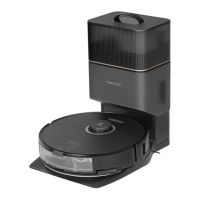
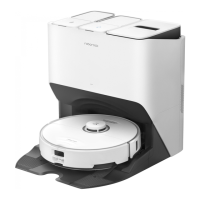
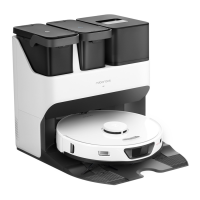
A11
A11-1—Charging Contacts
A11-2—Robot Refill Port
A11-3—Dust Container Cover
A11-4—Drying Air Outlets
A11-5—Cleaning Tank of Edgewise
Mopping Module
A11-6—Dock Base
A5-1—Hook and Loop Pads
A6-1—Mop Cloth Screw
A7-1—Dustbin Latch
A7-2—Filter Latch
A7-3—Air Inlet
A7-4—Washable Filter
A7-5—Suction Inlet
VibraRise Mop Cloth
A5
Dustbin
A7
Dock Base
A8
Disposable Dust Bag
A9
Edgewise Mop Cloth
A6
Power Cord
A10
Note: Secure the mop cloth flat in place.
The mop cloth mounts are non-detachable.Note:
VibraRise Module
A4
A4-1—Mop Cloth Attachment Slot
A4-2—Vibration Module
A4-3—Edgewise Mopping Module
A2
Robot (Bottom View)
A2-1—Cliff Sensors
A2-2—Carpet Sensor
A2-3—Omnidirectional Wheel
A2-4—Flexible Side Brush
A2-5—Main Brushes
A2-6—Main Brush Cover Latches
A2-7—Main Wheels
Press any button to pause the robot during
cleaning or docking.
Note:
•
White: Battery level
≥
15%
•
Red: Battery level < 15%
•
Breathing: Charging or starting up
•
Flashing red: Error
•
Press and hold to turn the robot
on or off
•
Press to start cleaning
—Power/Clean
—Power Indicator Light
•
Press to start docking/emptying
•
Press and hold to wash the mop
cloths
—Dock
•
Press to start Mop Only
•
Press and hold for 3 seconds to
enable/disable Child Lock
—Mop Only/Child Lock
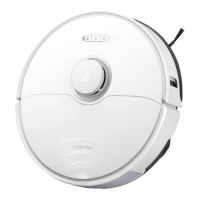
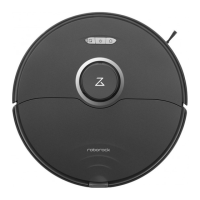
Product Overview
A
A1
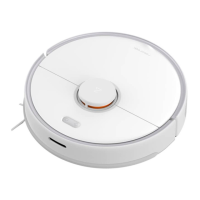
Robot (Top View)
A1-1—Vertical Bumper
A1-2—LiDAR Sensor
A1-3—Wall Sensor
A1-4—Reactive 3D Obstacle Avoidance
Sensor
A1-5—Dock Locator
A1-6—Infrared Fill Light
•
Off: WiFi disabled
•
Flashing slowly: Waiting for connection
•
Flashing quickly: Connecting
•
Steady: WiFi connected
A3
Robot (Top Cover Open)
A3-1—WiFi Indicator Light
A3-2—Reset Button
A3-3—Charging Contacts
A3-4—Communication Sensor
A3-5—Self-Filling Port
A3-6—Positioning Button
A3-7—Air Outlets
A3-8—VibraRise Module
A3-9—Bumper



 To Next Page