26
Troubleshooting
Voice Communication Software Settings (Windows 7)
If you are using voice communication software, the volume of the audio device may be adjusted
automatically to suit the characteristics of the conversation.
Use the following procedure to disable automatic volume adjustment.
1. Open the “Control Panel,” click [Hardware and Sound], and then click [Sound].
If you have selected Icon view, click [Sound].
2. In the [Communications] tab, set “When Windows detects communications activity” to
[Do nothing].
3. Click [OK] to close the “Sound” window.
Monitoring Function Settings (Windows 7)
If the monitoring function of Windows is enabled, the input sound may be doubled (each sound is
repeated) or feedback may be heard.
Use the following procedure to disable the monitoring function of Windows.
1. Open the “Control Panel,” click [Hardware and Sound], and then click [Sound].
If you have selected Icon view, click [Sound].
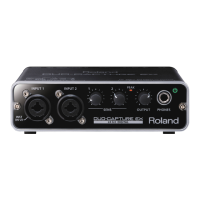
2. In the “Recording” area, click the DUO-CAPTURE’s [IN], and then click [Properties].
3. Open the “Listen” tab and clear the [Listen to this device] check box.
4. Click [OK] to close the “Properties” window.
5. Click [OK] to close the “Sound” window.


 To Next Page
 Loading...