EasyManua.ls Logo

Roland TRI-Capture - User Manual

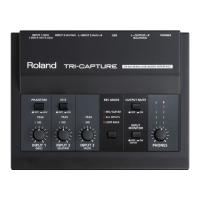
Roland TRI-Capture
52 pages
Print Icon
To Next Page IconTo Next Page
Loading...
For the following languages, a PDF version of the Owner’s Manual can be found on the CD-ROM.
Deutsch, Français, Italiano, Español, Português, Nederlands

Questions and Answers

  • K
    Katie BrownJul 26, 2025
    How to fix cannot install issue for Roland Accessories?
    • J
      Joseph ConleyJul 26, 2025
      If you cannot install Roland Accessories, ensure you are logged into the computer with an account that has administrator privileges. Also, exit all other programs, including antivirus software, before starting the installation.
  • E
    Emily BaileyJul 31, 2025
    What to do if “Found New Hardware Wizard” appears again after Roland Accessories driver was installed (Windows XP)?
    • S
      Susan MoonAug 1, 2025
      If the “Found New Hardware Wizard” appears again after the Roland Accessories driver was installed on Windows XP, it might be because the TRI-CAPTURE is connected to a different USB connector than the one used during the driver installation. Follow step 9 of the driver installation procedure and install the driver.
  • S
    Steven RodriguezAug 6, 2025
    What to do if Roland Accessories installer does not exit?
    • S
      Stephanie JonesAug 6, 2025
      If the Roland Accessories installer doesn't exit, ensure your computer is connected to a power cord instead of running on battery. Also, disconnect any USB devices other than a mouse and keyboard during the installation. If you're using a USB hub, make sure it's connected to a power supply.
  • S
    Sara ShannonAug 11, 2025
    What to do if warning or error appears during Roland Accessories installation on Windows?
    • S
      Shannon KleinAug 11, 2025
      If you encounter a warning or error during the installation of Roland Accessories on Windows, it may be due to device recognition issues. In the Device Manager, check for devices listed as “Other device,” “Unknown device,” or any device displaying a “?,” “!,” or “x.” If you find such an entry, reinstall the TRI-CAPTURE driver.
  • R
    Rhonda PooleAug 15, 2025
    Why Roland Accessories installer does not start?
    • D
      dannywilsonAug 15, 2025
      If the Roland Accessories installer does not start, it might be because you are attempting to install from a networked DVD-ROM drive. You cannot install from a networked DVD-ROM drive.
  • K
    Kristin CastroAug 21, 2025
    Why numeral appears at the beginning of Roland Accessories device name (Windows)?
    • M
      Melissa WilsonAug 21, 2025
      If a numeral such as “2-” appears at the beginning of a Roland Accessories device name in Windows, it's likely because the TRI-CAPTURE is connected to a different USB connector than the one used during the driver installation. To remove the numeral, connect the TRI-CAPTURE to the same USB connector used during the initial installation, or reinstall the driver.

Summary

USING THE UNIT SAFETY

INSTRUCTIONS FOR THE PREVENTION OF FIRE, ELECTRIC SHOCK, OR INJURY TO PERSONS

Instructions to prevent fire, electric shock, or injury to persons.

About the Symbols

Explains symbols used in warnings and cautions.

IMPORTANT NOTES

Power Supply

How to properly connect and use the power supply.

Placement

Guidelines for positioning the unit to avoid interference and damage.

Maintenance

Instructions for cleaning and caring for the unit.

Additional Precautions

Important advice for using controls, cables, and transporting the unit.

Handling CDs

Proper care and handling instructions for CD discs.

Contents of the Package

Panel Descriptions

Top Panel

Describes the controls and indicators on the top surface of the unit.

Rear Panel

Details the connectors and ports located on the back of the unit.

Bottom Panel

Explains the switches and labels on the bottom of the unit.

Driver Installation

Windows

Step-by-step guide for installing the driver on Windows operating systems.

Mac OS X

Instructions for installing the driver on Mac OS X systems.

Confirm that Sound can be Heard

Verifies successful driver installation by checking audio output.

How to Use

Input;Output Device Settings

How to select the TRI-CAPTURE as the audio input/output device in software.

Playing Back

Instructions for listening to audio output from the TRI-CAPTURE.

Recording Microphone or Guitar Sound (MIC;GUITAR)

Detailed steps for recording mono microphone/guitar signals.

Recording Microphone or Guitar Sound Along with Audio Device Sound (ALL INPUTS)

Guide for recording mic/guitar with stereo playback from audio devices.

Troubleshooting

Problems When Installing the Driver

Solutions for issues encountered during driver installation.

Problems When Using the TRI-CAPTURE

Troubleshooting common issues with the device's operation.

Changing Computer Settings to Avoid Problems

Adjusting system settings to resolve operational issues.

Setting the System Volume

Adjusting system-wide audio volume levels for playback.

Reinstalling the Driver

Steps to remove and reinstall the driver for troubleshooting.

Advanced Driver Settings

Adjusting buffer sizes and ASIO settings for performance tuning.

Main Specifications

Technical Specifications

Detailed technical data including channels, processing, levels, and interface type.

Physical Specifications and Accessories

Physical size, weight, and included items.

Block Diagrams for REC MODE

MIC;GUITAR Block Diagram

Visual representation of the signal flow for MIC/GUITAR recording mode.

ALL INPUTS Block Diagram

Signal flow diagram for the ALL INPUTS recording mode.

LOOP BACK Block Diagram

Visual representation of the signal path for the LOOP BACK recording mode.

Roland TRI-Capture Specifications

General IconGeneral
BrandRoland
ModelTRI-Capture
CategoryAccessories
LanguageEnglish

Related product manuals