18
Driver Installation
If a dialog box requesting a password appears during installation, enter a computer
administrator’s user name and password and click the [Install Software] button or [OK]
button.
5. When “Welcome to the TRI-CAPTURE Driver installer” appears, click [Continue].
6. If the screen for selecting the installation destination appears, select the startup
disk and click [Continue].
7. When the installation type appears, click [Install] or [Upgrade].
8. Click [Continue Installation].
9. When installation has nished, click [Restart] to restart the computer.
It may take some time for the computer to restart.
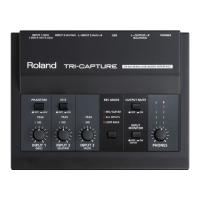
10. After the computer restarts, connect the
TRI-CAPTURE to the computer using the USB
cable.
* Turn down the volume on any peripheral devices
before connecting the USB cable.
* This unit is equipped with a protection circuit. A
brief interval (a few seconds) after power up is
required before the unit will operate normally.
* Before switching the power on/o, always be sure to turn the volume down. Even with
the volume turned down, you might hear some sound when switching the power on/o.
However, this is normal and does not indicate a malfunction.
11. Open “System Preferences” and click [Sound].
12. Click the [Output] tab and select [TRI-CAPTURE].
13. When you have nished making these settings, quit “System Preferences.”
If you cannot select the TRI-CAPTURE, refer to “Problems When Using the TRI-CAPTURE” (p. 31).
If the TRI-CAPTURE is selected as the output device, the computer’s audio alerts will be
played using the TRI-CAPTURE; they will not be heard from the computer’s speakers.
Mac OS X
Proceed to p. 19


 To Next Page