Archiving data using a computer (USB)
186
r
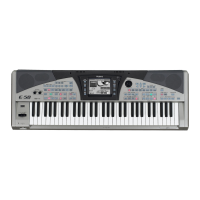
E-60/E-50 Music Workstation
• Windows: Click on the removal icon on the task bar.
Wait until a drop-down menu appears and select the
entry that says something to the effect of “Stop USB
disk E50-E60_SSD” or “Stop USB disk
E50-E60_CARD”. You should now see a window that
says something to the effect of “The USB device XX
can now be safely removed from the system”. Click
on the [OK] button.
—THEN—
• Disconnect the USB cable from your computer and
the E-60/E-50.
(14) Press the [DISCONNECT] field in the E-60/E-50’s
display to return to the CONNECTION MODE page.
(15) Press the [EXIT] button to return to the main page.
Backing up all of the E-60/E-50’s data
You can make a backup copy of all of the E-60/E-50’s
internal data (or the contents of a memory card) by
proceeding as follows:
• Connect the E-60/E-50 to your computer.
• On your computer, create a folder named “Backup”
(or any other name).
• Double-click the icon assigned to the E-60/E-50’s
internal memory or memory card to open its window.
• Select its entire contents (Ctrl + A or Command + A).
• Drag the selected files to your “Backup” folder icon
and drop them there.
• Wait until all files have been copied.
To send the files back to the E-60/E-50 (or its mem-
ory card):
• Open the “Backup” folder on your computer hard
disk.
• Open the window of the E-60/E-50’s internal mem-
ory or memory card.
• Arrange the two windows in such a way that you can
drag files from “Backup” to “E50-E60_SSD” or
“E50-E60_CARD”.
• Return to the “Backup” folder and select its entire
contents (Ctrl + A or Command + A).
• Drag all selected folders to the “E50-E60_SSD” (or
“E50-E60_CARD”) window and release the mouse
key.
• Wait until the operation is completed.
• Disconnect the E-60/E-50 from your computer (see
above).
Just in case…
• Factory data
The E-60/E-50’s factory data (User Programs, MIDI
Sets, Styles) can be found on the supplied CD-ROM.
Please see the instructions in the document called
“Recovery_PC.html” or “Recovery_Mac.html” on that
CD-ROM (depending on the computer system you are
using) for how to proceed.
Always make a backup copy of the E-60/E-50’s inter-
nal memory before transferring data from the
CD-ROM, because the contents of the E-60/E-50’s
internal memory is erased.
• System updates
The supplied CD-ROM also contains two files called
“SystemUpdate_PC.html” and
“SystemUpdate_Mac.html” that explain how to
install a new system version you may have down-
loaded from www.rolandkeyboardclub.com.
E-60_50_OM_UK.book Page 186 Thursday, June 22, 2006 10:06 AM


 To Next Page