19
° Connecting the Piano and a Mobile Device via Bluetooth
Here’s What You Can Do
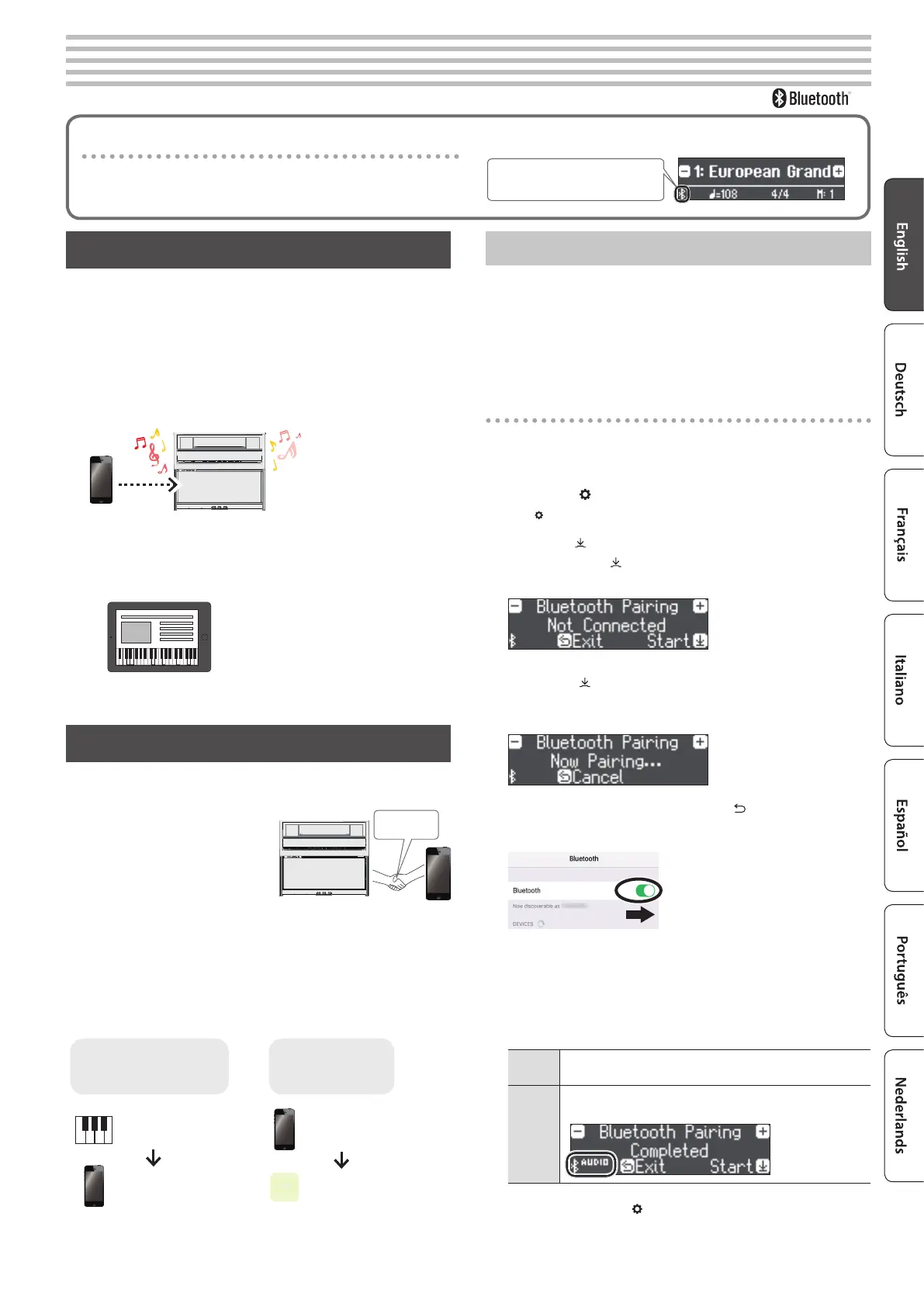
By using the Bluetooth function, you can wirelessly connect the
piano with a mobile device such as your smartphone or tablet,
allowing you to do the following things.
A song played back on your mobile device can be heard wirelessly
through the piano’s speakers. You can also play the piano along with
the song that’s being played back.
0
“Play Music Through the Piano’s Speakers” (p. 19)
Use the piano together with an app, and enjoy a variety of content
that’s available only in the app.
0
“Using the Piano with an App” (p. 20)
App “Piano Every Day“
Setting Procedure
Pairing
To wirelessly connect the piano
with your mobile device, you must
rst perform “pairing” to create a
one-to-one connection between
the piano and your mobile device.
“Pairing” is the procedure of
registering (mutually authenticating) your mobile device with the
piano.
The pairing process
Separate pairing is required for “playing music through the piano’s
speakers” and for “using the piano with an app.” Note that these
processes are dierent.
Playing music through
the piano’s speakers
Using the piano
with an app
Settings on the piano
Settings on the
mobile device
Settings on the App
App
Settings on the
mobile device
Play Music Through the Piano’s Speakers
Make settings so that music data saved on your smartphone or other
mobile device can be played wirelessly through the piano’s speakers.
As an example, we explain how to make settings for an iOS product.
* Once a mobile device has been paired with this piano, there is no
need to perform pairing again. Refer to “Connecting an already-
paired mobile device” (p. 20)
Pairing
1. Place the mobile device that you want to connect
near the piano.
2. Press the [ ] button.
The [ ] button is lit, and the piano is in function mode.
3. Turn the [ ] knob to access the “Bluetooth“ screen,
and press the [ ] knob to conrm.
The following screen appears.
4. Press the [ ] knob to begin pairing.
The display indicates “Now pairing...,” and the piano waits for a
response from the mobile device.
If you decide to cancel pairing, press the [ ] button.
5. Turn on the Bluetooth function of the mobile device.
6. Tap “LX708 Audio,” “LX706 Audio,” or “LX705 Audio”
that appears in the mobile device’s Bluetooth
“DEVICES” eld.
The piano and mobile device are paired. When pairing is
completed, a display like the following appears.
Mobile
device
“LX708 Audio,” “LX706 Audio,” or “LX705 Audio” are
added in the “My Devices” eld
Piano
The screen indicates “Completed,” and “AUDIO” is
shown beside the Bluetooth symbol
7. Press the piano’s [ ] button to exit function mode.
Pairing is complete.
Pairing
Provision of Bluetooth functionality
Please be aware that depending on the country in which you
purchased the piano, Bluetooth functionality might not be included.
The Bluetooth logo appears
when you turn on the power.
If Bluetooth functionality is included


 To Next Page