21
Connecting the Piano and a Mobile Device via Bluetooth
1
Make sure that the piano’s Bluetooth function is “On”
2
Exit all apps on your mobile device
3
If already paired, cancel pairing, and turn o the
Bluetooth function
4
Perform the pairing procedure of p. 20 from step 1
1
Make sure that the piano’s Bluetooth function is “On”
1. Press the piano’s [ ] button.
The [ ] button is lit, and the piano is in function mode.
2. Turn the [ ] knob to access the “Bluetooth” screen, and
press the [ ] knob to conrm.
You enter the Bluetooth setting screen.
3. Turn the [ ] knob to access the “Bluetooth On/O”
screen, and press the [ ] knob to conrm.
4. Turn the [ ] knob to select “On.”
The piano’s Bluetooth function turns on.
5. Press the [ ] button.
The [ ] button goes dark, and you exit function mode.
2
Exit all apps on your mobile device
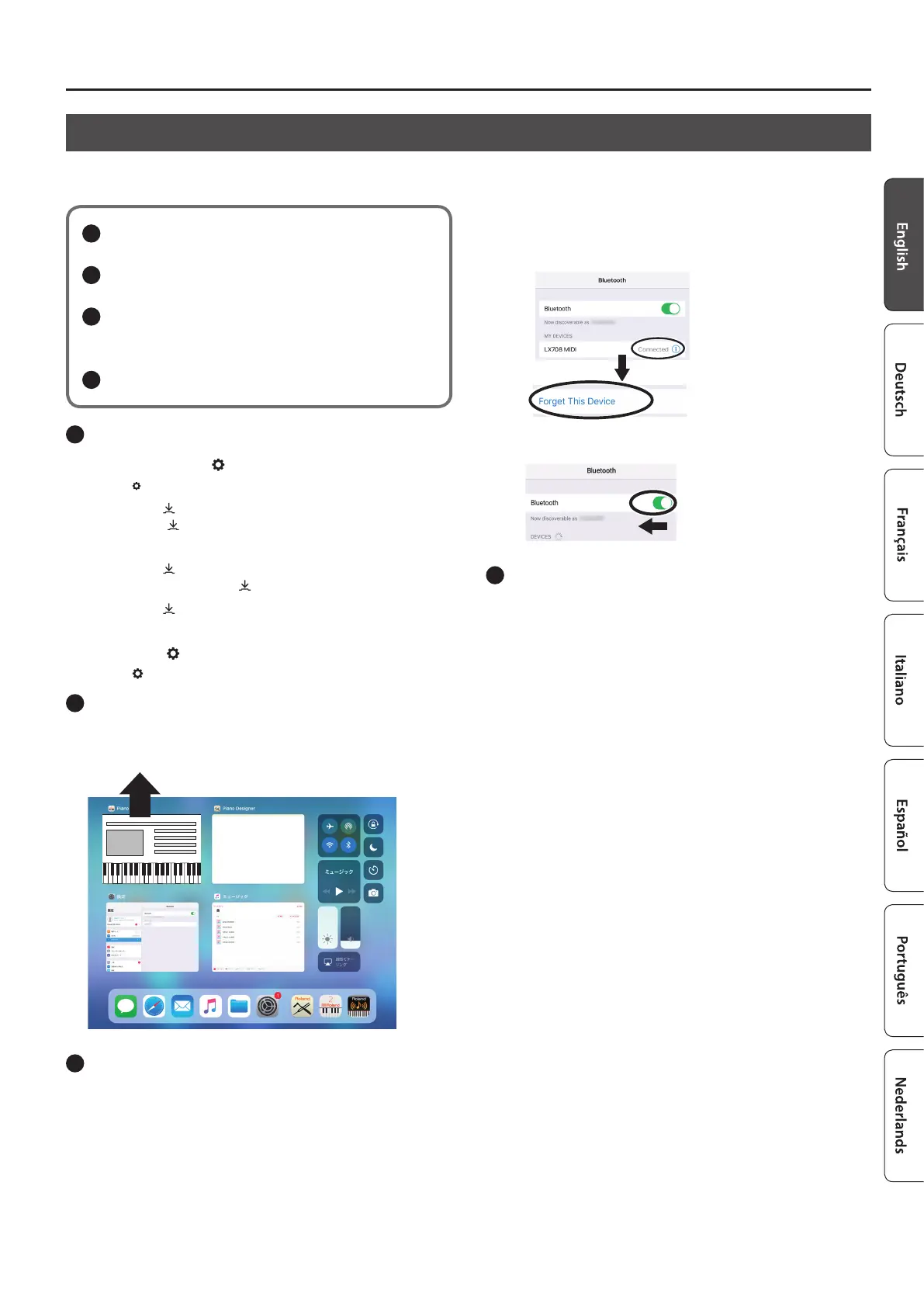
Closing the app
Double-click the home button, and swipe up on the app screen.
3
If already paired, cancel pairing, and turn o the
Bluetooth function
Clearing the pairing
1. In the mobile device’s screen, tap the “i” located beside
“Connected,” and tap “Forget This Device.”
2. Turn the Bluetooth switch o.
4
Perform the pairing procedure of p. 20 from step 1.
If you’ve checked the steps to take when pairing is not successful,
and are still unable to connect with the app, access the following
URL and nd your nearest Roland Service Center or authorized
Roland distributor in your country.
http://roland.cm/service
If You Can’t Connect via Bluetooth for Use with an App
If the pairing process of “Using the Piano with an App” (p. 20) is not successful, try the following procedure.


 To Next Page