22
ENGLISH
Operation
9. Menu settings
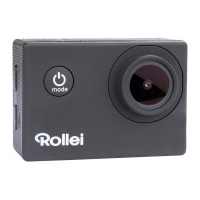
A. Press the “Power button/Mode key” to switch to the menu settings.
B. Use the up and down keys to select the menu, press the Enter key to enter
the sub-menu, and select the setting item. Press OK to confirm.
10. USB cable to the computer
Connect the camera with an USB cable to the computer and the screen will
display “Mass Storage”, “PC Camera” and “Charge battery”. Selected with
the up and down keys the desired mode and press the “Enter/OK key” to
choose the mode.
A. After entering “Mass Storage”, the computer will display a removable disk.
B. After entering “PC Camera”, the device can be used as PC camera for video
communication.
C. After entering “Charge battery”, only the battery of the camera will be
charged while it is connected to the computer.
11. WIFI connection
Frequency: 2.412 – 2.472 GHz; Transmission power: 7.08 mW
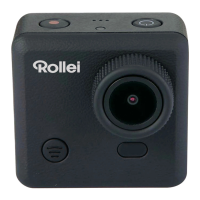
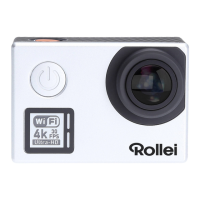
The Rollei Actioncam 372 can be connected via WiFi to a smartphone or tablet
with Android or iOS system.
A. Install the App „Goplus Cam“ on your smartphone or tablet. The app can be
downloaded in the Google Playstore or in the Apple store.



 To Next Page