32
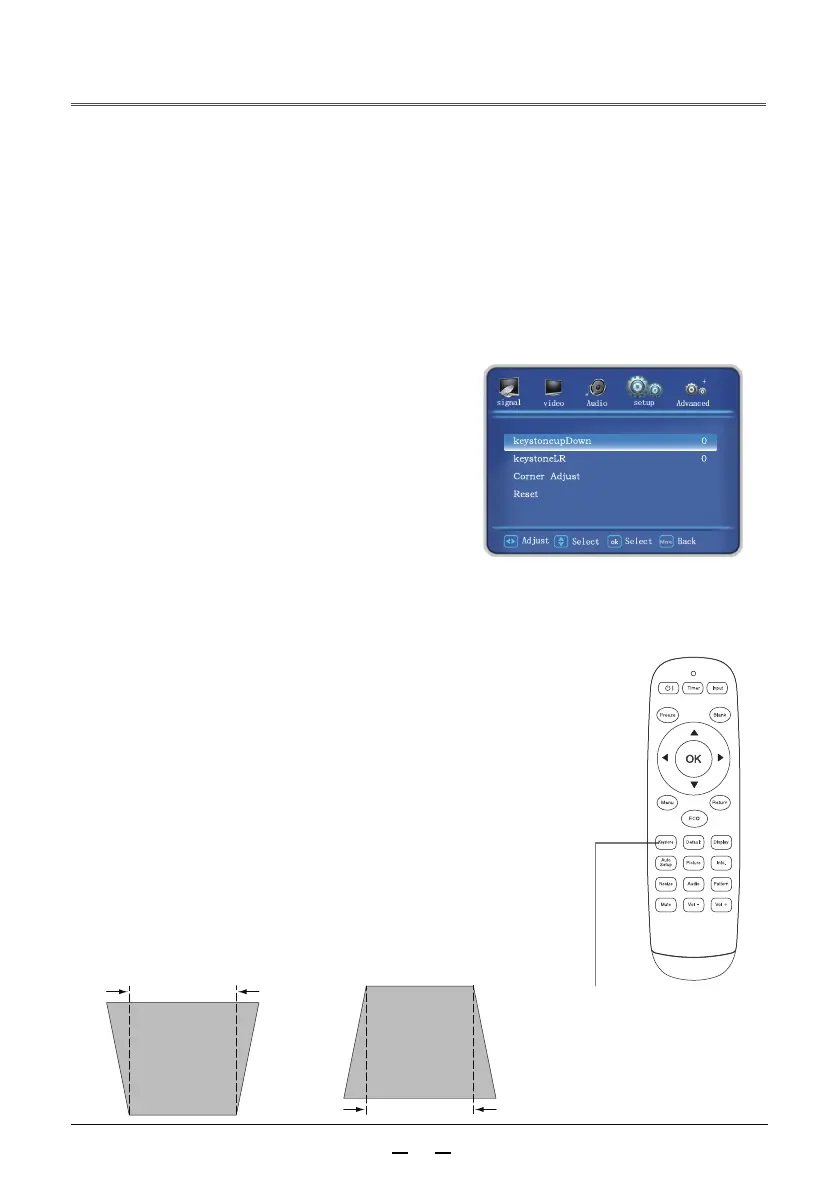
If keystone distortion occurs in the projected image, manually correct the image as follows.
Press the keystone correction button of the remote control and the “Keystone correction”
prompt box will appear (including: Keystone correction up and down, keystone correction
left and right, four-corner correction, and reset to default settings). Press▲▼buttons to
switch the item and press the OK button to select. The user can store the adjustment values
for the keystone correction.
Keystone correction
Remote control
Keystone
correction
Caution:
•
The auto keystone correction function can only correct vertical
keystone distortion, not horizontal keystone distortion.
• This function does not work when the ceiling function in the setup
menu is set to be on.
•
The auto setup function does not ensure that the image distortion
is completely corrected.
• The total number of points, horizontal and vertical positions of
some computers can be adjusted entirely by the auto computer
adjustment function. If the image is not correct after this
function adjustment, adjust manually.
Press
▲
button to
decrease the width of
the upper part.
Press
▼
button to
•
The arrow is white when there is no correction,
and turns to be yellow after correction.
•
When performing four-corner correction,
switch to the angle that needs to be adjusted,
and the red square icon turns into a red triangle.
Press the OK button to change to a green
triangle, and then the up and down and left
and right corner of keystone can be corrected.
• Press the Exit button or the Menu button to
return to the previous level.
• When the keystone correction prompt box is
displayed, if the keystone correction button on
the remote control is pressed again, the keystone
correction adjustment will be canceled.
•
The adjustable range is limited by the input signal.
decrease the width of
the lower part.



 To Next Page