Need help?
Do you have a question about the RTI T2i and is the answer not in the manual?
Provides shortcuts for easy access to service functions of touchscreen remotes and touchpanels.
Instructions to power on T2i, T2x, T3x, T4x remotes by pressing Backlight and OK buttons.
Procedure to power off T2i, T2x, T3x, T4x remotes by holding Backlight and OK buttons.
Steps to reboot the T2i remote by holding Backlight and OK buttons for an extended period.
How to display the Control Panel page on T2i, T2x, T3x, T4x remotes by holding the Backlight button.
Sequence of button presses on the Control Panel page to access T2i screen calibration.
Guidance on changing WiFi settings for T2i, T2x, T3x, T4x remotes and power cycling.
Steps to reset T2i, T2x, T3x, T4x remote battery memory: flash firmware, replace battery, charge.
Procedure to access KX2 screen calibration mode by holding a button during power-up.
Accessing the debug menu on KX3 control processors/touchpanels via button press during power-up.
This document, titled "Tips for Touchscreen Remotes & Touchpanels," provides a comprehensive guide to accessing various service functions and settings on RTI (Remote Technologies Incorporated) touchscreen remotes and touchpanels, including models T2i, T2x, T3x, T4x, KX2, and KX3. It serves as a technical bulletin offering shortcuts for programming steps, installation notes, and integration tips, aimed at assisting users with troubleshooting and maintenance.
The document details how to perform essential operations and access advanced settings on RTI touchscreen devices. It covers power management, system resets, access to control panels, screen calibration, network settings, battery management, and debug menus. These functions are crucial for the initial setup, ongoing maintenance, and diagnostic procedures of the devices.
For the T2i, T2x, T3x, and T4x remote controls, the document outlines procedures for:
For the KX2 Touchpanel, the document provides instructions for:
For the KX3 Control Processor / Touchpanel, the document details:
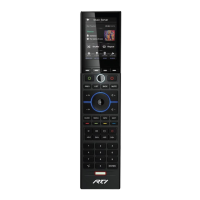
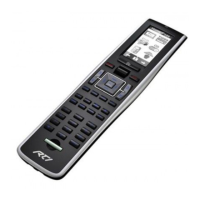
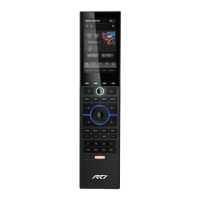
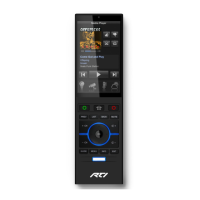
The document emphasizes ease of use through "shortcuts" for accessing service functions. These shortcuts are designed to streamline the process of diagnosing and configuring RTI devices, making them more accessible for technicians and advanced users. The clear, step-by-step instructions, often accompanied by visual aids (though not explicitly described in detail, the presence of button diagrams on pages 1 and 2 implies this), ensure that users can follow the procedures accurately.
The ability to access control panels, calibration modes, and debug menus directly from the device itself, without necessarily requiring external tools for every step, highlights a user-centric design for maintenance and troubleshooting. For instance, the power on/off sequences are simple button combinations, making basic control intuitive. The specific button sequences for calibration and debug menus, while more complex, are clearly laid out to guide the user.
The document also implicitly suggests the integration capabilities of these devices within a larger system, particularly with the mention of "Integration Designer programming" for the KX3. This indicates that these touchscreens and remotes are part of a broader control ecosystem, where their settings and functionalities can be customized and managed through specialized software.
The document is primarily a maintenance guide, offering critical information for keeping RTI touchscreen devices in optimal working condition. Key maintenance features include:
Overall, the document serves as an essential resource for anyone involved in the installation, configuration, or maintenance of RTI touchscreen remotes and touchpanels, providing clear, actionable steps for a variety of common and advanced service tasks.
 General
| Battery | Lithium-Ion |
|---|---|
| Resolution | 240 x 320 pixels |
| RF Frequency | 2.4 GHz |
| Display | 2.8 inch color LCD |
| Wireless Communication | Zigbee |
| IR Range | 30 feet |
| Connectivity | USB |
| Compatibility | RTI control systems |
| Programming | Integration Designer® software |


 To Next Page