EasyManua.ls Logo

Ruckus Wireless Xclaim Xi-2 - User Manual

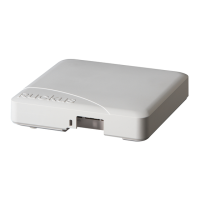
Ruckus Wireless Xclaim Xi-2
3 pages
Print Icon
To Next Page IconTo Next Page
Loading...
Copyright © 2015 Ruckus Wireless,
Inc.
Published May 2015
Xclaim Xi-2
802.11n
Wi-Fi Access
Point
Quick Setup
Guide
This Quick Setup Guide provides step-by-step instructions
on how to set up one or more Xclaim Access Points. After
completing the steps described in this Guide, you will be
able to install the Access Points (APs) at your site and
provide wireless network access to users.
BEFORE YOU
B
EGIN
Your Xclaim Access Point can be managed either by the
“CloudManager for Xclaim” web application or the
“Harmony for Xclaim” mobile application.
If you decide to use Harmony to manage your Access
Points locally, you will need to download the Harmony for
Xclaim mobile application. Harmony is supported on iOS
platforms (iPhone, iTouch and iPad) and can be
downloaded for free from Apple store. Harmony is also
available for Android Smartphones and can be downloaded
for free from the Google Play store.
PACKAGE CONTENTS
Xclaim Xi-2 Access Point
Mounting screws and anchors (2)
Security screw
Unit removal pin
Regulatory flyer
Product warranty statement
1 x Cat5e Patch Cable
1 x 802.3af PoE Injector
This Quick Setup Guide
SETUP R
EQUIREMEN
T
S
You will need:
An iOS or Android device with the “Harmony for
Xclaim” application loaded and running
(or)
An account on CloudManager for Xclaim.
A modem (DSL or cable), broadband router, or other
device provided by your Internet Service Provider
that brings Internet access to your site.
A DHCP server to provide IP addresses to your
Access Point and wireless clients that connect to it.
Either a PoE injector (supplied) or an optional 12V
power supply (purchased separately) or your own
802.3af or 802.3at compliant PoE switch.
STEP 1: INITIAL CONFIGURATION
Setting up the Access Point
You can initially set up your Xclaim Access Points in one
location and then later relocate them when you are satisfied
with the configuration
1 Remove the Xclaim Access Point from its
packaging
2 Power up the Access Point
a. Connect the Access Point to a 802.3af
(PoE) compliant switch.
b. Alternatively, Plug in the supplied PoE
injector to a convenient and protected
power outlet
3 Connect the “PoE out” port of the PoE injector to
the Xclaim Access Point
4 Connect the remaining Ethernet port on the PoE
injector to a spare port on your Ethernet switch or
DSL/Cable Modem
5 Once power has been supplied to the Xclaim
Access Point, verify that the Power Indicator on
the Xclaim Access Point is illuminated.
Option #1 - Setting up your CloudManager account
1.
Visit http://www.xclaimwireless.com and register
for an account. Enter a valid email-ID, username
and password.
2.
Login with either the username or email ID to
access your account.
Option #2 - Setting up HARMONY
1. After installing Harmony, open the mobile
application. You will now enter the setup Wizard.
2. Select the country, which will in turn be pushed to
Access Points and acts as the regulatory domain
for all your Access Points.
3. Please create the “Admin” password. This
password will be used to login to the mobile
application and will also be synced with the
Access Point.
4. The next screen allows you to create a network to
assign to Access Points later. You can choose to
skip this if you wish.
5. Click “Finish”. You are now ready to start
configuring your Access Point using Harmony.
STEP 2: Register/Claim Access Point(s)
Option #1 - Via CloudManager
1. When logging in for the first time, you will be
automatically shown the “Register Access Point
page.
2. Please enter the serial number of the Access
Point (found at the back of the Access Point),
configure an Access Point name and other
Question and Answer IconNeed help?

Do you have a question about the Ruckus Wireless Xclaim Xi-2 and is the answer not in the manual?

Summary

Setup Requirements and Before You Begin

Initial Configuration Steps

Provides initial configuration steps for setting up the Access Point, including powering it on and verifying the power indicator.

CloudManager Account Setup

Instructions for registering an account on CloudManager for Xclaim and logging in to access your account.

Harmony Mobile Application Setup

Guidance on installing and using the Harmony for Xclaim mobile application for local management.

Access Point Registration and Network Creation

Registering Access Points via CloudManager

Steps to register your Access Point using your CloudManager account, including entering serial numbers.

Registering Access Points via Harmony

Process for registering your Access Point through the Harmony mobile application.

Creating Networks via CloudManager

Instructions for creating new networks (WLANs/SSIDs) using the CloudManager web application.

Creating Networks via Harmony

Steps to create new networks (WLANs/SSIDs) using the Harmony mobile application.

Connecting Networks and Verifying Installation

Attaching Networks via CloudManager

Procedure to attach a created network to an Access Point via the CloudManager interface.

Attaching Networks via Harmony

Steps to attach a created network to an Access Point using the Harmony mobile application.

Placing the Access Point

Guidance on physically locating and connecting the Access Point using Ethernet and PoE cables.

Verifying Installation

Instructions to confirm the Access Point is installed and the wireless network is operational.

Mounting Instructions

Mounting to a Flat Surface

Detailed steps for mounting the Xclaim Access Point to a wall or ceiling using screws and anchors.

Mounting to a T-Bar

Instructions for attaching the Access Point to a T-bar ceiling grid using the built-in clips.

Security Screw Installation

Guidance on using a Torx screwdriver to install a security screw for physical protection.

Overview

The Xclaim Xi-2 802.11n Wi-Fi Access Point, developed by Ruckus Wireless, is a device designed to provide wireless network access to users. This quick setup guide outlines the steps for initial configuration, network creation, access point placement, and optional mounting instructions.

Function Description:

The Xclaim Xi-2 is a Wi-Fi Access Point (AP) that facilitates wireless network connectivity. It can be managed through two primary interfaces: the "CloudManager for Xclaim" web application or the "Harmony for Xclaim" mobile application. The device supports the creation of wireless local area networks (WLANs) and Service Set Identifiers (SSIDs), allowing users to connect to the internet wirelessly. Its management capabilities include registering access points, configuring network settings, and monitoring device status. The AP is designed for both initial setup in one location and subsequent relocation, offering flexibility in deployment.

Important Technical Specifications:

While specific detailed technical specifications like throughput, frequency bands, or antenna gain are not explicitly listed in this quick setup guide, several key operational requirements and features are mentioned:

  • Wireless Standard: 802.11n (as indicated in the product name).
  • Power over Ethernet (PoE): The device is 802.3af compliant and can be powered either by a supplied PoE injector or an existing 802.3af or 802.3at compliant PoE switch.
  • Ethernet Connectivity: It features a 10/100/1000 port for network connection. A Cat 5e (or better) Ethernet cable is recommended for PoE connections.
  • Power Indicator: The Access Point has a power indicator LED to confirm power supply.
  • LED Status: The AP's LED color changes to "SOLID/CONSTANT GREEN" once it is successfully configured and ready.
  • DHCP Server Requirement: A DHCP server is necessary to provide IP addresses to the Access Point and connected wireless clients.
  • Internet Connectivity: Requires a modem (DSL or cable), broadband router, or other device from an Internet Service Provider to bring internet access to the site.
  • Mounting: Supports mounting to a wall, ceiling, or T-bar using supplied screws or built-in T-bar clips.

Usage Features:

  • Dual Management Options:
    • CloudManager for Xclaim: A web-based application accessible via http://www.xclaimwireless.com. Users can register for an account, log in, and manage their Access Points from a web browser. This platform allows for registering multiple APs, configuring network settings, and applying configurations.
    • Harmony for Xclaim (Mobile Application): Available for iOS (iPhone, iTouch, iPad) and Android smartphones. This application guides users through a setup wizard, allowing them to select their country (which sets the regulatory domain), create an admin password, and define networks. It facilitates local management of Access Points.
  • Easy Setup Wizard: The Harmony app provides a step-by-step wizard for initial setup, simplifying the configuration process for mobile users.
  • Network Creation: Users can create new networks/WLANs/SSIDs, define security settings (e.g., WPA2 passphrase), and specify broadcast SSID options.
  • AP Registration: Access Points can be registered by entering their serial number, assigning a name, and configuring other parameters.
  • Configuration Application: Once a network is created, it can be attached to an Access Point through either CloudManager or Harmony. The "xclaim-setup" SSID is automatically disabled, and the custom WLAN is enabled upon successful application of the configuration.
  • Relocation Flexibility: Access Points can be initially set up in one location and then moved to their permanent position after configuration is complete.
  • Verification: After installation, users can verify the setup by connecting to the configured wireless network using any wireless-enabled device and accessing a public website.

Maintenance Features:

  • Physical Security: The device supports an optional security screw for added physical security when mounted. A Torx screwdriver is required for this.
  • Unit Removal Pin: A unit removal pin is provided to release the lock mechanism for unmounting the Access Point from flat surfaces or to disengage T-bar clips.
  • LED Indicators: The power indicator and Ethernet port LEDs provide visual cues for operational status and troubleshooting. The "SOLID/CONSTANT GREEN" LED status signifies successful configuration.
  • Firmware Updates: While not explicitly detailed in the quick setup guide, a comprehensive user guide (mentioned for advanced wireless settings) would typically cover firmware update procedures, which are crucial for security and performance maintenance.
  • Troubleshooting: The guide implicitly supports basic troubleshooting through LED status checks and network connectivity verification. For advanced issues, the Xclaim Access Point User Guide is referenced.

Ruckus Wireless Xclaim Xi-2 Specifications

General IconGeneral
BrandRuckus Wireless
ModelXclaim Xi-2
CategoryWireless Access Point
LanguageEnglish

Related product manuals