EasyManua.ls Logo

Samsung 403 - Basic Functions; Changing the Picture Mode; Selecting a Source; Setting the Clock

Samsung 403
49 pages
Print Icon
To Next Page IconTo Next Page
To Previous Page IconTo Previous Page
Loading...
Your
1V
has
several
screen
size
options,
each
designed
to
worl<
best
with
specific
Your
1V
has
three
preset
Picture
Modes
with
factory
adjusted
settings,
each
types
of
video
input.
If
you
have
a
cable
box
or
satellrre
receiver,
rr
may
have
rrs
own
designed
to
give
you
an
excelklnt
pk:ture
under
specific
conditions.
set
of
screen
sizes
as
well.
The
Picture
Modes
are
listed
and
described
in
the table
below:
~
-
~~':191:1
.
~~
-
~
---··
..........................................................................
<:;<>.'.1~~':19
.
/ii
..
I:J.~~
--
~yi~
_
fc:l~
-
~~i~
..
F.'I~y
___
_
To
watch
a
movie
on
your
Blu-ray
player
or
watch
your
favorite
1V
show,
you
must
select
the
correct
source.
A
source
is
a
device,
such
as a
Blu-ray/
DVD
player,
a
cable/satellrre
box,
antenna
or
a
cable
1V
input.
Sources
can
be
connected to
your
1V
through
the
HDMI,
DVI,
Component,
Composite,
or 0-sub
connections,
or
through
the
Antenna
or
Cable
In
connections.
DOWER
sc.~c:
<!.>
B
You
can
enjoy
photo
and
music
files
stored
on a
USB
device
by
connecting
~to
the
1V
and
using
the
Media
Play
feature
.
To
connect a
USB
device
for
Media
Play,
follow
these
steps:
1V
Rear
Panel
ril
To
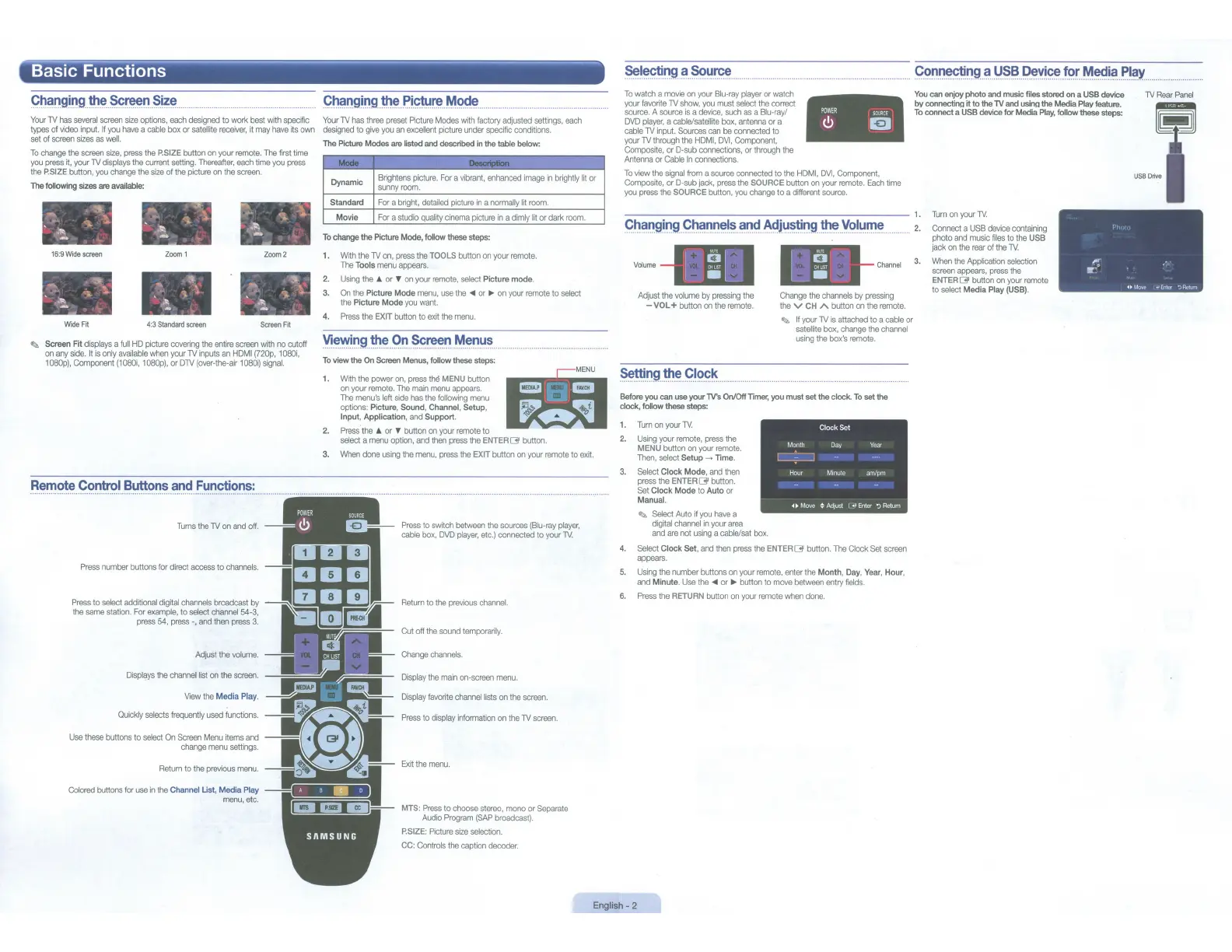
change
the
screen
size,
press
the
P.SIZE
button
on
your
remote.
The
first
time
you
press
it,
your
lV
displays
the
current
setting.
Thereafter,
each
time
you
press
the
P.SIZE
button,
you
change
the
size
of
the
picture
on
the
screen.
Dynamic
Brightens
picture.
For
a
vibrant,
enhanced
image
in
brightly
lit
or
To
view
the
signal
from
a
source
connected
to
the
HOMI,
OVI,
Component,
Composite,
or 0-sub
jack,
press
the
SOURCE
button
on
your
remote.
Each
time
you
press
the
SOURCE
button,
you
change
to
a
different
source.
USB
Drive
The
following
sizes
are
available:
16:9
Wide
screen
Zoom1
Zoom2
Wide
Fit
4:3
Standard
screen
Screen
Fit
~
Screen
Fit
displays
a
full
HD
picture
covering
the
entire
screen
with
no
cutoff
on
any
side.lt
is
only
available
when
your
1V
inputs
an
HDMI
(720p,
1()8(],
1080p),
Component
(1080i,
1080p),
or
DIY
(over-the-air
1080ij
signal.
Remote
Control
Buttons
and
Functions:
Turns
the
TV
on
and
off.
sunny
room.
Standard
For
a
bright,
detailed
picture
in
a
normally
lit
room.
Movie
For
a
studio
quality
cinema
picture
in
a
dimly
lit
or
dark
room.
To
change
the
Picture
Mode, follow
these
steps:
1.
Wrrh
the
1V
on,
press
the
TOOLS
button
on
your
remote.
The
Tools
menu
appears.
2.
Using
the
.&.
or
'Y
on
your
remote,
select
Picture
mode.
3.
On
the
Picture Mode
menu,
use
the
,...
or
..,..
on
your
remote
to
select
the
Picture
Mode
you
want.
4.
Press
the
EXIT
button
to
exrr
the
menu.
Yi~~
-
i~g
-
~
-
~
-
Q~~~~
--
P1/1
.
~':1~
.
~
---·
To
view
the
On
Screen
Menus,
follow
these
steps:
1.
With
the
power
on,
press
thO
MENU
button
on
your
remote.
The
main
menu
appears.
The
menu's
left
side
has
the
following
menu
options: Picture,
Sound,
Channel, Setup,
Input,
Application,
and
Support.
2.
Press
the
.&.
or
'Y
button
on
your
remote
to
select
a
menu
option,
and
then
press
the
ENTER
1:3'
button.
3.
When
clone
using
the
menu,
press
the
EXIT
button
on
your
remote
to
exrr.
Press
to
swrrch
between
the
sources
(Biu-ray
player,
cable
box,
OVD
player,
etc.)
connected
to
your
1V.
Press
number
buttons
for
direct
access
to
channels.
!!!!)
I I
II
Press
to
se~
additional
digrral
channels
broadcast
by
~!..;..
ft
-
~
-
J~
the
same
station.
For
example,
to
select
channel
54-3,
-._._...
piiiiiiii..-
press
54,
press-,
and
then
press
3.
Adjust
the
volume.
Displays
the
channel
list
on
the
screen.
Vt8W
the
Media
Play.
Quickly
selects
frequent~
used
functions.
Use
these
buttons
to
select
On
Screen
Menu
items
and
change
menu
settings.
Return
to
the
previous
menu.
Colored
buttons
for
use
in
the
Channel
Ust, Media
Play
menu,
etc.
Return
to
the
previous
channeL
Cut
off
the
sound
ternporari~.
Change
channels.
Display
the
main
on-screen
menu.
Display
favorite
channel
lists
on
the
screen.
Press
to
display
information
on
the
1V
screen.
Exit
the
menu.
MTS:
Press
to
choose
stereo,
mono
or
Separate
Audio
Program
(SAP
broadcast).
P.SIZE
:
Picture
size
selection.
CC:
Controls
the
caption
decoder.
---------,----:-::-:-:--~---::--:-:---:----
1.
Tum
on
your
IV.
<:;~/il'.l9ir:'g
<:;~1:1':1~~~~
.
/il~~
~~jiJ.~~g
~~Y<:)IlJ.r.!'l~
uu
u
2.
~t=
~::~o";:~n~~
Volume
Adjust
the
volume
by
pressing
the
-VOL+
button
on
the
remote.
~!li
.
':19
..
~
-
~<:;I~C::~
....
Channel
Change
the
channels
by
pressing
the
v
CH
A
button
on
the
remote.
'-
If
your
1V
is
attached
to a
cable
or
satellrre
box,
change
the
channel
using
the
box's
remote.
Before
you
can
use
your
TV's
On/Off
Timer,
you
must
set
the
clock.
To
set
the
clock, follow
these
steps:
1.
Turn
on
your1V.
2.
Using
your
remote,
press
the
MENU
button
on
your
remote.
Then,
select
Setup -
Time.
3.
Select
Clock Mode,
and
then
press
the
ENTER
[31
button.
Set
Clock
Mode
to
Auto
or
Manual.
""'
Select
Auto
~you
have
a
digrral
channel
in
your
area
and
are
not
using
a
cable/sat
box.
Cl
oc
k
Set
Month
Day
Year
Hour
M1nute
am/pm
U
Move
;
Adrust
I
oil
Enter
")
Rettm
4.
Select
Clock Set,
and
then
press
the
ENTER
[31
button.
The
Clock
Set
screen
appears.
5.
Using
the
number
buttons
on
your
remote,
enter
the
Month,
Day
,
Year,
Hour,
and
Minute.
Use
the
,...
or
..,..
button to
move
between
entry
fields.
6.
Press
the
RETURN
button
on
your
remote
when
done.
English-
2
jack
on
the
rear
of
the
IV.
3.
When
the
Application
selection
screen
appears,
press
the
ENTER
1:3'
button
on
your
remote
to
select
Media
Play
(USB).
.:::
H
Mo-..>
"'[,"'-•
")f\_'1\n>

Related product manuals