Initial Setup
When you turn on your TV for the first time, it immediately starts the Initial Setup. Follow the instructions displayed on the screen and
configure the TV’s basic settings to suit your viewing environment.
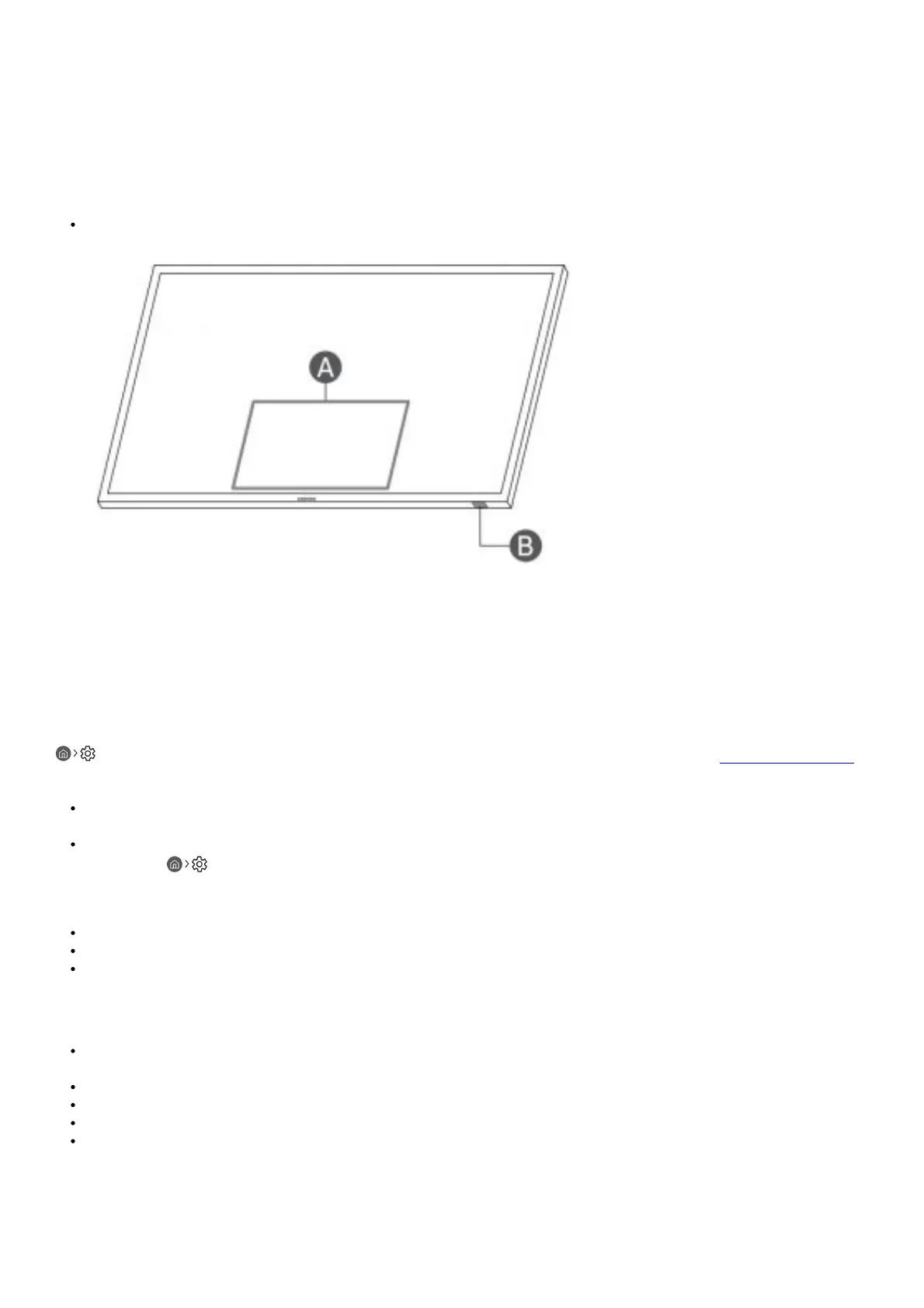
Using the TV Controller
You can turn on the TV with the TV Controller button at the bottom of the TV, and then use the Control menu. The Control menu
appears when the TV Controller button is pressed while the TV is On.
The screen may dim if the protective film on the SAMSUNG logo or the bottom of the TV is not detached. Please remove the
protective film.
1. Control menu
2. TV Controller button / Remote control sensor
Troubleshooting and Maintenance
Troubleshooting
For more information, see “Troubleshooting” or “FAQ” in the e-Manual.
Settings > e-Manual > Troubleshooting or FAQ If none of the troubleshooting tips apply, please visit “ www. samsung.com”
and click Support or contact the Samsung service centre.
This TFT LED panel is made up of sub pixels which require sophisticated technology to produce. There may be, however, a few
bright or dark pixels on the screen. These pixels will have no impact on the performance of the product.
To keep your TV in optimum condition, upgrade to the latest software. Use the Update Now or Auto update functions on the
TV’s menu ( Settings > Support > Software Update > Update Now or Auto update).
The TV won’t turn on
Make sure that the AC power cable is securely plugged in to the TV and the wall outlet.
Make sure that the wall outlet is working and the remote control sensor at the bottom of the TV is lit and glowing a solid red.
Try pressing the TV Controller button at the bottom of the TV to make sure that the problem is not with the remote control. If the
TV turns on, refer to “The remote control does not work
The remote control does not work
Check if the power indicator at the bottom of the TV blinks when you press the remote’s Power button. If it does not, replace the
remote control’s batteries.
Make sure that the batteries are installed with their poles (+/–) in the correct direction.
Alkaline batteries are recommended for longer battery life.
Try pointing the remote directly at the TV from 1.5-1.8 m away.
If your TV came with a Samsung Smart Remote (Bluetooth Remote), make sure to pair the remote to the TV.
Eco Sensor and screen brightness
Eco Sensor adjusts the brightness of the TV automatically.
This feature measures the light in your room and optimises the brightness of the TV automatically to reduce power consumption. If




 To Next Page