EasyManua.ls Logo

Samsung BD-C6500 - Internet@TV Service Usage; Accessing Internet@TV

Samsung BD-C6500
86 pages
Print Icon
To Next Page IconTo Next Page
To Previous Page IconTo Previous Page
Loading...
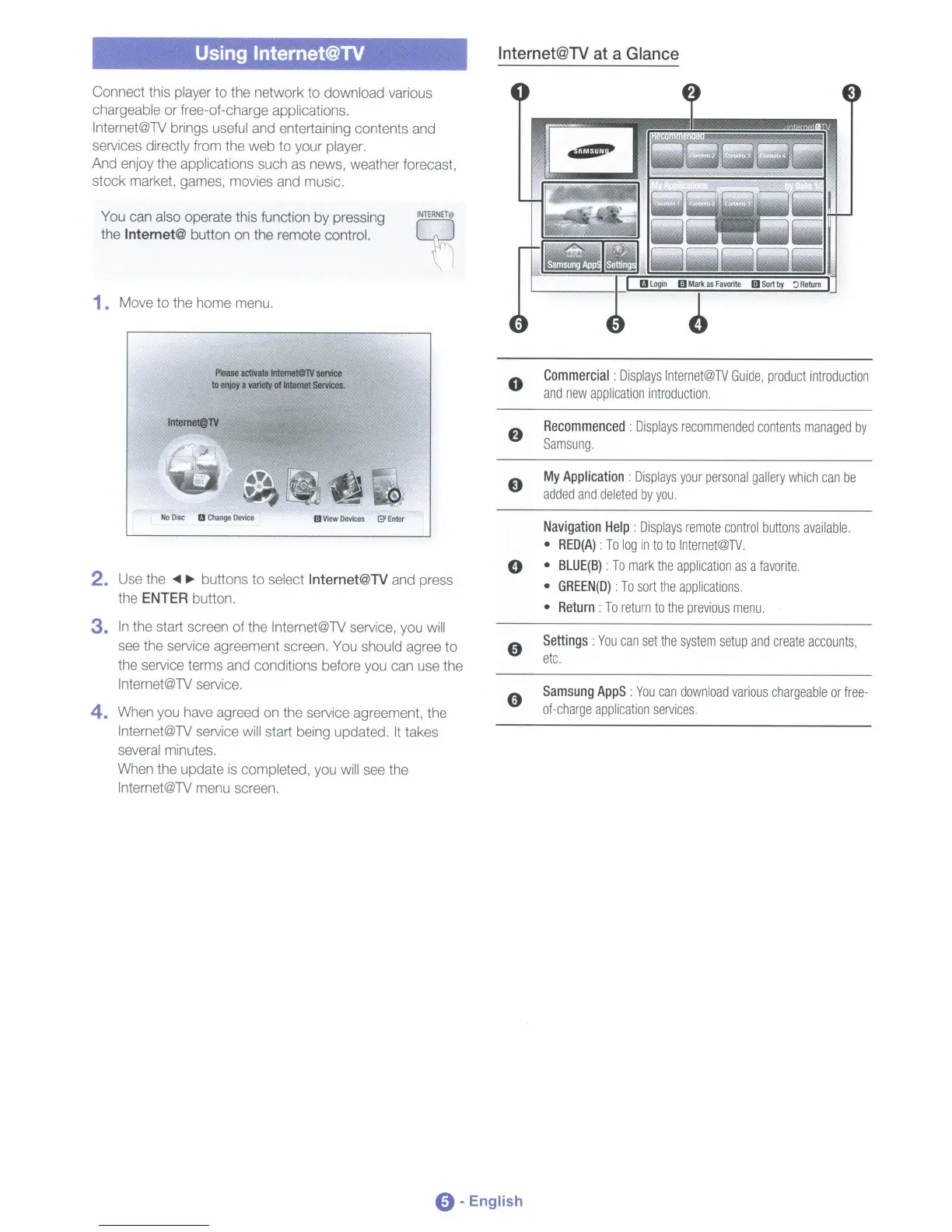
Using Internet@TV
Connect
this
player
to
the
network to download various
chargeable
or
free-of-charge applications.
Internet@1V
brings
useful
and
entertaining contents
and
services directly
from
the
web to your
player.
And
enjoy
the
applications
such
as
news, weather forecast,
stock market,
games,
movies
and
music.
You
can
also
operate this function
by
pressing
the
Internet@ button
on
the remote control.
1.
Move
to
the
home
menu.
Internet@TV
at
a Glance
Please
activate
lntemetOTV
service
to
enjoy
a
variety
of
Internet
5erviclls.
o
Commercial:
Displays
Internet@TV
Guide,
product
introduction
and
new
application
introduction.
Intemet@lV
Recommenced:
Displays
recommended
contents
managed
by
Samsung.
My
Application:
Displays
your
personal
gallery
which
can
be
added
and
deleted
by
you.
2.
Use
the
...
~
buttons to select Internet@TV
and
press
the
ENTER button.
3.
In
the
start
screen
of
the
Internet@1V
service,
you
will
see
the
service agreement screen.
You
should
agree
to
the
service
terms
and
conditions before
you
can
use
the
Internet@1V
service.
4.
When
you
have
agreed
on
the
service agreement,
the
Internet@1V
service
will
start
being
updated.
It
takes
several
minutes.
When
the
update
is
completed,
you
will
see
the
Internet@1V
menu
screen.
No
Disc
D
Change
Device
iii
V'1eW
DeYlces
13'
Enter
Navigation
Help:
Displays
remote
control
buttons
available.
RED(A):
To
log
in
to to
Internet@TV.
BLUE(B):
To
mark
the
application
as
a
favorite.
GREEN(D):
To
sort
the
applications.
Return:
To
return
to
the
previous
menu.
Settings:
You
can
set
the
system
setup
and
create
accounts,
etc.
Sam
sung
AppS
:
You
can
download
various
chargeable
or
free-
of-charge
application
services.
0-
English

Table of Contents

Related product manuals