EasyManua.ls Logo

Samsung BD-E5300 - User Manual

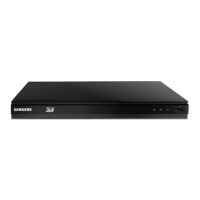
Samsung BD-E5300
28 pages
Print Icon
To Next Page IconTo Next Page
Loading...
imagine the possibilities
Thank you for purchasing this Samsung product.
To receive more complete service,
please register your product at
www.samsung.com/register
Blu-ray
Disc Player
user manual
BD-E5300
ENGLISH

Other manuals for Samsung BD-E5300

Questions and Answers

  • R
    Raymond TapiaAug 19, 2025
    What to do if Samsung Blu-ray Player remote control is not working?
    • G
      Gary BarkerAug 20, 2025
      If your Samsung Blu-ray Player remote control isn't working, first check the batteries and replace them if needed. Ensure you're within 20 feet of the player. If that doesn't work, try resetting the remote by removing the batteries, holding down one or more buttons for several minutes, then reinstalling the batteries.
  • J
    Jacob MorrisAug 22, 2025
    Why is there no HDMI output from my Samsung Blu-ray Player?
    • T
      Taylor GloverAug 22, 2025
      If you see no HDMI output from your Samsung Blu-ray Player, check the connection between the TV and the player's HDMI jack. Also, verify that your TV supports the HDMI input resolution (480p, 720p, 1080i, 1080p).
  • P
    Paul HarrisAug 23, 2025
    How to reset forgotten password on Samsung Blu-ray Player?
    • C
      Connor MccarthyAug 25, 2025
      To reset a forgotten password on your Samsung Blu-ray Player, press and hold the PLAY/PAUSE button on the front panel for more than 5 seconds when there is no disc inside. This will revert all settings, including the password, to factory defaults. Be aware that this will delete all stored user BD data.
  • C
    Crystal PerezAug 26, 2025
    Why is the AllShare connection between Samsung Blu-ray Player and PC unstable?
    • J
      jennifer48Aug 26, 2025
      If you are experiencing an unstable AllShare connection between your Samsung Blu-ray Player and PC, the IP addresses under the same subnetwork should be unique to prevent IP interference. Also, check if you have a firewall enabled and, if so, disable it.
  • T
    Timothy MaddoxAug 27, 2025
    How to fix no audio on Samsung Blu-ray Player?
    • A
      avalentineAug 28, 2025
      To resolve a no audio issue with your Samsung Blu-ray Player, ensure you've selected the correct Digital Output in the Audio Options Menu.
  • J
    Jimmy Becker MDAug 29, 2025
    Why is my Samsung Blu-ray Player not playing the disc?
    • E
      Edwin FloresAug 30, 2025
      If your Samsung Blu-ray Player disc isn't playing, make sure the disc is placed with the label side facing up. Also, check the region number of the Blu-ray Disc/DVD to ensure it's compatible with your player.
  • B
    Bridget CaldwellAug 31, 2025
    What to do if the screen is blocked on Samsung Blu-ray Player?
    • A
      allenhouseAug 31, 2025
      If the screen on your Samsung Blu-ray Player is blocked, and you can't see a picture, it might be due to the HDMI output being set to a resolution your TV doesn't support, like 1080p. You can reset the player to factory settings by pressing the PLAY/PAUSE button on the front panel for more than 5 seconds without a disc inside; be aware that this will erase all stored user data.
  • M
    Monica WilliamsSep 2, 2025
    Why is the picture noisy or distorted on my Samsung Blu-ray Player?
    • P
      Paul HowardSep 3, 2025
      If the picture from your Samsung Blu-ray Player is noisy or distorted, ensure the disc isn't dirty or scratched. If it is, try cleaning the disc.
  • J
    Joseph CarpenterSep 5, 2025
    What does abnormal HDMI output screen mean on Samsung Blu-ray Player?
    • J
      John BaileySep 5, 2025
      If you see random noise on the screen when using your Samsung Blu-ray Player, it indicates that your TV does not support HDCP (High-bandwidth Digital Content Protection).
  • A
    Anne BarnesSep 7, 2025
    Why is video played intermittently on Samsung Blu-ray Player?
    • S
      Stephanie WillisSep 7, 2025
      If video playback on your Samsung Blu-ray Player is intermittent, check if your network is stable. Also, verify that the network cable is properly connected and that the network isn't overloaded.

Summary

Safety Information

Warning and Cautionary Notes

General safety warnings about electric shock, fire, and product care.

Laser Product Safety and Precautions

Important Safety Instructions

Detailed safety instructions for operating the player, including electrical safety.

Setup Procedures

Initial Setup Process

Step-by-step guide for initial player setup, including language and network.

Connection Procedures

Connecting to a TV via HDMI

Step-by-step guide for connecting the player to a TV via HDMI for best quality.

Audio System Connections

HDMI Audio Connection

Connects to an HDMI-supported AV receiver for best audio quality.

Coaxial Audio Connection

Connects to an AV receiver with Dolby Digital/DTS for better audio.

Network Connectivity Setup

Wired Network Connection

Instructions for connecting the player to a network using a LAN cable.

Initial Setup and Navigation

Initial Settings Procedure

Step-by-step guide for initial player setup, including language and network.

Display Settings Configuration

TV Aspect Ratio Adjustment

Adjusts screen size settings for different TV aspect ratios.

Resolution Settings

Sets the output resolution for the HDMI video signal.

Advanced Display and Audio Settings

Digital Output Settings

Sets digital audio output to match AV receiver capabilities.

Audio Output Configuration

Network Setup Procedures

Automatic and Manual Network Setup

Guides through automatic and manual network configuration.

System Settings Management

Security and Parental Controls

Sets PIN, parental ratings, and locks for online services.

Security and Support Features

Software Upgrade Methods

Instructions for upgrading player software online, via USB, or disc.

Basic Playback Functions

Playing a Video and Playback Controls

Steps to play videos and use playback control buttons.

Advanced Playback Controls

Music Playback Features

Playing Audio CDs and MP3 Files

Instructions for playing Audio CDs and MP3 files.

Photo Playback and Tools

Playing JPEG Files and Slideshows

Instructions for playing JPEG files, managing slideshows, and using tools.

USB and Network Services

Playing Back USB Storage Devices

Using the USB connection to play multimedia files.

Network Services Overview (BD-LIVE, AllShare)

Overview of network services including BD-LIVE and AllShare.

Troubleshooting Common Issues

Remote Control and Disc Playback Problems

Solutions for remote control and disc playback problems.

Picture and HDMI Output Problems

Troubleshooting for picture quality, HDMI output, and screen issues.

AllShare and Network Connection Issues

Troubleshooting AllShare visibility, file access, and network stability.

Samsung BD-E5300 Specifications

General IconGeneral
Depth193 mm
Width360 mm
Height37 mm
Weight1300 g
DisplayLED
Device typeBlu-Ray player
Product colorBlack
Audio decodersDTS, DTS-HD, Dolby Digital Plus, Dolby TrueHD
Package weight2000 g
DVD region code3
Video upscalingYes
AC input voltage110 - 240 V
AC input frequency60 Hz
Blu-ray region codeA
Disc types supportedBD, CD, CD-R, CD-RW, DVD, DVD+R, DVD+RW, DVD-R, DVD-RW
Supported video modes-
Card reader integratedNo
USB 2.0 ports quantity1
Audio formats supportedAAC, LPCM, MP3, WAV
Image formats supportedJPG, MPO
Video formats supportedAVCHD, DIVX, MKV, MPEG2, MPEG4, WMV
Digital audio optical out0
Analog signal format systemPAL
Power consumption (standby)0.3 W
Power consumption (typical)12.6 W
Sustainability certificatesENERGY STAR
On Screen Display (OSD) languagesEnglish
Consumer Electronics Control (CEC)Anynet+
Network streaming services supportedYouTube
Audio output channels2.0 channels

Related product manuals