EasyManua.ls Logo

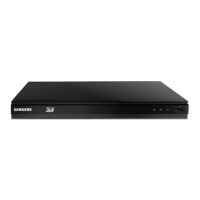
Samsung BD-E5900 - User Manual

Samsung BD-E5900
59 pages
Print Icon
To Next Page IconTo Next Page
Loading...
imagine the possibilities
Thank you for purchasing this Samsung product.
To receive more complete service,
please register your product at
www.samsung.com/register
Blu-ray
Disc Player
user manual
BD-E5900

Table of Contents

Other manuals for Samsung BD-E5900

Questions and Answers

  • K
    khernandezAug 19, 2025
    Why is my Samsung BD-E5900 remote not working?
    • R
      ryan37Aug 19, 2025
      If your Samsung Blu-ray Player remote control isn't working, first, try replacing the batteries. If that doesn't work, make sure you're within 20 feet of the player when using the remote. As a last resort, you can reset the remote by removing the batteries, holding down one or more buttons for several minutes, and then reinstalling the batteries.
  • M
    mckinneyjessicaAug 21, 2025
    What to do if my Samsung BD-E5900 screen is blank?
    • A
      Amy AlvaradoAug 21, 2025
      If you're seeing a blank screen with your Samsung Blu-ray Player, it could be due to the HDMI output resolution being set too high for your TV. Try pressing the 'p' button on the front panel for more than 5 seconds without a disc inside. This will restore all settings to the factory defaults. Note that all stored user BD data will be deleted.
  • J
    Joel HuffAug 23, 2025
    How to fix no HDMI output on Samsung BD-E5900 Blu-ray Player?
    • D
      Derrick SuttonAug 23, 2025
      To resolve the 'No HDMI output' issue on your Samsung Blu-ray Player, start by checking the HDMI connection between the player and your TV. Also, verify that your TV supports the HDMI input resolution (480p, 720p, 1080i, or 1080p).
  • K
    Karen GoodmanAug 26, 2025
    What to do if my Samsung BD-E5900 Blu-ray Player disc does not play?
    • J
      Joshua PattonAug 26, 2025
      If your Samsung Blu-ray Player isn't playing a disc, make sure the disc is inserted correctly with the label side facing up. Also, verify that the region code of the Blu-ray Disc or DVD is compatible with your player.
  • K
    Karen TerryAug 27, 2025
    How to reset forgotten password on Samsung BD-E5900?
    • J
      Jessica MillsAug 27, 2025
      To restore your password on a Samsung Blu-ray Player, press and hold the 'p' button on the front panel for more than 5 seconds without any disc inside. This will reset all settings, including the password, to the factory defaults. Be aware that all stored user BD data will be erased.
  • B
    brandonsandersAug 30, 2025
    How to fix no audio on Samsung Blu-ray Player?
    • D
      debra99Aug 30, 2025
      If you're not getting any audio from your Samsung Blu-ray Player, ensure that you've selected the correct Digital Output in the Audio Options Menu.
  • H
    Henry MorrisSep 1, 2025
    Why is the AllShare connection unstable between my Samsung BD-E5900 and PC?
    • D
      Dennis LevineSep 1, 2025
      If the AllShare connection between your Samsung Blu-ray Player and PC is unstable, ensure that all IP addresses within the same subnetwork are unique to avoid IP interference. Also, check if you have a firewall enabled; if so, try disabling it.
  • L
    Linda HamiltonSep 3, 2025
    Why is the picture noisy or distorted on my Samsung Blu-ray Player?
    • B
      Benjamin BradshawSep 3, 2025
      If the picture on your Samsung Blu-ray Player is noisy or distorted, check the disc for dirt or scratches. If necessary, clean the disc carefully.
  • W
    Walter GoodSep 5, 2025
    Why does video play intermittently on Samsung BD-E5900 Blu-ray Player?
    • B
      Benjamin TuckerSep 5, 2025
      If you are experiencing intermittent video playback on your Samsung Blu-ray Player, check the stability of your network connection. Ensure the network cable is properly connected and the network isn't overloaded. If you're using a wireless connection with a DLNA compatible device, verify the connection's stability.
  • J
    Jessica KellySep 7, 2025
    What does the prohibition message mean on Samsung BD-E5900?
    • M
      Mr. Christopher ChaneySep 7, 2025
      If you're getting a prohibition message on your Samsung Blu-ray Player, it means you've either pressed an invalid button, the Blu-ray Disc/DVD's software doesn't support the feature you're trying to use (like angles), or you've entered a title, chapter number, or search time that's out of range.

Summary

Safety Information

Warnings and Laser Safety

Instructions to reduce risks of shock, fire, radiation, and laser exposure.

General Precautions and Handling

Essential operating instructions, disc handling, and apparatus cautions.

3 D Viewing Safety

Important health and safety information for viewing 3D content.

Copyright Notice

Copyright notice for the product manual.

Getting Started

Disc and Format Compatibility

Details on compatible and incompatible disc types and their contents.

Supported File Formats

Lists supported video and music file formats, codecs, and limitations.

Device Connections and Panels

Guide to front/rear panel components and connecting to TV/Audio.

Accessories and AVCHD Information

Lists included accessories and information on AVCHD format compatibility.

Remote Control Guide

Remote Control Operation

Explains the functions of each button on the remote control.

Battery Installation

Instructions for installing batteries in the remote control.

Connections

Connecting to a TV

Guide on connecting the player to a television using an HDMI cable.

Connecting to an Audio System

Instructions for connecting the player to an audio system via HDMI or Coaxial.

Connecting to a Network Router

Steps for connecting the player to a network router via wired or wireless connection.

Player Settings and Configuration

Initial Setup and Menu Navigation

Guide to initial player setup, Home screen, and accessing settings menus.

Display, Audio, and System Settings

Configuration options for video, audio, system preferences, language, and security.

Network and Software Management

Setup for networks, wireless connections, software upgrades, and online services.

Media Play

Playing Discs and USB;Mobile Media

Instructions for playing commercial/recorded discs and media from USB/mobile devices.

Network Media Playback and Control

Using AllShare to play content from PCs, DLNA devices, and smartphones.

Video, Music, and Photo Playback Control

Managing playback, creating playlists, ripping, slideshows, and file management.

Network Services

Smart Hub and Web Browser Usage

Accessing online applications, content, and browsing the internet via Smart Hub.

BD-LIVE and Disc to Digital Services

Utilizing BD-LIVE features and uploading/streaming DVD movies with Disc to Digital.

Appendix

Compliance, Legal Notices, and Licenses

Information on compatibility, copy protection, network disclaimers, and software licenses.

Additional Product Information

Details on 3D settings, BD Wise, digital output, resolution, languages, and Anynet+.

Troubleshooting and Product Specifications

Solutions for common problems, repairs, and technical specifications of the player.

Limited Warranty

Warranty Terms and Conditions

Details of the product warranty, exclusions, and limitations.

Contact Information

Samsung Support Channels

Information on how to contact Samsung for questions or support.

Samsung BD-E5900 Specifications

General IconGeneral
3DYes
Depth194.5 mm
Width360 mm
Height37 mm
Weight1200 g
DisplayLED
Device typeBlu-Ray player
Product colorBlack
Audio decodersDolby Digital, Dolby Digital Plus, Dolby TrueHD, DTS, DTS-HD, DTS-HD Master Audio
Package weight2100 g
DVD region code4
AC input voltage110 - 240 V
Dimensions (WxDxH)360 x 194.5 x 37 mm
Blu-ray region codeB
Disc types supportedCD, CD-R, CD-RW, DVD, DVD+R, DVD+RW, DVD-R, DVD-RW
Playback disc formatsBlu-Ray video, CD audio
Supported video modes-
Card reader integratedNo
USB 2.0 ports quantity1
Audio formats supportedAAC, MP3, WMA
Image formats supportedMPO
Video formats supportedAVCHD, DIVX, MKV, MPEG2, MPEG4, WMV
Digital audio optical out0
Analog signal format systemNTSC
Power consumption (standby)0.3 W
Power consumption (typical)17 W
Sustainability certificatesENERGY STAR
On Screen Display (OSD) languagesEnglish
Audio output channels2.0 channels

Related product manuals