Controlling Music Playback
You can control the playback of music content
located on a DVD, USB, mobile device or PC.
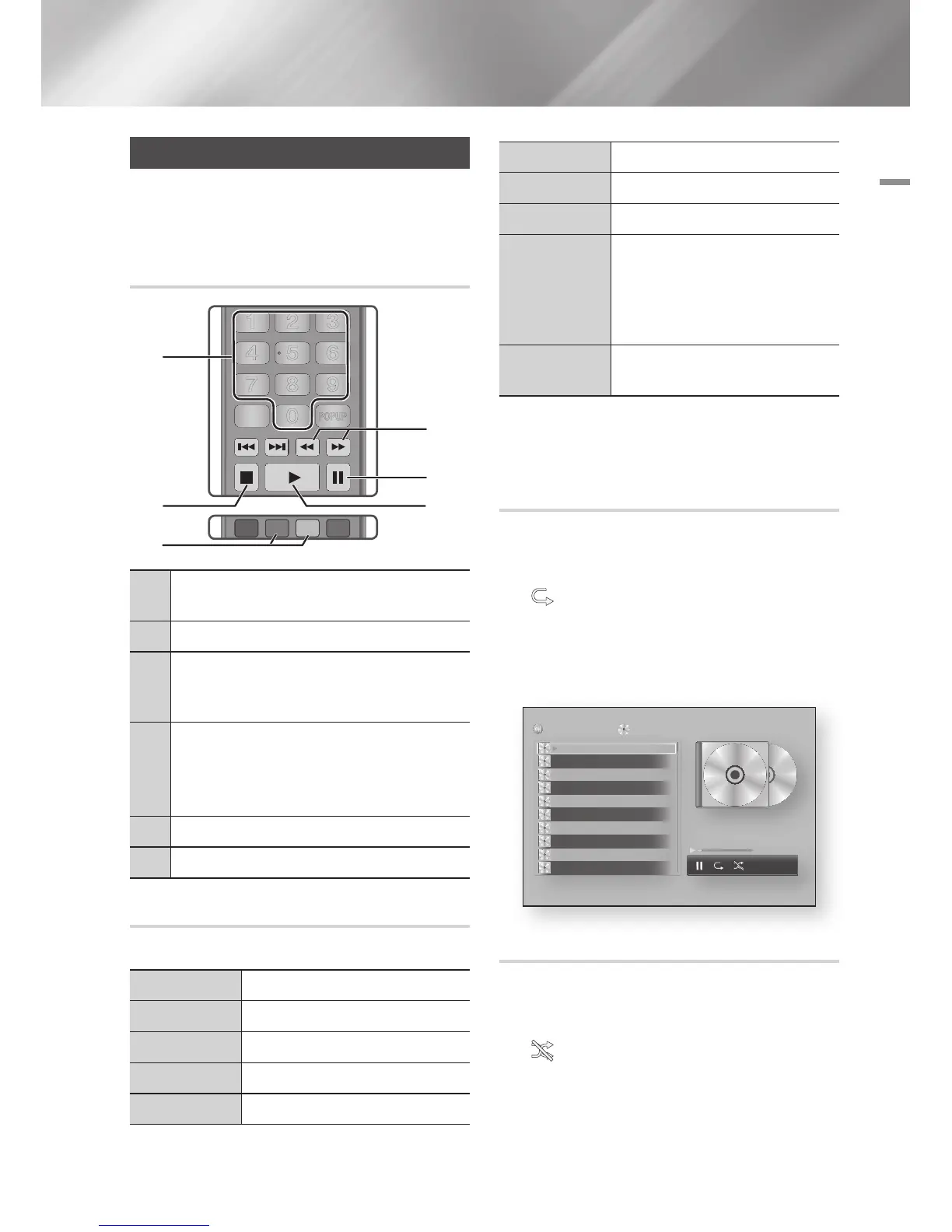
Buttons on the Remote Control used
for Music Playback
1
NUMBER buttons : Press the number of a track.
The selected track is played.
2
5
button : Stops a track.
3
Skip : During playback, press the GREEN (B) or
YELLOW (C) button to move to the previous or next
page of the playlist.
4
Fast Play (Audio CD (CD-DA) only)
During playback, press the
3
or
4
button.
Each time you press the
3
or
4
button, the
playback speed will change.
5
7
: Pauses a track.
6
6
button : Plays the currently selected track.
Using the Tools Menu
During playback, press the TOOLS button.
View
See pages 39~41.
Folder view
See pages 39~41.
Title
See pages 39~41.
Artist
See pages 39~41.
Album
See pages 39~41.
1
4
5
6
2
3
Genre
See pages 39~41.
Selection Play
See pages 39~41.
Go to Playlist
See pages 39~41.
Rip
The Ripping function converts CD
audio to the mp3 format and saves
the converted files on a USB device
connected to the player. See Ripping
on page 38.
Information
Select to see the (Contents)
information: File size, date created, etc.
| NOTE |
\
Depending on the disc or storage device, the Tools menu
may differ. See pages 39~41 for addtional options.
Repeating Tracks on an Audio CD
You can set the product to repeat tracks on an
audio CD (CD-DA/MP3).
1. During playback, use the ► button to select
in the lower right corner of the screen,
and then press the
v
button.
2. Use the ▲▼ to select the repeat mode you
want - Off, One Song, or All - and then press
the
v
button.
Shuffling Tracks on an Audio CD
You can set the product to play tracks on an audio
CD (CD-DA/MP3) at random.
1. During playback, use the ► button to select
in the lower right corner of the screen,
and then press the
v
button.
2. Use the ▲▼ to set the Shuffle mode On or
Off, and then press the
v
button.
bc
Page Move
/
Tools
'
Return
AllShare Play
/ Music /
Audio CD
TRACK 001
02:38
TRACK 002
03:17
TRACK 003
05:21
TRACK 004
05:34
TRACK 005
02:54
TRACK 006
03:44
TRACK 007
04:07
TRACK 008
03:42
TRACK 009
03:15
TRACK 010
03:16
1/14
00:03 / 02:38
TRACK 001
English 37
|



 To Next Page