SPECIAL FEATURES
40
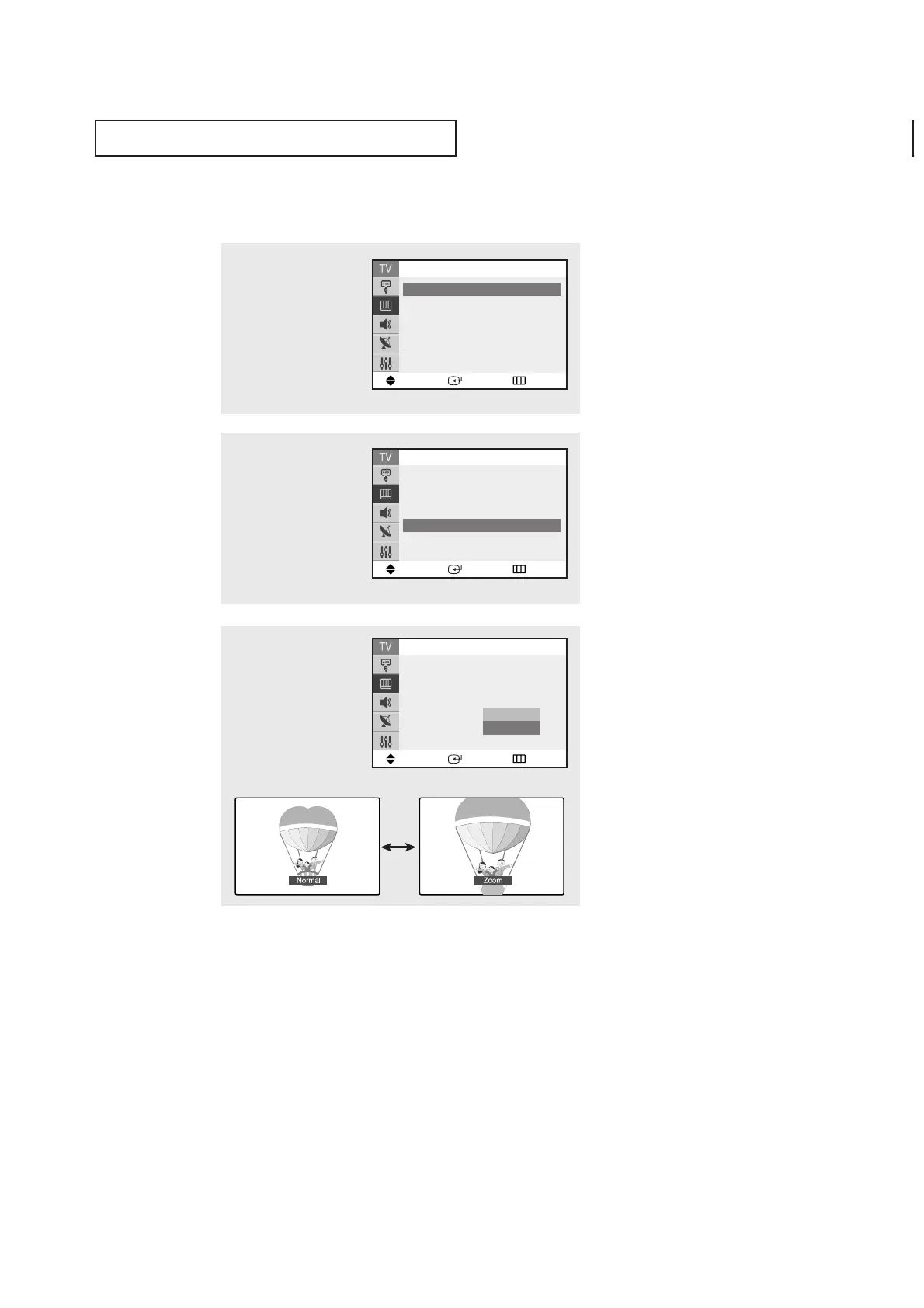
• Normal (4:3) : Sets the picture to 4:3 normal mode.
• Zoom : Magnifies the size of the picture on screen.
Changing the Screen Size
1
Press the MENU button to
display the menu.
Press the ▲ or ▼ button
to select the “Picture”, then
press the ENTER button.
2
Press the ▲ or ▼ button
to select “Size”, then press
the ENTER button.
3
Press the ▲ or ▼ button
to select “Normal” or
“Zoom”, then press the
ENTER button.
Press the EXIT button to
exit.
Move Enter Return
Mode : Custom
√√
Custom
√√
Color tone : Normal
√√
Size : Normal
√√
▼
More
Picture
Move Enter Return
Mode : Custom
√√
Custom
√√
Color tone : Normal
√√
Size : Normal
▼
More
Picture
Normal
Zoom
Move Enter Return
Mode : Custom
√√
Custom
√√
Color tone : Normal
√√
Size : Normal
√√
▼
More
Picture
▼
Quick way to access the Screen size:
Just press the P.SIZE button on the
remote control.
▼
Notes: Screen size cannot be
changed in the PIP mode.
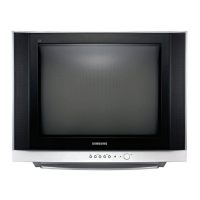
(CL29A10/CL34A10/CL29M6)



 To Next Page