SPECIAL FEATURES
52
Viewing Picture-in-Picture
(CL29A10/CL34A10/CL29M6)
You can use the PIP feature to simultaneously to watch two video sources.
Note:When PIP is selected in the Zoom mode, the Mode is automatically converted
into the Normal mode.
Activating Picture-in-Picture
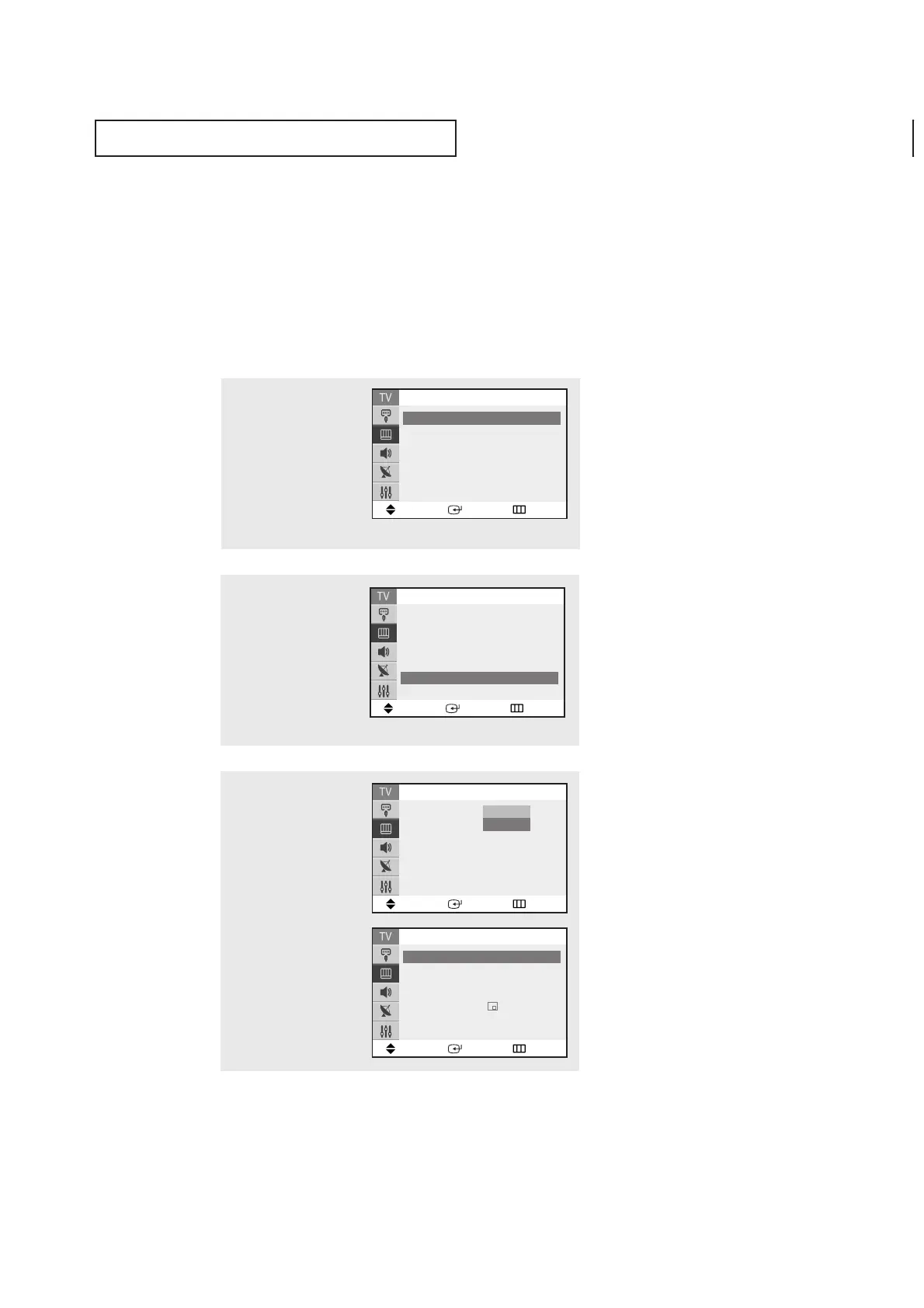
1
Press the MENU button to
display the menu.
Press the
▲ or ▼ button
to select the “Picture”, then
press the
ENTER button.
2
Press the ▲ or ▼ button
to select “PIP”, then press
the ENTER button.
3
Press the ENTER button
agian.
Press the ▲ or ▼ button
to select PIP “On”, then
press the ENTER button.
Press the EXIT button to
exit.
▼
If you turn TV off while watching
and turn it on again, the PIP window
will disappear.
▼
Quick way to access the PIP:
Just press the PIP button on the
remote control.
Move Enter Return
▲
More
Digital NR : Off
√√
DNIe Jr : On
√√
Tilt :
0
PIP
√√
Picture
Move Enter Return
PIP
PIP : Off
Off
On
Move Enter Return
PIP
PIP : On
√√
Source : TV
√√
Swap
√√
Position :
√√
Channel : Air 3
Move Enter Return
Mode : Custom
√√
Custom
√√
Color tone : Normal
√√
Size : Normal
√√
▼
More
Picture



 To Next Page