EasyManua.ls Logo

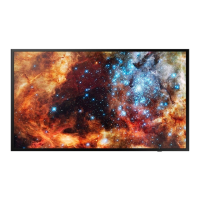
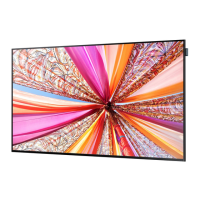
Samsung DB22D-P - User Manual

Samsung DB22D-P
163 pages
Print Icon
To Next Page IconTo Next Page
Loading...
User Manual
The colour and the appearance may differ depending on the product,
and the specifications are subject to change without prior notice to
improve the performance.
Recommended hours of use per day of this product is under 16 hours.
If the product is used for longer than 16 hours a day, the warranty
may be void.
DB22D-P

Other manuals for Samsung DB22D-P

Questions and Answers

  • J
    James HumphreySep 1, 2025
    How to fix broken lines on the edge of my Samsung DB22D-P Monitor screen?
    • N
      npatelSep 1, 2025
      If your Samsung Monitor displays broken lines on the edges of the screen, and Picture Size is set to Screen Fit, change the setting to 16:9.
  • J
    Joan JenkinsAug 31, 2025
    What to do if my Samsung DB22D-P says 'No Signal'?
    • J
      James MartinAug 31, 2025
      If 'No Signal' appears on your Samsung Monitor, ensure the monitor is properly connected with a cable and that the device connected to the monitor is turned on.
  • D
    derrick44Aug 30, 2025
    Why does my Samsung DB22D-P Monitor say 'Not Optimum Mode'?
    • N
      Nancy JohnsonAug 30, 2025
      If you see the message 'Not Optimum Mode' on your Samsung Monitor, it means the signal from your graphics card is higher than what the monitor can handle. To fix this, check the Standard Signal Mode Table and adjust the resolution and frequency to match what your monitor supports.
  • M
    Monica BranchAug 29, 2025
    Why does my Samsung DB22D-P Monitor keep switching on and off?
    • P
      Patricia DukeAug 29, 2025
      If your Samsung Monitor keeps switching on and off, check the cable connection between the monitor and your PC to ensure it's secure.
  • D
    Dustin WilsonAug 28, 2025
    Why is my Samsung Monitor screen unstable and shaky?
    • L
      Lindsay TurnerAug 28, 2025
      If your Samsung monitor screen appears unstable and shaky, make sure the resolution and frequency of your PC and graphics card are within the range that the monitor supports.
  • S
    Stephanie PrattAug 27, 2025
    Why is my Samsung DB22D-P screen blurry?
    • J
      Jamie GriffithAug 27, 2025
      If your Samsung monitor screen is not clear or appears blurry, try these steps: * Adjust the Coarse and Fine settings. * Set the resolution and frequency to the recommended level.
  • A
    Anne Duncan MDAug 26, 2025
    Why is the volume too low on my Samsung DB22D-P Monitor?
    • A
      Andrew MorrisAug 27, 2025
      If the volume is too low on your Samsung Monitor, adjust the volume. If it's still too low, adjust the volume on your PC sound card or software program.
  • B
    bharveyAug 25, 2025
    Why is there no sound in HDMI mode on my Samsung DB22D-P Monitor?
    • G
      Gloria BridgesAug 26, 2025
      If you're not getting sound in HDMI mode on your Samsung Monitor, connect an audio cable along with the HDMI cable. The displayed picture colours may not look normal, and video or sound may not be available without the audio cable.
  • E
    everettmarkAug 25, 2025
    Why is there no sound from my Samsung DB22D-P?
    • J
      jeremyrussoAug 25, 2025
      If there is no sound coming from your Samsung Monitor, check the connection of the audio cable or adjust the volume. Ensure that the volume is not muted.

Summary

Before Using the Product

Safety Precautions

General Safety Guidelines

Essential safety warnings and precautions for operating the product safely.

Operation

Preparations

Parts

Remote Control

Before Installing the Product (Installation Guide)

Installation and Mounting Precautions

Guidelines for proper installation, including ventilation and tilting angles.

Installing the Wall Mount

Wall Mount Kit Specifications (VESA)

Details on VESA mounting standards, screw specifications, and installation guidelines.

Control Codes

Connecting and Using a Source Device

Connecting to a PC

Instructions for connecting a personal computer to the display using various cable types.

Connecting to a Video Device

Guidance on connecting external video sources like Blu-ray players or set-top boxes.

Changing the Input Source

Using MDC

Home Feature

File Formats Compatible with Player

File Formats Compatible with Videowall

Schedule Management

Template Creation

Clone Product Functionality

ID Settings

Video Wall Configuration

Video Wall Layout Settings

Settings for activating, deactivating, and configuring video wall layouts.

Picture Mode Selection

On;Off Timer Settings

Screen Adjustment

Picture Mode Settings

Detailed explanation of various picture modes like Shops & Malls, Calibration, and BD Wise.

Picture Quality Adjustments

Colour Temperature Adjustment

White Balance Settings

Advanced Settings

Picture Options

Picture Size Settings

Auto Adjustment and PC Screen Adjustment

OnScreen Display

PIP Settings

Configuration for Picture-in-Picture mode, defining main and sub picture sources.

Screen Rotation

Screen Protection

Sound Adjustment

Sound Effect Options

Features for Virtual Surround, Dialog Clarity, and Equalizer settings for enhanced audio.

Network

Network Status and Settings

Checking network connectivity and configuring wired or wireless network settings.

System Settings

Initial Setup Procedure

Guided setup process for initial configuration including language, network, and clock settings.

Auto Source Switching

Automatic detection and switching between active video input sources.

Power Control Settings

Settings for managing product power, including auto power-on, power saving, and standby modes.

Eco Solution Features

Features for reducing power consumption, such as energy saving, screen lamp schedule, and auto power off.

General Settings

Configuration of safety lock, button lock, USB auto play lock, and BD Wise settings.

Troubleshooting for Anynet+

Support

Software Update and Contact Information

Procedures for updating product software and contacting Samsung support.

Go to Home Menu

Media Play (Photos, Videos, Music)

Using a USB Device

Instructions for connecting, disconnecting, and managing USB storage devices.

PC;Mobile Device Media Playback

Steps for approving PC/mobile device connections for media playback via DLNA/DMC.

Supported Subtitle and Media File Formats

Lists of supported subtitle formats and media file types for playback.

Supported Music and Video File Formats

Details on supported music file extensions, codecs, and video decoder/audio decoder specifications.

Troubleshooting Guide

Pre-Service Checks and Requirements

Preliminary checks and tests to perform before contacting customer service for assistance.

Installation and Screen Issue Troubleshooting

Troubleshooting steps for common installation problems and screen display anomalies.

Specifications

General Product Specifications

Key details including model name, panel size, dimensions, weight, and power supply.

PowerSaver Functionality

Preset Timing Modes

Optimum Picture Quality and Burn-in Prevention

Optimum Picture Quality and Prevention

Ensuring optimal display quality and preventing afterimage burn-in through proper usage.

Preventing Afterimage Burn-in

Best practices to prevent afterimage burn-in, including screen saver usage and color changes.

Samsung DB22D-P Specifications

General IconGeneral
BrandSamsung
ModelDB22D-P
CategoryMonitor
LanguageEnglish

Related product manuals