EasyManua.ls Logo

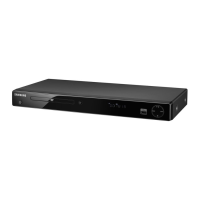
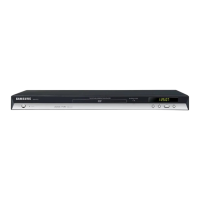
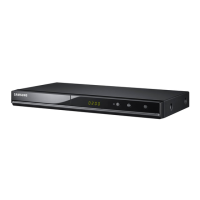
Samsung DVD-1080P7 - User Manual

Samsung DVD-1080P7
65 pages
Print Icon
To Next Page IconTo Next Page
Loading...
DVD Player
DVD-1080P7
www.samsung.com

Table of Contents

Other manuals for Samsung DVD-1080P7

Questions and Answers

  • M
    Michael RowlandJul 25, 2025
    What to do if Samsung DVD-1080P7 DVD Player remote control not working?
    • I
      ibrownJul 25, 2025
      If the remote control of your Samsung DVD Player isn't working, try these steps: First, check and replace the batteries. Then, ensure you are within 20 feet of the player when using the remote. As a last resort, remove the batteries, hold down one or more buttons for several minutes to reset the remote's microprocessor, and then reinstall the batteries.
  • D
    dmezaJul 29, 2025
    What to do if my Samsung DVD-1080P7 DVD Player disc does not play?
    • C
      Cheryl CortezJul 30, 2025
      If your Samsung DVD Player isn't playing the disc, make sure the disc is installed with the label side facing up. Also, verify the region number of the DVD is compatible with your player.
  • C
    Christina FergusonAug 3, 2025
    Why is 5.1 channel sound not working on my Samsung DVD-1080P7?
    • P
      pwoodsAug 3, 2025
      5. 1 channel sound is reproduced only when the following conditions are met: 1) The DVD player is connected with the proper Amplifier 2) The disc is recorded with 5.1 channel sound. Also, check whether the disc being played has the “5.1 ch” mark on the outside and if your audio system is connected and working properly. Finally, in a SETUP Menu, check if the Audio Output is set to Bitstream.
  • L
    Lacey MartinezAug 7, 2025
    What to do if I forgot the password for my Samsung DVD-1080P7?
    • J
      Jason WebbAug 7, 2025
      If you forgot the password for your Samsung DVD Player, you can reset all settings to factory defaults, including the password, by pressing the button on the panel for more than 5 seconds with no disc inside. Use this method only when absolutely necessary.
  • C
    Christopher ThomasAug 12, 2025
    How to fix a blocked screen on Samsung DVD Player?
    • R
      ryan22Aug 12, 2025
      To fix a blocked screen on your Samsung DVD Player, press the button on the front panel for more than 5 seconds with no disc inside. This will revert all settings to the factory defaults.
  • B
    Bruce RobertsonAug 16, 2025
    Why does play mode differ from Setup Menu selection on Samsung DVD-1080P7 DVD Player?
    • P
      paula03Aug 16, 2025
      Some functions selected in the Setup Menu may not work properly on your Samsung DVD Player if the disc is not encoded with the corresponding function.
  • L
    Laura DaltonAug 20, 2025
    Why can't I change the screen ratio on my Samsung DVD-1080P7?
    • A
      Amber JacksonAug 20, 2025
      The screen ratio is fixed on some DVDs, which means you cannot change it on your Samsung DVD Player for those discs.

Summary

Important Safety Instructions

Precautions and Warnings

Product Handling and Maintenance

Chapter 1: Setup

Disc Types, Characteristics, and Regions

Product Description

Front Panel Controls and Display Explained

Explanation of the player's front panel buttons, indicators, and display.

Rear Panel Connections Guide

Audio and Video Output Jack Details

Details on connecting digital audio, component video, analog audio, composite video, and S-Video.

HDMI Output Jack Instructions

Instructions for connecting the player via HDMI for high-quality output.

Remote Control Guide

Button Functions Overview

Comprehensive guide to the functions of each button on the remote control.

Chapter 2: Connections

Connecting DVD Player to TV via HDMI

Step-by-step guide for connecting the DVD player to a TV using an HDMI cable.

Connecting DVD Player to TV via DVI

Step-by-step guide for connecting the DVD player to a TV using a DVI cable.

HDMI Features and Compatibility

Connecting to TV: Progressive Scan Output

Connecting to TV: Interlace Scan Output

Connecting to TV: S-Video Output

Connecting to TV: Composite Video Output

Connecting to Audio Systems

Chapter 3: Basic Functions

Playing a Disc

Step-by-step instructions for inserting, playing, and resuming disc playback.

Playback Operations and Controls

Controlling Playback Modes

How to stop, pause, remove discs, and use step/slow motion playback.

Chapter 4: Advanced Functions

Chapter 5: Navigating the Setup Menu

Accessing and Navigating the Setup Menu

How to enter and navigate the main player setup menu.

Language Settings Configuration

Player Menu Language Setup

Setting the language for the player's on-screen menus.

Audio and Subtitle Language Settings

Audio Options Setup

Display Options Setup

Parental Control Setup

Setting Parental Rating Levels

Assigning rating levels to restrict access to certain content.

Anynet+ (HDMI-CEC) Setup

Chapter 6: Reference

Firmware Upgrade Procedure

Instructions on how to download and install firmware updates for the DVD player.

Troubleshooting Common Issues

Limited Warranty Information

Samsung DVD-1080P7 Specifications

General IconGeneral
Playback formatsMP3, WMA, VCD, SVCD, DVD-Audio, JPEG, MPEG-4, DivX
Dimensions (WxDxH)45 x 430 x 250 mm
Device typeDVD player
Plug and PlayYes
Product colorBlack
Disc types supportedCD, CD-R, CD-RW, DVD, DVD+R, DVD+RW, DVD-R, DVD-RW
Composite video out1
Weight and Dimensions IconWeight and Dimensions
Weight2100 g

Related product manuals