EasyManua.ls Logo

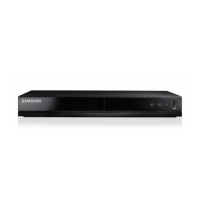
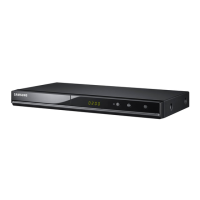
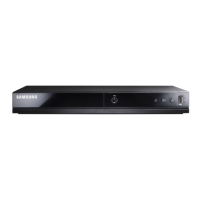
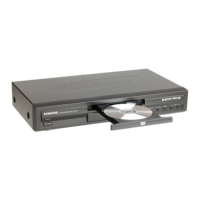
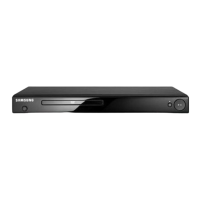
Samsung DVD-1080P8 - User Manual

Samsung DVD-1080P8
103 pages
Print Icon
To Next Page IconTo Next Page
Loading...
DVD Player
DVD-1080P8
www.samsung.com/ca
AK68-01606F

Table of Contents

Other manuals for Samsung DVD-1080P8

Questions and Answers

  • C
    Chad HarrisAug 15, 2025
    What to do if my Samsung DVD Player remote control is not working?
    • M
      Mary FoxAug 16, 2025
      If your Samsung DVD Player's remote control isn't working, try these steps: First, check and replace the batteries. Then, ensure you're within 20 feet of the player. If it still fails, remove the batteries, press and hold any button for several minutes to reset the remote's microprocessor, then reinstall the batteries and try again.
  • J
    Jackie RossAug 18, 2025
    Why won't my Samsung DVD Player play the disc?
    • M
      mbarrAug 18, 2025
      If your Samsung DVD Player isn't playing a disc, make sure the disc is placed with the label side facing up. Also, verify that the DVD's region number is compatible with your player.
  • N
    Nancy WalkerAug 22, 2025
    Why is there no audio from my Samsung DVD Player?
    • E
      eric23Aug 22, 2025
      If there is no audio from your Samsung DVD Player, make sure you have selected the correct Digital Output in the Audio Options Menu.
  • Y
    ymeltonAug 25, 2025
    How to get 5.1 channel sound on my Samsung DVD-1080P8?
    • A
      Ashley GonzalesAug 25, 2025
      To get 5.1 channel sound on your Samsung DVD Player, ensure that: 1. The DVD player is connected to the proper Amplifier. 2. The disc is recorded with 5.1 channel sound. Also, check the disc for the '5.1 ch' mark and confirm your audio system is correctly connected and functioning. Finally, verify in the SETUP Menu that the Audio Output is set to Bitstream.
  • G
    gerald56Aug 27, 2025
    What to do if I forgot the password on my Samsung DVD-1080P8 DVD Player?
    • S
      Sally CarpenterAug 27, 2025
      To reset a forgotten password on your Samsung DVD Player, press the button (on the panel) for more than 5 seconds with no disc inside. This will revert all settings, including the password, to the factory defaults. Use this method only when absolutely necessary.
  • S
    susan08Aug 30, 2025
    What does the icon on my Samsung DVD-1080P8 screen mean?
    • J
      jonathanadkinsAug 30, 2025
      The icon on your Samsung DVD Player screen indicates that the action you're trying to perform can't be completed at this time because: 1. The DVD’s software restricts it. 2. The DVD’s software doesn’t support the feature (e.g., angles). 3. The feature is not available at the moment. 4. You’ve requested a title or chapter number or search time that is out of range.
  • J
    Jerome SanchezSep 2, 2025
    What to do if the picture on my Samsung DVD-1080P8 is noisy or distorted?
    • P
      Phillip MoralesSep 2, 2025
      If the picture on your Samsung DVD Player is noisy or distorted, check if the disc is dirty or scratched. If it is, clean the disc.
  • D
    Darlene DavisSep 5, 2025
    Why is the play mode different from the Setup Menu selection on my Samsung DVD-1080P8?
    • B
      Brad WilkinsonSep 5, 2025
      Some functions selected in the Setup Menu of your Samsung DVD Player may not work properly if the disc is not encoded with the corresponding function.
  • B
    benjaminblackSep 8, 2025
    Why can't I change the screen ratio on my Samsung DVD-1080P8 DVD Player?
    • M
      Mary SuttonSep 9, 2025
      The screen ratio cannot be changed because the Screen Ratio is fixed on your DVDs.
  • S
    syangSep 12, 2025
    How to unblock the screen on Samsung DVD Player?
    • D
      Dennis LeachSep 12, 2025
      To unblock the screen on your Samsung DVD Player, press the button (on the front panel) for more than 5 seconds with no disc inside. All settings will revert to the factory settings.

Summary

Important Safety Instructions

Precautions

Handling Cautions

Chapter 1: Setup

Chapter 2: Connections

Connecting to a TV

Guides for connecting the DVD player to a TV via HDMI, DVI, or Component Video.

Chapter 3: Basic Functions

Disc Playback Operations

Guides on playing discs, including playback controls and initial setup.

Search, Skip, and Menu Navigation

Explains search, skip, display, and menu navigation functions for playback.

Chapter 4: Advanced Functions

Aspect Ratio and Language Settings

Guides on adjusting aspect ratio and selecting audio/subtitle languages.

Media File Playback

Guides on playing MP3, WMA, JPEG, MPEG4, and Picture CD files.

Chapter 5: Navigating the Setup Menu

Using the Setup Menu

Introduces the setup menu and its customization capabilities for the DVD player.

Parental Control and Anynet+ Setup

Details setting parental controls, password, and Anynet+ for TV remote control.

Chapter 6: Reference

Troubleshooting

Samsung DVD-1080P8 Specifications

General IconGeneral
Audio formats supportedMP3, WMA
Video formats supportedDivX, MPEG4
Progressive scan outputYes
Playback formatsDVD+R / DVD+RW
Dimensions (WxDxH)430 x 250 x 45 mm
Device typeDVD player
Product colorBlack
Digital audio coaxial out1
Weight and Dimensions IconWeight and Dimensions
Depth250 mm
Width430 mm
Height45 mm
Weight2100 g

Related product manuals