EasyManua.ls Logo

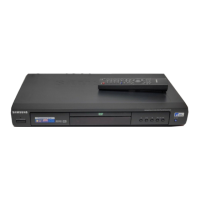
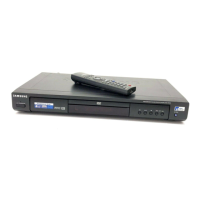
Samsung DVD-P171 - User Manual

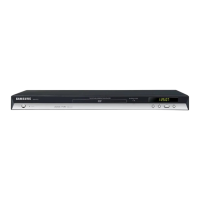
Samsung DVD-P171
32 pages
Print Icon
To Next Page IconTo Next Page
Loading...
DVD Player
DVD-P171
www.samsung.com/au

Other manuals for Samsung DVD-P171

Questions and Answers

  • A
    alexandra01Jul 31, 2025
    What to do if my Samsung DVD-P171 DVD Player remote control is not working?
    • G
      George MayoJul 31, 2025
      Here are a few things you can try: * Check the batteries in the remote control and replace them if needed. * Make sure you are operating the remote control within 20 feet of the DVD player. * Try resetting the remote by removing the batteries, holding down one or more buttons for several minutes, then reinstalling the batteries.
  • D
    Debra MartinezAug 4, 2025
    What to do if my Samsung DVD-P171 DVD Player disc does not play?
    • S
      Stephen BushAug 4, 2025
      First, ensure that the disc is installed with the label side facing up. Also, check the region number of the DVD to make sure it is compatible with your player.
  • K
    Katherine FosterAug 8, 2025
    How to restore factory settings on Samsung DVD Player?
    • G
      gmooreAug 8, 2025
      Press the button on the front panel for more than 5 seconds when there is no disc inside. This will revert all settings to the factory defaults.
  • J
    Jessica ClarkAug 13, 2025
    What to do if I forgot the password on my Samsung DVD Player?
    • J
      Jordan TerryAug 13, 2025
      Press the button on the front panel for more than 5 seconds when no disc is inserted. All settings, including the password, will revert to the factory settings. Use this as a last resort.
  • F
    farrelllisaAug 17, 2025
    Why is 5.1 channel sound not working on my Samsung DVD-P171?
    • B
      Brittney RichardsAug 17, 2025
      5. 1 channel sound is only available if: * The DVD player is connected to the correct amplifier. * The disc is recorded with 5.1 channel sound. * The disc has the “5.1 ch” mark. * Your audio system is properly connected and working. * The Audio Output in the SETUP Menu is set to Bitstream.
  • L
    Lisa AndradeAug 21, 2025
    Why can't I change the screen ratio on my Samsung DVD Player?
    • D
      David PierceAug 21, 2025
      The screen ratio may be fixed on your DVDs.
  • P
    Phillip DaughertyAug 26, 2025
    Why does play mode differ from the Setup Menu selection on my Samsung DVD-P171?
    • E
      Elizabeth WardAug 26, 2025
      Some functions selected in the Setup Menu may not work properly if the disc is not encoded with the corresponding function.

Summary

Precautions

Setting Up the Player

Guidelines for physically setting up the DVD player for optimal operation and ventilation.

Safety Precautions

Critical safety instructions regarding laser exposure, servicing, and electrical handling.

General Cautions

Advice on product usage, environmental factors like static electricity, and condensation.

Disc Handling

Proper methods for cleaning and handling discs to prevent damage.

Environmental Information

Information on battery disposal and environmental responsibility.

Getting Started

Included Accessories

Lists essential accessories provided with the DVD player for initial setup.

Installing Remote Control Batteries

Step-by-step guide for correctly inserting batteries into the remote control.

Remote Control Troubleshooting

Common issues and solutions when the remote control is not functioning properly.

Setup and Features

General Features

Overview of the DVD player's main capabilities and technologies.

Copy Protection Information

Explains copy protection and recommended connection methods to avoid picture distortion.

Progressive Scan Output

Details on 525p progressive scan output and TV compatibility notes.

Disc Compatibility and Markings

Supported Disc Types

Details on playable disc formats (DVD, Video-CD, Audio-CD) and their characteristics.

Disc Markings Explained

Explanation of common symbols and logos found on discs, such as region codes and audio formats.

Region Number System

Information on region coding for discs and players to ensure compatibility.

DivX Certification

Details about DivX certification and its associated trademarks.

Front Panel Overview

Front Panel Controls

Identification and function of all buttons and indicators on the player's front panel.

Front Panel Display

Explanation of the digital display and the messages it shows during operation.

Rear Panel Connections

Audio Output Jacks

Connecting audio output to external devices like TVs or receivers.

Video Output Jack

Connecting the video output to a television's input.

Digital Audio Outputs

Connecting digital audio outputs (Coaxial) for Dolby Digital or DTS systems.

Component Video Outputs

Connecting component video outputs for higher quality progressive or interlaced video.

Remote Control Functions

Remote Control Layout

Identification and description of all buttons on the remote control for easy operation.

Playback Control Buttons

Buttons used for playing, pausing, stopping, and skipping through disc content.

Menu and Navigation Buttons

Buttons for accessing menus, settings, and navigating through content options.

Special Function Buttons

Buttons for advanced features like zoom, instant replay, and subtitle selection.

Connecting Your DVD Player

Connection to TV (Video)

Step-by-step guide to connect the player to a TV using standard video/audio cables.

Before Connecting

Important steps to take before connecting any cables to ensure safe and proper setup.

Connecting to TV (Interlace)

Component Video Connection

Guide for connecting via component video for interlaced output, enhancing picture quality.

Connecting to TV (Progressive)

Progressive Scan Setup

Instructions for connecting and setting up progressive scan output for superior picture clarity.

Understanding Progressive Scan

Explanation of what progressive scan is and how it improves picture quality over interlaced.

Audio System Connection (2 Channel)

Connecting a 2-Channel Amplifier

Guide for connecting the player to a standard 2-channel stereo amplifier for audio playback.

Audio System Connection (Digital)

Connecting Digital;DTS Amplifier

Guide for connecting to Dolby Digital, MPEG2, or DTS amplifiers using digital audio connections.

Basic Playback Functions

Preparing to Play a Disc

Steps before starting disc playback, including TV input selection and language setup.

Disc Playback Operations

How to start, pause, stop, and remove discs during playback, including resume function.

Advanced Playback Modes

Using step motion and slow motion playback features for detailed viewing.

Navigating and Displaying Content

Search and Skip Functions

How to quickly navigate through chapters, tracks, or titles using search and skip buttons.

Display Function Guide

Using the display function to view information about the disc content, such as title, chapter, or audio.

Disc Menus and Repeat Playback

Disc and Title Menus

Accessing and navigating disc-specific menus for content selection and options.

Repeat Playback Options

How to repeat playback of tracks, chapters, titles, or specific A-B sections.

Advanced Playback and Display

Slow Motion Playback

Using slow play to study scenes in detail, such as sports or musical performances.

Adjusting Aspect Ratio (EZ View)

How to adjust picture aspect ratio for different TV screens (16:9 or 4:3).

Display Options for 4:3 TV

4:3 Aspect Ratio Settings

How to adjust picture display settings when using a 4:3 aspect ratio TV.

Selecting Subtitle Language

Subtitle Language Selection

Choosing the preferred subtitle language for playback from disc options.

Advanced DVD Features

Camera Angle Selection

How to change camera angles on DVDs that offer multiple viewing perspectives.

Bookmark Functionality

How to mark and recall specific scenes on discs for easy access later.

Instant Replay and Skip

Features for quickly replaying or skipping parts of playback by 10 seconds.

Zoom and File Management

Zoom Functionality

How to zoom in on parts of the picture during playback for closer inspection.

Clips Menu and Folder Selection

Navigating and selecting files from organized folders on discs like MP3, WMA, and JPEG.

Audio and Video File Playback

MP3;WMA;CD Audio Playback

How to play MP3, WMA, and CD audio files, including repeat and random modes.

CD-R MP3;WMA File Notes

Important considerations for recording MP3/WMA files on CD-R, including naming and format.

MPEG4 Playback Guide

How to play MPEG4 (AVI) files, including repeat playback and file compatibility.

MPEG4 and Picture CD Features

MPEG4 Function Details

Specific functions and formats supported for MPEG4 playback, including DivX and XviD.

Picture CD Playback

How to view JPEG images from CDs, including rotation, zoom, and slide show features.

CD-R JPEG and Setup Menu

CD-R JPEG Disc Playback

Guidelines for playing JPEG files from CD-R discs, including file naming and disc closure.

Accessing the Setup Menu

How to enter and navigate the main setup menu to customize player settings.

Language Setup Options

Player Menu Language

Setting the language for player menus, prompts, and startup screens.

Audio Language Selection

Choosing the preferred audio track language for playback from disc options.

Disc Menu Language

Setting the language used for on-disc menus and navigation.

Subtitle Language Selection

Choosing the preferred subtitle language for playback from disc options.

Advanced Audio and Subtitle Settings

DivX Subtitle Language

Setting subtitle language specifically for DivX content, offering more language options.

Audio Output Options

Configuring audio output settings (Dolby Digital, MPEG-2, DTS, PCM) for different sound systems.

Display and Video Settings

Display Options Overview

Setting various video functions like aspect ratio, screen messages, and TV system.

TV Aspect Ratio

Adjusting the picture aspect ratio (Letter Box, Pan & Scan, Wide) to match the TV screen.

Video Output Settings

Configuring video output modes (I-SCAN, P-SCAN) for component connections.

Parental Control Setup

Setting the Rating Level

Controlling access to content based on DVD ratings, with multiple levels available.

Changing the Parental Password

Setting or changing the password for parental control features to restrict access.

Firmware Updates

Firmware Upgrade Introduction

Information and warnings before performing a firmware update to prevent damage.

Creating an Upgrade Disc

Steps to prepare a CD-R with the correct software for firmware installation.

Firmware Update Procedure

Detailed steps for performing the firmware update process on the DVD player.

Troubleshooting Common Issues

Remote Control Problems

Solutions for issues with the remote control not responding or functioning correctly.

Disc Playback Issues

Troubleshooting steps for discs not playing, audio problems, or playback errors.

Feature;Icon Issues

Resolving problems with specific features not working or unexpected on-screen icons.

Menu and Setting Problems

Solutions for disc menu not appearing or conflicts with setup menu selections.

Picture and Distortion Issues

Addressing problems with noisy, distorted pictures, screen blocking, or incorrect aspect ratios.

Product Specifications

General Specifications

Details on power requirements, consumption, weight, dimensions, and operating conditions.

Disc Playback Specifications

Technical details on reading speeds and approximate playback times for various disc types.

Video and Audio Output Specs

Technical specifications for video and audio output signals, including frequency response and S/N ratio.

Worldwide Support Information

Customer Care Centers

Contact information for customer support centers across various regions worldwide.

Samsung Websites

List of official Samsung website URLs for different countries and regions.

Samsung DVD-P171 Specifications

General IconGeneral
TypeDVD Player
Remote ControlYes
Progressive ScanYes
Power Consumption15W
Playback FormatsMP3
Disc FormatsDVD, CD
Video OutputComposite Video, S-Video, Component Video

Related product manuals