EasyManua.ls Logo

Samsung DVD-P750 - User Manual

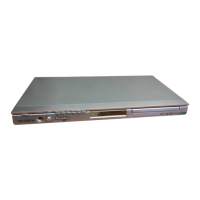
Samsung DVD-P750
76 pages
Print Icon
To Next Page IconTo Next Page
Loading...
DVD Player
DVD-P750
00635A-P750-XEU-Cover 5/18/05 3:59 PM Page 3

Table of Contents

Other manuals for Samsung DVD-P750

Questions and Answers

  • J
    Jeffery DunlapAug 20, 2025
    How to fix a Samsung DVD-P750 DVD Player remote control that's not working?
    • S
      Samantha PerryAug 20, 2025
      If your Samsung DVD Player remote control isn't working, try these steps: First, check and replace the batteries. Then, make sure you're within 20 feet of the DVD player. If it still doesn't work, remove the batteries, press and hold any button(s) for several minutes to reset the remote's microprocessor, then reinstall the batteries and try again.
  • L
    Leslie StoneAug 22, 2025
    What to do if my Samsung DVD-P750 disc does not play?
    • J
      Jacqueline RivasAug 22, 2025
      If your Samsung DVD Player isn't playing the disc, ensure that the disc is installed with the label side facing up and check the region number of the DVD.
  • L
    lutzjenniferAug 25, 2025
    What to do if my Samsung DVD-P750 DVD Player remote control is not working?
    • R
      Richard RosarioAug 25, 2025
      If your Samsung DVD Player's remote control isn't working, first check and replace the batteries. Ensure you're within 20 feet of the DVD player. If it still fails, remove the batteries, press and hold any button(s) for several minutes to reset the remote's microprocessor, then reinstall the batteries and try again.
  • S
    summersbrianAug 26, 2025
    Why is my Samsung DVD-P750 not producing 5.1 channel sound?
    • T
      Thomas RogersAug 27, 2025
      5.1 channel sound is only reproduced if: the DVD player is connected to the proper amplifier and the disc is recorded with 5.1 channel sound. Therefore, ensure the DVD has the “5.1 ch” mark, your audio system is properly connected and functioning, and the Audio Output in the SETUP Menu is set to Bitstream.
  • Q
    qsmithAug 28, 2025
    Why is there no audio coming from my Samsung DVD Player?
    • B
      Brian ThomasAug 28, 2025
      If you're not getting any audio from your Samsung DVD Player, make sure you have selected the correct Digital Output in the Audio Options Menu.
  • A
    adrian80Aug 30, 2025
    Why is 5.1 channel sound not working on my Samsung DVD Player?
    • V
      Vicki BrownAug 30, 2025
      5.1 channel sound is only available if: the DVD player is connected to the correct amplifier, the disc is recorded with 5.1 channel sound, your audio system is connected and functioning correctly, and the Audio Output in the SETUP Menu is set to Bitstream. Check that the disc has the “5.1 ch” mark. Verify your audio system connections and settings.
  • J
    jorgebakerAug 31, 2025
    Why is there no audio from my Samsung DVD-P750?
    • J
      Jacob WilliamsAug 31, 2025
      If there is no audio from your Samsung DVD Player, ensure that you have selected the correct Digital Output in the Audio Options Menu.
  • W
    Wesley CombsSep 2, 2025
    How to fix a noisy or distorted picture on a Samsung DVD-P750?
    • K
      Kyle AllenSep 2, 2025
      If the picture on your Samsung DVD Player is noisy or distorted, make sure that the disc is not dirty or scratched. Clean the disc to resolve the issue.
  • E
    Eric LewisSep 4, 2025
    What to do if I forgot the password for my Samsung DVD-P750?
    • D
      Dean WoodSep 4, 2025
      If you forgot the password for your Samsung DVD Player, press the button for more than 5 seconds with no disc inside. Note that all settings, including the password, will revert to the factory settings. Use this solution only when absolutely necessary.
  • L
    Luis LopezSep 6, 2025
    How to unblock the screen on a Samsung DVD Player?
    • G
      Glenda HartSep 6, 2025
      To unblock the screen on your Samsung DVD Player, press the button for more than 5 seconds with no disc inside. This will revert all settings to the factory defaults.

Summary

Precautions

Safety Warnings

Warnings about laser exposure and self-repair procedures.

Chapter 1: Setup

Remote Control Overview

Detailed breakdown and explanation of all buttons on the remote control.

Chapter 3: Basic Functions

Playing a Disc

Steps to play a disc, including initial language setup.

Chapter 4: Advanced Functions

Adjusting Aspect Ratio (EZ View)

How to adjust picture aspect ratio for different TV screens.

Aspect Ratio Settings Details

Details on aspect ratio settings for 16:9 and 4:3 TVs and discs.

Selecting Audio Language

How to choose different audio languages or stereo/left/right options.

Selecting Subtitle Language

How to select desired subtitle languages or turn them off.

DVD AUDIO Playback

How to play DVD Audio discs and access playback information.

Super Audio CD Playback

Steps for playing Super Audio CDs and accessing their menus.

Chapter 5: Changing Setup Menu

Using the Setup Menu

Introduction to the setup menu for customizing player preferences.

EZ-Setup Configuration

Step-by-step guide to the EZ Setup for initial player configuration.

EZ-Setup Configuration (Continued)

Further EZ Setup steps for PCM Down Sampling and AV Receiver connection.

Language Feature Setup

How to set player menu, disc menu, audio, and subtitle languages.

Audio Language Setup

How to set the preferred audio language for playback.

Subtitle Language Setup

How to select the preferred subtitle language for playback.

Audio Options Setup

How to configure audio device settings and sound status.

Audio Options Details

Details on Dolby Digital Out, MPEG-2 Out, DTS, Compression, and PCM Down Sampling.

Surround Sound Speaker Setup

How to configure speaker settings for surround sound.

Surround Sound Speaker Configuration

Details on speaker sizes, Dolby bass redirection, and test output signals.

Display Options Setup

How to adjust display settings like TV aspect, screen messages, and video output.

Parental Control Setup

How to set up parental controls and create a password.

Rating Level Setup

How to select a rating level to restrict content viewed.

Password Management

How to change or reset the parental control password.

Player Menu Language Setup

Steps to select the preferred language for the player's on-screen menus.

Chapter 6: Reference

Firmware Upgrade Procedure

Instructions on how to upgrade the player's firmware using a CD-R/RW.

Troubleshooting Guide

Common problems and their solutions, with corresponding page references.

Samsung DVD-P750 Specifications

General IconGeneral
TypeDVD Player
Audio Formats SupportedDolby Digital, DTS
Progressive ScanYes
UpscalingNo
Disc FormatsCD, CD-R/RW, DVD
Video OutputComposite, Component, S-Video
Audio OutputStereo RCA
Output Resolution480p
Playback FormatsMP3, JPEG

Related product manuals