EasyManua.ls Logo

Samsung DVD-P380 - User Manual

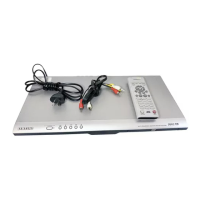
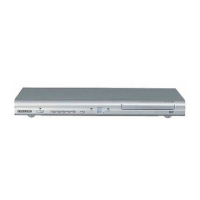
Samsung DVD-P380
116 pages
Print Icon
To Next Page IconTo Next Page
Loading...
DVD Player
DVD-P380
CA
CA
AK68-01509V
www.samsung.com/ca

Table of Contents

Other manuals for Samsung DVD-P380

Questions and Answers

  • K
    Kevin ThomasSep 10, 2025
    What to do if I forgot the password on my Samsung DVD Player?
    • E
      Eric RogersSep 10, 2025
      To reset a forgotten password on your Samsung DVD Player, press the button on the panel for more than 5 seconds when there is no disc inside. Note: All settings will revert to factory settings, so only use this method if absolutely necessary.
  • A
    aandersonAug 23, 2025
    Why my Samsung DVD-P380 disc does not play?
    • J
      Joseph FreyAug 23, 2025
      If your Samsung DVD Player isn't playing discs, make sure the disc is inserted correctly with the label side facing up. Also, verify that the DVD's region code is compatible with your player.
  • S
    Samuel NolanAug 25, 2025
    How to fix no audio on Samsung DVD-P380?
    • C
      Charles WoodsAug 25, 2025
      If you're not getting any sound from your Samsung DVD Player, ensure that you've selected the correct Digital Output in the Audio Options Menu.
  • S
    shawndaughertyAug 26, 2025
    How to fix a Samsung DVD-P380 remote control that is not working?
    • A
      Amanda PatelAug 26, 2025
      If your Samsung DVD Player's remote control isn't working, first check and replace the batteries. Ensure you're within 20 feet of the DVD player while operating the remote. If problems persist, try resetting the remote by removing the batteries, holding down one or more buttons for several minutes, then reinstalling the batteries.
  • V
    Vincent NelsonAug 27, 2025
    Why my Samsung DVD-P380 DVD Player does not play the disc?
    • S
      Stephen MartinezAug 27, 2025
      If your Samsung DVD Player isn't playing a disc, make sure the disc is placed with the label side facing up. Also, verify that the region number of the DVD is compatible with your player.
  • J
    Julie WilliamsAug 29, 2025
    Why is 5.1 channel sound not working on my Samsung DVD-P380?
    • V
      victoria65Aug 29, 2025
      5.1 channel sound will only work if: 1) Your Samsung DVD player is properly connected to a compatible amplifier. 2) The disc you're playing is recorded with 5.1 channel sound. Check the disc for a “5.1 ch” mark. Also, ensure your audio system is correctly connected and functioning and verify that the Audio Output in the SETUP Menu is set to Bitstream.
  • E
    Eric JohnsonSep 18, 2025
    Why the screen ratio cannot be changed on my Samsung DVD-P380?
    • M
      Mary ProctorSep 18, 2025
      If the screen ratio cannot be changed on your Samsung DVD Player, it means the screen ratio is fixed on the DVD you are playing.
  • P
    padamsSep 12, 2025
    Why does the icon appear on the screen of my Samsung DVD-P380 DVD Player?
    • K
      Kurt TorresSep 12, 2025
      The icon appears on the screen of your Samsung DVD Player because the DVD’s software restricts the requested action, the DVD’s software doesn’t support the feature, the feature is unavailable, or the requested title, chapter number, or search time is out of range.
  • H
    hallmicheleSep 8, 2025
    Why play mode differs from the Setup Menu selection on Samsung DVD-P380?
    • V
      Virginia HodgesSep 8, 2025
      If the play mode differs from the Setup Menu selection on your Samsung DVD Player, it means that some functions selected in the Setup Menu may not work properly because the disc isn't encoded with the corresponding function.
  • C
    Cassie FlemingSep 5, 2025
    Why disc menu doesn't appear on Samsung DVD-P380 DVD Player?
    • I
      iadamsSep 5, 2025
      If the disc menu isn't appearing on your Samsung DVD Player, it may be that the disc simply doesn't have a menu.

Summary

Important Safety Instructions

Precautions

Handling Cautions

Important guidelines for safe operation and handling of the DVD player.

Chapter 1: Setup

Disc Type and Characteristics

Information on compatible disc types and their playback characteristics.

Tour of the Remote Control

Identifies and explains the functions of each button on the remote control.

Chapter 2: Connections

Choosing a Connection

Introduces different methods for connecting the DVD player to a TV or audio system.

Connecting to a TV (Progressive)

Detailed steps for connecting the DVD player to a TV using component video for progressive output.

Connecting to a TV (Interlace)

Detailed steps for connecting the DVD player to a TV using component video for interlaced output.

Connecting to a TV (Video)

Instructions for connecting the DVD player to a TV using composite video and audio cables.

Connecting to an Audio System (2 Channel Amplifier)

Steps for connecting the DVD player to a 2-channel amplifier for audio output.

Connecting to an Audio System (Dolby digital, MPEG2 or DTS Amplifier)

Steps for connecting the DVD player to an amplifier supporting Dolby Digital, MPEG2, or DTS.

Chapter 3: Basic Functions

Playing a Disc

Comprehensive guide on loading, playing, and managing discs.

Chapter 4: Advanced Functions

Adjusting the Aspect Ratio (EZ View)

How to adjust the picture aspect ratio for optimal viewing on different TVs.

Clips Menu for MP3;WMA;JPEG;MPEG4;CD Audio

How to navigate and select media files organized in folders on discs.

Playing Media Files Using the USB Host feature

How to connect and play media files from USB devices.

Chapter 5: Navigating the Setup Menu

Setting Up the Audio Options

How to configure audio output settings like Dolby Digital Out and compression.

Setting Up the Display Options

How to adjust video settings such as aspect ratio, screen messages, and video output.

Setting Up the Parental Control

How to set parental rating levels to restrict content access.

Chapter 6: Reference

Troubleshooting

Solutions for common problems encountered with the DVD player.

Samsung DVD-P380 Specifications

General IconGeneral
TypeDVD Player
Video UpconversionYes
Progressive ScanYes
Remote ControlYes
Video PlaybackYes
Audio PlaybackYes
Weight4.4 lbs
Disc Playback FormatsCD
Supported MediaDVD-R, DVD-RW, CD-R, CD-RW
Video OutputComposite Video
Playable File FormatsJPEG, MP3
OutputsComposite, S-Video
ConnectivityComposite, S-Video

Related product manuals