98 2E. Contacts
3.
From the list of contacts, tap the contact(s) you
want to add or tap
Select all. (A green check-mark
appears next to the selected entries.)
4. Tap Add to add the contact(s) to your group.
5. Touch an existing group.
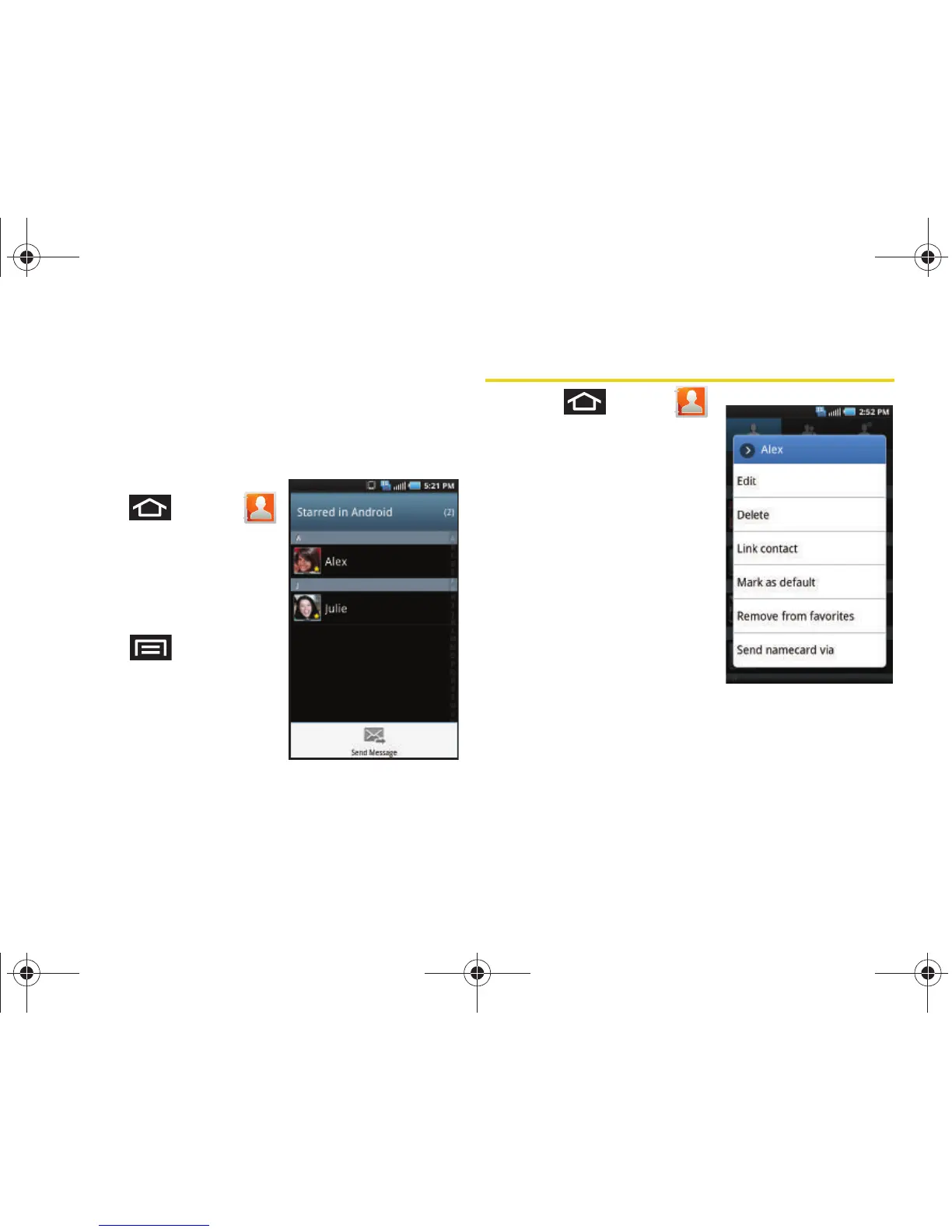
To send a message to a group:
1. Press and tap
> Groups.
2. If prompted, select a type
(
Phone, Google, Corporate,
etc.).
3. Tap an existing group, and
press
> Send
message.
4. Select the recipients of the
new message (indicated
by a green checkmark).
5. Tap Send.
6. Type your message, and tap Send.
Contacts Menu Options
1. Press and tap .
2. Touch and hold an entry
and select from the
available contact menu
options:
䡲 Edit to edit the currently
selected Contacts entry.
(See “Editing a Contacts
Entry” on page 100.)
䡲 Delete to erase the
currently selected
Contacts entry. (See
“Deleting Entries” on
page 103.)
䡲 Link contact to link the current contact to another
current contact. Similar to a “see also” feature. If
you can’t remember a contact’s information,
linking entries can help you find the person you
are looking for.
SPH-D700.book Page 98 Friday, October 8, 2010 12:03 PM



 To Next Page