2A. Device Basics 35
Device Basics
䡲 Music playlist
䡲 Settings
5. Follow the onscreen instructions to add the new
shortcut to your current Home screen.
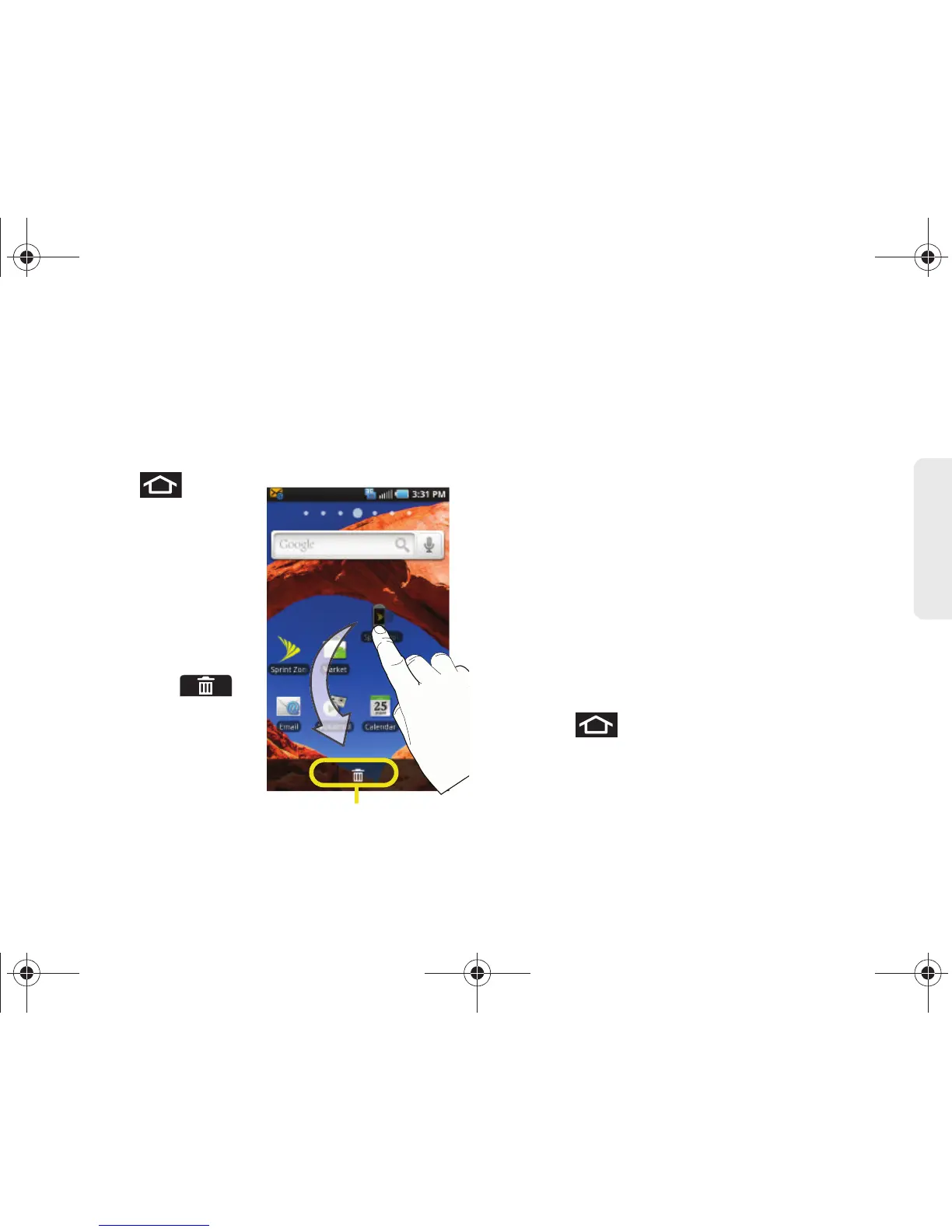
To delete a shortcut:
1. Press to
activate the Home
screen.
2. Touch and hold the
desired shortcut. This
unlocks it from its
location on the current
screen.
3. Drag the icon over the
Delete tab ( )
and release it.
Adding and Removing Widgets
Widgets are self-contained applications that can be
placed on either a Home or Extended screen. Unlike a
shortcut, Widgets appear as an onscreen applications.
There are two sets of Widgets: Samsung Widgets and
Android Widgets.
䢇 Samsung Widgets
䡲 Choices include: AccuWeather Clock, Buddies
now, Calendar Clock, Feeds and Update, Program
Monitor, and Y! Finance Clock.
䢇 Android Widgets
䡲 Choices include: Analog clock, Facebook, Music,
NASCAR, Picture frame, Power Control, Search,
Sprint Football Live, Sprint TV, Voicemail, and
YouTube.
To add a Widget:
1. Press to activate the Home screen.
2. Touch and hold on an empty area of the screen.
3. From the Add to Home screen window tap Samsung
Widgets or Android Widgets.



 To Next Page