Shooting options
36
Selecting a resolution and quality
Learn how to change the image resolution and quality settings.
When recording a video
1
In the mode, press [ ].
2
Select Movie → Movie Size → an option.
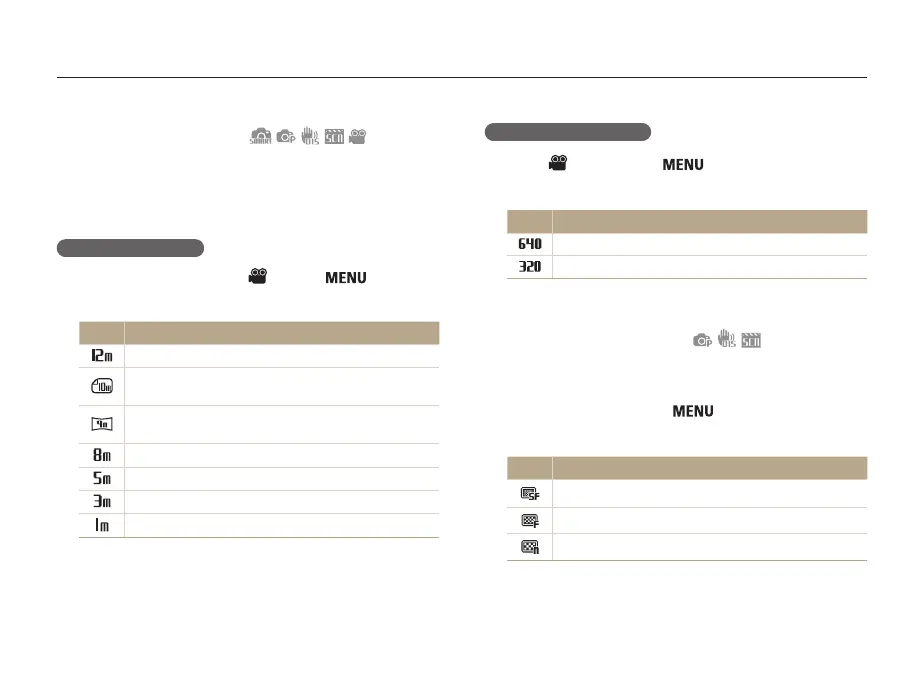
Option Description
640 X 480: For play back on a standard, analog TV.
320 X 240: To post on a web page.
Selecting image quality
The camera compresses and saves the photos you take in JPEG
format. Higher quality images result in larger file sizes.
1
In Shooting mode, press [ ].
2
Select Shooting → Quality → an option.
Option Description
Super Fine: Capture photos in super high quality.
Fine: Capture photos in high quality.
Normal: Capture photos in normal quality.
The options may differ depending on the shooting mode.
Selecting a resolution
As you increase the resolution, your photo or video will include
more pixels, so it can be printed on larger paper or displayed on
a larger screen. When you use a high resolution, the file size also
increases.
When taking a photo
1
In Shooting mode (except ), press [ ].
2
Select Shooting → Photo Size → an option.
Option Description
4000 X 3000: Print on A1 paper (23.3" x 33.1").
3984 X 2656: Print on A2 paper (16.5" x 23.3") in wide
ratio (3:2).
3968 X 2232: Print on A2 paper in panorama ratio (16:9)
or play back on an HDTV (16.5" x 23.3").
3264 X 2448: Print on A3 paper (11.7" x 16.5").
2592 X 1944: Print on A4 paper (8.3" x 11.7").
2048 X 1536: Print on A5 paper (5.8" x 8.3").
1024 X 768: Attach to email.
The paper sizes in inches are approximate.



 To Next Page