Basics 18
Controlling a Screen
Control a TV or monitor screen by using your smartphone as
a mouse or remote control.
Start
HomeSync
on your smartphone, select
Remote control
,
and then switch to the control mode you want.
Note:
Available control modes may vary depending on the
smartphone you use.
You can also connect a mouse to the USB port on the
device to control a screen.
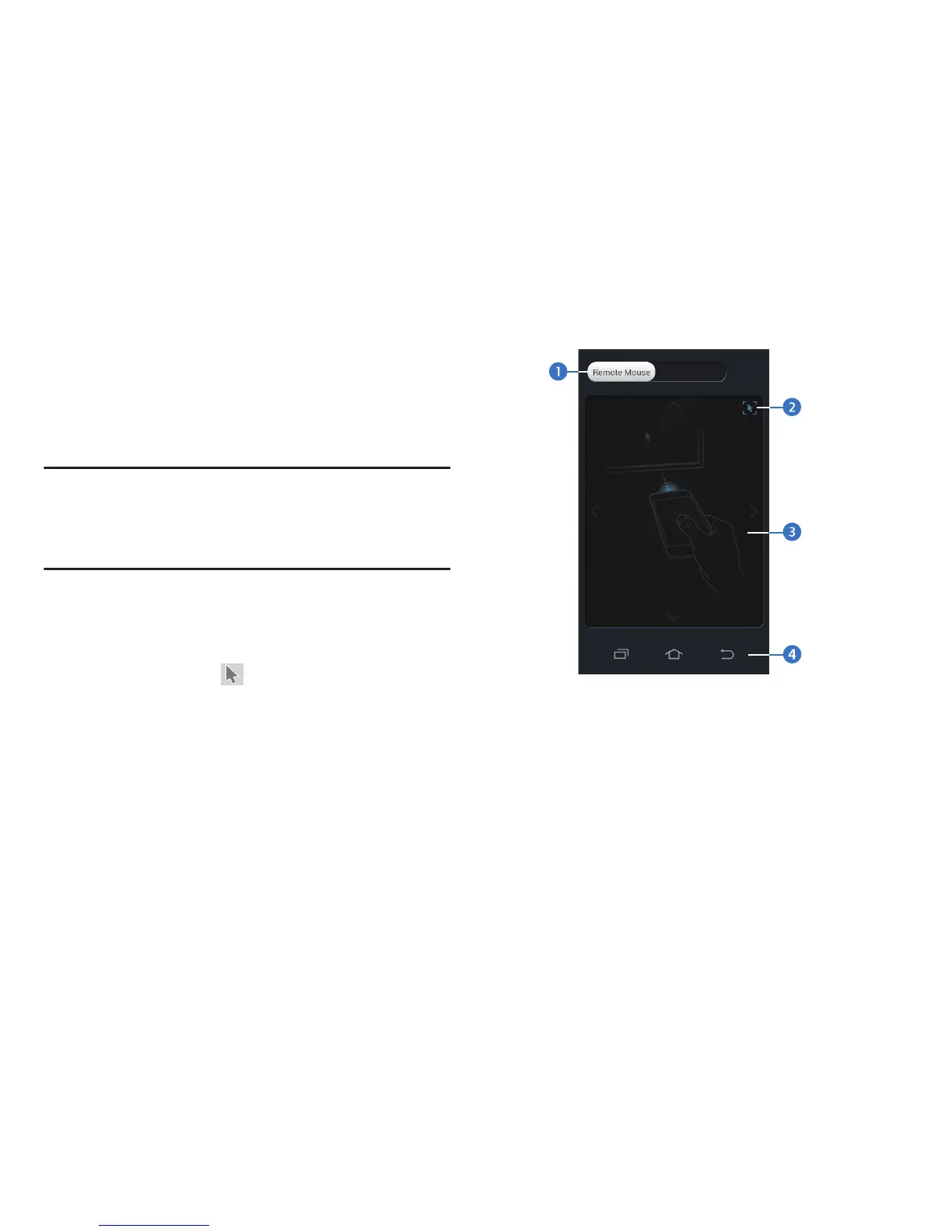
Using Remote Mouse
Control the screen by moving the smartphone and touching
the control pad.
You can move the pointer by moving the smartphone up,
down, left, or right. Tap the control pad to select a field.
For more information about how to use the control pad, see
“Using the Control Pad” on page 19.
1. Switch between Remote Mouse and Touch Pad.
2. Move the pointer to the center of the screen.
3. Control pad.
4. Control buttons. For more information, refer to
“Buttons” on page 23.


 To Next Page