EasyManua.ls Logo

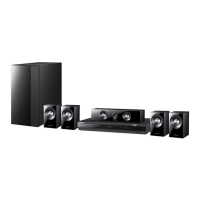
Samsung HT-D5000 - User Manual

Samsung HT-D5000
276 pages
Print Icon
To Next Page IconTo Next Page
Loading...
2.1CH Blu-ray™
Home Entertainment System
user manual
imagine the possibilities
Thank you for purchasing this Samsung product.
To receive more complete service,
please register your product at
www.samsung.com/register
HT-D5000
HT-D5000_ELS_0221.indd 1HT-D5000_ELS_0221.indd 1 2011-03-14 ¿ÀÈÄ 8:31:092011-03-14 ¿ÀÈÄ 8:31:09

Table of Contents

Questions and Answers

  • M
    Matthew WileyAug 17, 2025
    Why is there no sound coming from my Samsung HT-D5000 Home Theater System?
    • R
      Robert WhiteAug 17, 2025
      If your Samsung Home Theater System isn't producing any sound, it could be due to several reasons. Sound is not outputted during still picture playback or during fast and slow playback. Also, check if the speakers are correctly connected and the speaker settings are accurate. A heavily damaged disc may also cause this issue.
  • R
    Raymond MathewsAug 20, 2025
    Why does my Samsung HT-D5000 only output sound from some speakers?
    • C
      Craig BoyerAug 20, 2025
      If your Samsung Home Theater System only outputs sound from some of the 3 speakers, ensure the speakers are connected correctly. Depending on the BD/DVD, sound may only come from the front speakers. When listening to CDs, radio, or TV, sound is only outputted through the front speakers. Also, check the volume.
  • J
    John PattersonAug 23, 2025
    Why is my Samsung Home Theater System remote not working?
    • J
      jonathanpetersAug 23, 2025
      If your Samsung Home Theater System remote control isn't working, ensure you're using it within the operating range and at the correct angle to the device. Check if the batteries are dead. Also, verify that you've selected the correct mode (TV/BD) corresponding to the remote's functions (TV or BD).
  • M
    Michael NavarroAug 26, 2025
    Why is my Samsung HT-D5000 Home Theater System spinning the disc but showing no picture?
    • C
      cynthia14Aug 26, 2025
      If your Samsung Home Theater System isn't displaying a picture but the disc is spinning, make sure the TV is turned on and the video cables are properly connected. The disc might be dirty, damaged, or have manufacturing defects that prevent proper playback.
  • M
    mcfarlandchristianAug 28, 2025
    Why does my Samsung HT-D5000 say “Not Available”?
    • T
      Timothy FrederickAug 28, 2025
      If your Samsung Home Theater System displays “Not Available” on the screen, it could be due to several reasons: the BD/DVD software may prevent the execution, the BD/DVD software may not support the function (e.g., camera angle), the function is currently unavailable, or you have selected a title, chapter, or scan time outside the allowed range.
  • J
    Jacob JensenAug 31, 2025
    Why is the HDMI output on my Samsung HT-D5000 Home Theater System showing only noise?
    • D
      Daniel HernandezAug 31, 2025
      If your Samsung Home Theater System's HDMI output is unusual, and the screen only shows noise, it means that the TV does not support HDCP (High-bandwidth Digital Content Protection).
  • W
    William MeadowsSep 2, 2025
    Why is the menu screen not showing on my Samsung HT-D5000 Home Theater System?
    • C
      Christopher MoonSep 3, 2025
      If your Samsung Home Theater System's menu screen isn't appearing even when the menu function is selected, it may be because you are using a disc that does not contain menus.
  • M
    Matthew SchmittSep 5, 2025
    Why are audio language and subtitles not working on my Samsung Home Theater System?
    • S
      Sarah GuerreroSep 5, 2025
      If your Samsung Home Theater System's audio language and subtitles are not working, note that not all discs contain audio language or subtitles.
  • I
    Isaac PachecoSep 8, 2025
    Why is there no HDMI output from my Samsung HT-D5000?
    • K
      Kelly SimmonsSep 8, 2025
      If your Samsung Home Theater System has no HDMI output, verify the connection between the TV and the product's HDMI jack. Also, check if your TV supports the HDMI input resolutions 576p/480p/720p/1080i/1080p.
  • T
    Tiffany JonesSep 12, 2025
    Why can't I change the aspect ratio on my Samsung HT-D5000?
    • D
      Debra ScottSep 12, 2025
      If your Samsung Home Theater System's picture format cannot be changed, note that 16:9 BD/DVDs can be played in 16:9 widescreen, 4:3 letterbox, or 4:3 pan-scan formats. 4:3 BD/DVDs can only be played in 4:3 format. Refer to the Blu-ray disc cover for information and select the appropriate function.


Summary

SAFETY INFORMATION

Safety Warnings

Instructions and warnings to reduce the risk of electric shock or personal injury.

Wiring the Main Power Supply Plug (UK Only)

Guide for connecting the power plug, including fuse replacement and wire connection details.

Precautions

Important guidelines for safe operation, ventilation, and handling to prevent damage or malfunction.

Viewing TV using the 3 D function

Important health and safety information for viewing 3D pictures and using 3D glasses.

GETTING STARTED

Setting the Remote Control

Guide for programming the remote control to operate a TV, including code entry.

CONNECTIONS

Connecting the Speakers

Instructions for connecting front and subwoofer speakers to the main unit.

Connecting the Video Out to your TV

Methods for connecting the product's video output to a television set.

METHOD 1: HDMI (BEST QUALITY)

Connecting the product to a TV using an HDMI cable for optimal audio-visual quality.

METHOD 2: Component Video (BETTER QUALITY)

Connecting the product to a TV using Component Video cables for improved quality.

Connecting Audio from External Components

Guide for connecting digital (Optical) and analog (AUX) audio sources.

Connecting to the Network

Steps for establishing a wired network connection to access online services.

SETUP

Initial Settings

Guide for initial product setup, including language, network, and display configurations.

Accessing the Settings Menu

Steps to navigate and access the product's various settings menus for customization.

Display

Options for configuring display settings, including aspect ratio, resolution, and colour format.

3 D Settings

Settings for playing 3D Blu-ray discs and adjusting 3D playback modes for optimal viewing.

BD Wise (Samsung Products only)

Samsung's interconnectivity feature to optimize video resolution between products.

Resolution

Setting the output resolution for HDMI and Component video signals based on TV capabilities.

Speaker

Settings for speaker configuration, including volume level and distance calibration.

Audio Return Channel

Enabling TV sound playback through the Home Cinema speakers using a single HDMI cable.

Digital Output

Selecting the digital output format (PCM, Bitstream) for AV receiver compatibility.

Network

Instructions for setting up wired and wireless network connections for internet services.

Wired Network

Steps for setting up an automatic or manual wired network connection.

Wireless Network

Methods for setting up a wireless network connection (General, WPS, One Foot).

WPS(PBC)

Easiest wireless setup using WPS(PBC) function with compatible routers.

One Foot Connection

Automatic wireless setup using Samsung router's One Foot Connection feature.

System

Accessing system settings like Anynet+, BD Data Management, Time Zone, and DivX VOD.

Anynet+(HDMI-CEC)

Enabling linked operations and control with other compatible Samsung products.

Security

Controlling disc playback based on age ratings and parental password.

BD Parental Rating

Prohibiting playback of Blu-ray discs rated above a selected Parental Rating.

Software Upgrade

Methods for upgrading product software to improve performance and add services.

BASIC FUNCTIONS

Playing a Disc

Step-by-step guide to inserting and playing discs from the disc tray.

Playing back a USB Storage Device

Playing multimedia files (MP3, JPEG, DivX) from a connected USB storage device.

NETWORK SERVICES

Using Smart Hub

Accessing and utilizing internet-based applications, services, and streaming content.

Starting Smart Hub the First Time

Initial setup steps required to access and configure the Smart Hub service.

Creating an Account

Steps to create a Smart TV account for exclusive configuration and access to services.

Account Management

Managing service provider accounts, changing passwords, and deactivating Smart TV accounts.

Register Service Account

Associating existing provider accounts with your Smart TV Account for easier access.

Reset

Re-initializing downloaded widgets, user accounts, and Smart Hub settings to factory defaults.

Samsung Apps

Downloading and using various applications and services from the Samsung Apps store.

Accessing the Samsung Apps Screen

Navigating to the Samsung Apps screen to browse and select applications.

Using the AllShare Function

Playing music, video, and photo files from PC or DLNA compatible devices.

OTHER INFORMATION

Troubleshooting

Solutions for common product issues, symptoms, and remedies.

Specifications

Technical details and specifications of the product, including dimensions, power, and performance.

Samsung HT-D5000 Specifications

General IconGeneral
BrandSamsung
ModelHT-D5000
CategoryHome Theater System
LanguageEnglish

Related product manuals