EasyManua.ls Logo

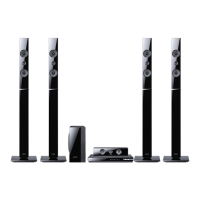
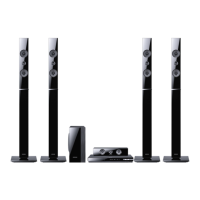
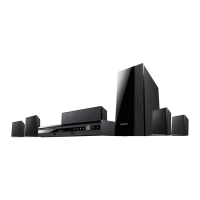
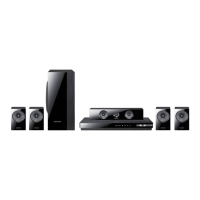
Samsung HT-E5550W - User Manual

Samsung HT-E5550W
66 pages
Print Icon
To Next Page IconTo Next Page
Loading...
imagine the possibilities
Thank you for purchasing this Samsung product.
To receive more complete service,
please register your product at
www.samsung.com/register
5.1CH Blu-ray™
Home Entertainment System
user manual
HT-E5550W
HT-E5550W_XY_0316.indd 1HT-E5550W_XY_0316.indd 1 2012-03-16 오후 1:03:592012-03-16 오후 1:03:59

Table of Contents

Questions and Answers

  • S
    Stacy SmithSep 9, 2025
    How to fix Samsung HT-E5550W Home Theater System if it can't receive radio broadcasts?
    • H
      hkirkSep 9, 2025
      Check if the antenna is connected properly. If the antenna's input signal is weak, install an external FM antenna in an area with good reception.
  • J
    Justin DavidsonSep 12, 2025
    What to do if the menu screen doesn't appear on my Samsung Home Theater System?
    • E
      Emily WolfeSep 12, 2025
      You may be using a disc that does not contain menus.
  • A
    April BlairSep 13, 2025
    What does 'Not Available' mean on my Samsung HT-E5550W Home Theater System?
    • J
      James RandallSep 13, 2025
      The features or action cannot be completed because: The Blu-ray/DVD disc's software restricts it; The Blu-ray/DVD disc's software doesn’t support the feature; The feature is not available at the moment; You’ve requested a title or chapter number or search time that is out of range.
  • M
    Michael ReyesSep 15, 2025
    Why does playback not start immediately on my Samsung Home Theater System?
    • N
      nataliefullerSep 15, 2025
      Check if you are using a deformed disc or a disc with scratches on the surface. If so, wipe the disc clean.
  • A
    andersonbrianSep 17, 2025
    What to do if my TV doesn't show a picture when using my Samsung HT-E5550W Home Theater System?
    • A
      Anthony YoungSep 17, 2025
      Press and hold the 5 button on the front panel for more than 5 seconds with no disc inserted. This will revert all settings to the factory defaults.

Summary

Safety Information

Warning and Cautionary Statements

Provides essential safety warnings and cautions for product usage and electrical safety.

Laser Product Safety

Classifies the product as a Class 1 Laser Product and states safety precautions.

Disc Handling and 3 D Viewing Precautions

Details disc handling, storage, and safety information for 3D viewing.

Getting Started

Disc and Format Compatibility

Lists compatible and incompatible disc types and explains format compatibility requirements.

Region Code and Video File Support

Explains region coding and details supported video file extensions, codecs, and resolutions.

Accessories and Panel Layouts

Lists accessories and details front/rear panel layouts for connectivity.

Remote Control Operation

Explains remote control functions and how to set it up for TV operation.

Connections

Speaker Connection and Installation

Guides on connecting, installing, and positioning speakers for optimal sound.

Antenna and iPod;iPhone Connection

Details connecting the FM antenna and connecting an iPod/iPhone using USB or dock.

TV and External Device Connectivity

Guides on connecting to a TV and other external devices using HDMI, Optical, and AUX inputs.

Network Services

Network Connection Setup

Provides instructions for connecting the product to a network router via wired or wireless methods.

Smart Hub, Web Browser, and BD-LIVE

Explains how to use Smart Hub, Web Browser, and BD-LIVE services for online content and applications.

Settings

Initial Setup and Navigation

Guides the user through initial setup, Home screen navigation, and accessing the settings menu.

Display and Audio Settings

Details display settings like 3D and resolution, and audio settings for speakers, equalizer, and sync.

Network, System, and Security Settings

Covers network, system, security, and general settings for product configuration.

Software Upgrade Procedures

Guides on upgrading product software via Online, USB, Disc, downloaded files, or Standby Mode.

Media Play

AllShare Play and USB;iPod Playback

Guides on using AllShare Play and playing files from USB storage devices and iPod/iPhones.

Video and Music Playback Control

Details how to control video and music playback, including using the Tools menu and creating playlists.

Photo Playback and Bluetooth Audio

Explains how to play photo content, use Bluetooth for audio, and manage files.

Appendix

Troubleshooting Common Issues

Provides solutions for common problems encountered with the product's functions and connectivity.

Product Specifications

Lists detailed technical specifications for the main unit, speakers, and wireless receiver module.

Samsung HT-E5550W Specifications

General IconGeneral
Power Output1000 W
Number of Channels5.1
Blu-ray PlaybackYes
3D PlaybackYes
Wi-FiYes
HDMI Inputs2
USB Ports1
Smart HubYes
HDMI Output1
Audio Return Channel (ARC)Yes
Anynet+ (HDMI-CEC)Yes
Disc PlaybackBlu-ray, DVD, CD
Audio Formats SupportedDolby Digital, DTS
Video FeaturesFull HD 1080p
ConnectivityHDMI
Wireless ConnectivityWi-Fi

Related product manuals