EasyManua.ls Logo

Samsung LN-T2342H - User Manual

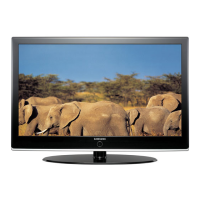
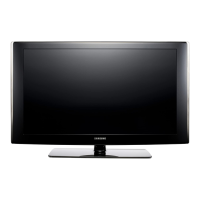
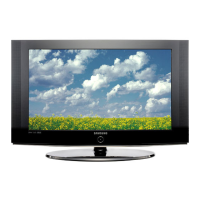
Samsung LN-T2342H
111 pages
Print Icon
To Next Page IconTo Next Page
Loading...
Owners
Instructions
Register your product at www.samsung.com/global/register
Record your Model and Serial number here for future reference.
· Model __________ · Serial No. ____________
LN-T2342H
LN-T2642H
LN-T3242H
LN-T4042H
LN-T4642H
TFT-LCD TELEVISION

Table of Contents

Questions and Answers

  • P
    perezdustinSep 23, 2025
    How to prevent burn-in on Samsung LN-T2342H LCD TV?
    • T
      tortizSep 23, 2025
      To prevent residual images or blurring on your Samsung LCD TV when a still image is displayed for an extended period, adjust the settings so that the monitor automatically goes into energy saving mode or activates the screen saver to display moving images when you need to leave the monitor unused for a while.
  • J
    Jerry MooreAug 23, 2025
    Why won't my Samsung LN-T2342H LCD TV turn on?
    • P
      Patrick MooreAug 23, 2025
      If your Samsung LCD TV is not turning on, the first thing you should do is to ensure that the wall outlet it's plugged into is working correctly. Try plugging another device into the same outlet to test it.
  • S
    sharon81Aug 25, 2025
    How to improve poor picture quality on Samsung LN-T2342H?
    • E
      Ernest RiveraAug 26, 2025
      To improve poor picture quality on your Samsung LCD TV, try changing to another channel. Adjust the antenna to optimize signal reception. Additionally, check all wire connections to ensure they are properly connected.
  • B
    Bianca CallahanAug 26, 2025
    What to do if Samsung LN-T2342H has no sound or very low sound?
    • A
      Audrey AndersonAug 27, 2025
      If your Samsung LCD TV has no sound, or the sound is too low even at maximum volume, first check the volume levels of any devices connected to your TV, such as a digital broadcasting receiver, DVD player, cable broadcasting receiver, or VCR. Then, adjust the TV volume accordingly.
  • C
    Connor SnyderAug 27, 2025
    How to adjust brightness on Samsung LN-T2342H if the image is too light or dark?
    • J
      Jonathan HunterAug 28, 2025
      If the image on your Samsung LCD TV is too light or too dark, adjust the Brightness and Contrast settings. You can also adjust the Fine tuning.
  • B
    Bobby LangSep 18, 2025
    How to fix ghosting on Samsung LN-T2342H LCD TV picture?
    • A
      Alyssa BrooksSep 18, 2025
      Ghosting on your Samsung LCD TV picture is sometimes caused by compatibility issues with your cable box. Try connecting Component cables instead of your current connection type.
  • N
    Nicholas RamirezSep 15, 2025
    Why is my Samsung LN-T2342H screen black and the power light blinking?
    • T
      Tim WoodardSep 15, 2025
      If your Samsung LCD TV screen is black and the power indicator light blinks steadily, and you have a computer connected, check the power and signal cable connections on your computer. This indicates that the TV is using its power management system. Try moving the computer's mouse or pressing any key on the keyboard.
  • L
    Laura DanielsSep 16, 2025
    How to stabilize the image on Samsung LCD TV when connected to a computer?
    • E
      Elizabeth MeadowsSep 16, 2025
      If the image is not stable and appears to vibrate when you have a computer connected to the PC input on your Samsung LCD TV, and the setting is not correct, use your computer utility program to change the display settings. Your TV supports multiscan display functions within the following frequency domain: Horizontal frequency (kHz) 30~60, Vertical frequency (Hz) 60~75, PC Maximum refresh rate 1360 x 768 (at 60 Hz).
  • M
    Mario WilliamsSep 6, 2025
    Why does my Samsung LN-T2342H picture have a red, green, or pink tint?
    • T
      Timothy RogersSep 6, 2025
      If the picture on your Samsung LCD TV has a red, green, or pink tint, make sure the Component cables are connected to the correct jacks.
  • S
    Sarah WagnerSep 4, 2025
    How to remove black bars on my Samsung LN-T2342H LCD TV screen?
    • C
      Christopher HaysSep 4, 2025
      To remove black bars on your Samsung LCD TV screen, first, make sure the broadcast you’re receiving is High Definition (HD). HD channels sometimes broadcast Standard Definition (SD) programming, which can cause black bars. You can also set your cable/satellite box to stretch or widescreen mode to eliminate the bars.

Summary

General Information

List of Features

Overview of the TV's capabilities, including picture settings, timers, V-Chip, and HD tuner.

Accessories

Lists all items included with the LCD TV for setup and use.

Viewing the Control Panel

Describes the function of buttons on the TV's control panel.

Viewing the Connection Panel

Identifies and explains the rear and side panel input/output jacks.

Remote Control

Explains the functions of each button on the remote control.

Installing Batteries in the Remote Control

Step-by-step guide for inserting batteries into the remote.

Operation

Turning the TV On and Off

How to power the TV on and off using the remote or front panel button.

Plug & Play Feature

Automatic initial TV setup for language, channels, and time.

Changing Channels

How to change channels using the CH buttons or PRE-CH button.

Adjusting the Volume

Instructions for increasing or decreasing TV volume and using the MUTE function.

Viewing the Display

How to view current channel and AV settings using the INFO button.

Viewing the Menus

Navigating the TV's main menu and accessing sub-menus.

Memorizing the Channels

Process for storing available channels for easy selection.

Setting Up Your Remote Control

Guides for programming the remote to control VCR, Cable Box, DVD, and STB.

Picture Control

Using Automatic Picture Settings

Activating preset picture modes like Dynamic, Standard, or Movie.

Adjusting the Color Tone

Changing the color temperature (Cool, Normal, Warm) for preferred picture.

Adjusting the Detailed Settings

Fine-tuning picture quality with options like Black Adjust and Dynamic Contrast.

Changing the Screen Size

Selecting aspect ratios like 16:9, Zoom, Wide Fit, or 4:3 for optimal display.

DNIe (Digital Natural Image engine)

Enhances visual quality via 3D noise reduction and detail enhancement.

Sound Control

Customizing the Sound

Adjusting sound balance, equalizer settings, and other preferences.

Using Automatic Sound Settings

Selecting preset sound modes like Standard, Music, Movie, or Speech.

Setting the TruSurround XT

Enabling SRS TruSurround XT for virtual surround sound.

Choosing a Multi-Channel Sound (MTS) track - Digital

Selecting different audio tracks available in digital TV broadcasts.

Connecting Headphones

How to connect headphones for private listening without disturbing others.

PC Display

Using Your TV as a Computer (PC) Display

Guide to connecting and using the TV as a PC monitor.

Display Modes

Table showing optimized resolutions and frequencies for PC input.

How to Auto Adjust

Automatically adjusting video signals for optimal PC display.

Adjusting the Screen Quality

Reducing picture noise and aligning the screen image for PC input.

Time Setting

Setting the Clock

Manually or automatically setting the TV's internal clock.

Setting the Sleep Timer

Configuring the TV to automatically turn off after a set period.

Setting the On;Off Timer

Setting timers for the TV to turn on or off automatically.

Function Description

Selecting a Menu Language

Changing the on-screen menu language to English, Español, or Français.

Using the Game Mode

Optimizing the TV for a better gaming experience with consoles.

Viewing Closed Captions (On-Screen Text Messages) - Analog

Displaying text-based captions for analog channels or external components.

Using the Energy Saving Feature

Adjusting TV brightness to reduce power consumption and eye fatigue.

Using the V-Chip

Setting up parental controls to block inappropriate programs.

Upgrading the Software

Instructions for updating the TV's firmware via a USB drive.

Appendix

Troubleshooting

Solutions for common TV problems like poor picture, sound, or remote issues.

Installing the Stand

Step-by-step guide for attaching the TV stand securely.

Wall-Mount Adjustment

How to adjust the TV's position when mounted on a wall.

Specifications

Technical details and dimensions of the TV models.

Samsung LN-T2342H Specifications

General IconGeneral
Screen Size23 inches
Display TypeLCD
Resolution1366 x 768
Aspect Ratio16:9
Contrast Ratio3000:1
Response Time8 ms
HDMI Ports2
Component Video Inputs1
Composite Video Inputs1
TunerATSC/NTSC
Viewing Angle178°
InputsHDMI, Component, Composite, RF
OutputsAudio
SpeakersBuilt-in speakers

Related product manuals