ENG
29
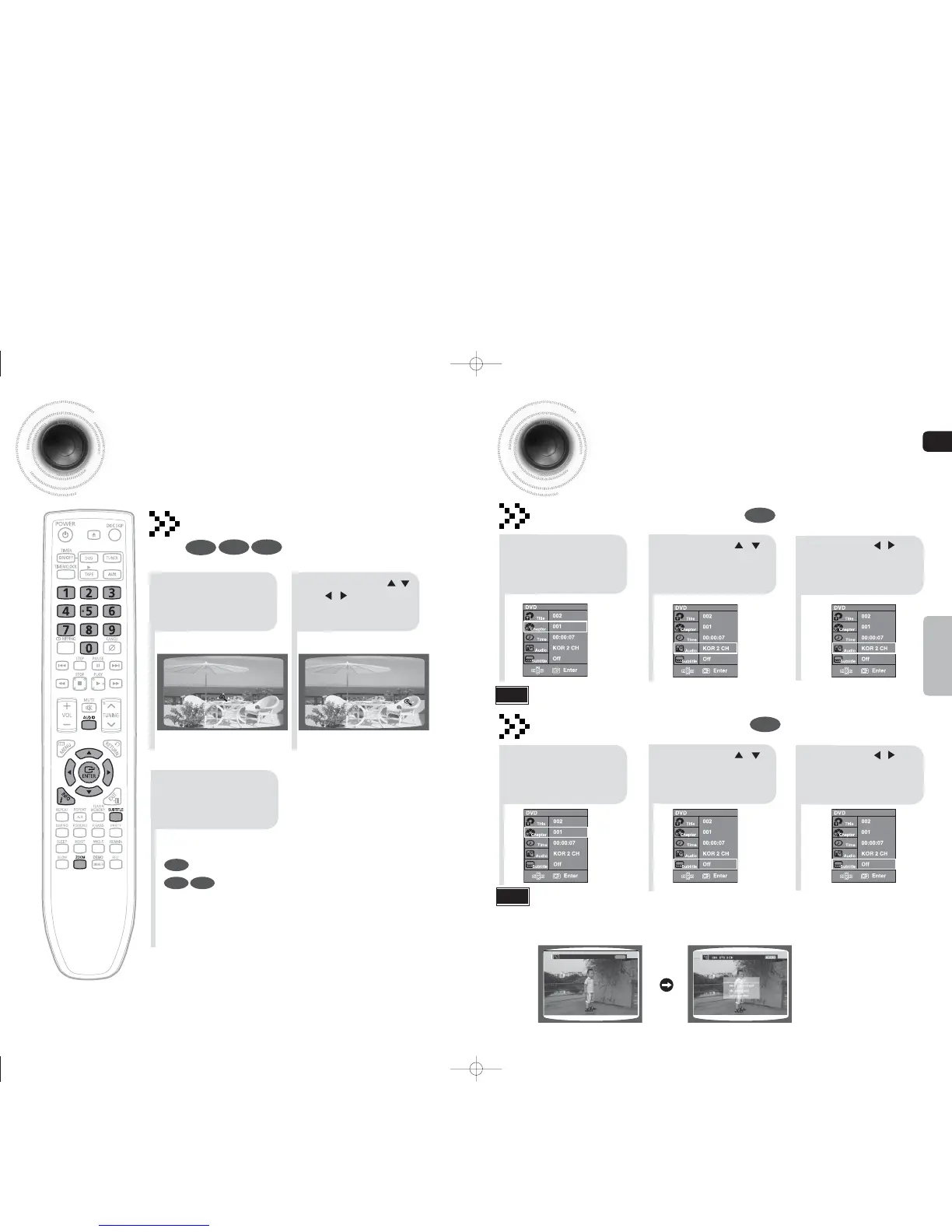
Zoom Function
This function allows you to enlarge a particular area of the displayed image.
30
OPERATION
Selecting Audio/Subtitle Language
•
Depending on the number of languages on a DVD disc, a different audio language (ENGLISH, SPAIN,FRENCH, etc.) is selected each
time the button is pressed.
2
2
Press Cursor ,
buttons to select the
Audio and then press
ENTER button.
Press Cursor ,
buttons to select the
Subtitle and then press
ENTER button.
1
Press INFO button.
Audio Language Selection Function
DVD
Subtitle Language Selection Function
DVD
Note
1
Press INFO button.
3
3
Press Cursor ,
or numeric buttons to select the
desired Audio language and then
press ENTER button.
Press Cursor ,
or numeric buttons to select the
desired Subtitle language and
then press ENTER button.
•
Each time the button is pressed, the
zoom level changes as follow:
2 x 4 x OFF.
2 x 4 x 2 x OFF.
Zoom (Screen Enlarge) Function
DVD
DVD
2
Press Cursor , ,
, buttons to
move to the area
you want to enlarge.
1
Press ZOOM
button.
3
Press ENTER
button.
DivX
DivX
JPEG
JPEG
•
You can use the AUDIO or SUBTITLE button on the remote control to select an audio or subtitle language.
•
Depending on the disc, the Subtitle and Audio Language functions may not work.
•
When you use AUDIO button to select "DTS", sound is not heard, and the TV displays as below:
Note
CHI DOLBY DIGITAL 5.1 CH
AUDIO
1-34p-MAX-DG53-DG54-NO ENG.indd 32-331-34p-MAX-DG53-DG54-NO ENG.indd 32-33 2009-3-24 11:04:012009-3-24 11:04:01


 To Next Page