EasyManua.ls Logo

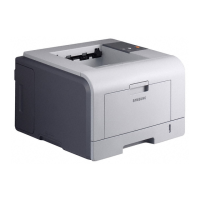
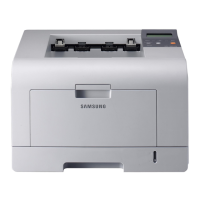
Samsung ML-3050 - User Manual

Samsung ML-3050
61 pages
Print Icon
To Next Page IconTo Next Page
Loading...
This manual is provided for information purposes only. All information included herein is subject to change without notice. Samsung Electronics is not
responsible for any changes, direct or indirect, arising from or related to use of this manual.
© 2005 Samsung Electronics Co., Ltd. All rights reserved.
ML-3050, ML-3051N, and ML-3051ND are trademarks of Samsung Electronics Co., Ltd.
Samsung and Samsung logo are trademarks of Samsung Electronics Co., Ltd.
Centronics is a trademark of Centronics Data Computer Corporation.
IBM and IBM PC are trademarks of International Business Machines Corporation.
PCL and PCL 6 are trademarks of Hewlett-Packard company.
Microsoft, Windows, Windows 9x, Windows Me, Windows 2000, Windows NT 4.0, Windows XP, and Windows 2003 are registered trademarks of
Microsoft Corporation.
PostScript 3 is a trademark of Adobe System, Inc.
UFST® and MicroType™ are registered trademarks of Agfa division of Bayer Corp.
TrueType, LaserWriter, and Macintosh are trademarks of Apple Computer, Inc.
All other brand or product names are trademarks of their respective companies or organizations.

Questions and Answers

  • F
    felicia88Aug 10, 2025
    What to do if my Samsung Printer prints light or faded?
    • T
      Timothy TurnerAug 10, 2025
      If your Samsung Printer is printing with light or faded output, it could be due to a low toner supply. You can try to temporarily extend the life of the toner cartridge. If the print quality doesn't improve, replace the toner cartridge with a new one.
  • M
    Mark WhiteAug 15, 2025
    Why is my Samsung ML-3050 Printer showing 'Toner Empty'?
    • A
      Andrew JohnsonAug 15, 2025
      The 'Toner Empty' message on your Samsung Printer indicates that the toner cartridge has run out of toner. To resolve this, replace the empty toner cartridge with a new one.
  • J
    john64Aug 20, 2025
    How to fix 'Door Open' error on Samsung Printer?
    • C
      Charlotte TaylorAug 20, 2025
      The 'Door Open' error on your Samsung Printer means that either the front cover or rear cover is not securely latched. Ensure that you close the cover until it locks into place.
  • T
    Tammy ThompsonAug 26, 2025
    What causes vertical lines when printing with a Samsung ML-3050 and how to fix it?
    • P
      Peter FisherAug 26, 2025
      Vertical lines appearing on your Samsung Printer's output are likely caused by a scratch on the drum inside the toner cartridge. The suggested solution is to install a new toner cartridge.
  • S
    Shaun MarshallAug 30, 2025
    What to do if Samsung ML-3050 says 'Load [Size] In [Tray]'?
    • K
      Kathy StewartAug 30, 2025
      If your Samsung Printer displays the message 'Load [Size] In [Tray]', it means that the paper size specified in the printer properties does not match the paper you have loaded in the tray. To fix this, load the correct paper size in the specified tray.
  • K
    Karen DavisSep 4, 2025
    How to fix 'Fuser Door Open' error on Samsung ML-3050 Printer?
    • B
      Brian StricklandSep 4, 2025
      The 'Fuser Door Open' error on your Samsung Printer indicates that the fuser door is not securely latched. Open the rear cover and close the fuser door until it locks into place.

Samsung ML-3050 Specifications

General IconGeneral
Printer TypeLaser
Print Speed (Black)30 ppm
Print Resolution1200 x 1200 dpi
Memory64 MB
Paper Capacity250 sheets
Duplex PrintingManual
ConnectivityUSB 2.0

Related product manuals