Introduction_13
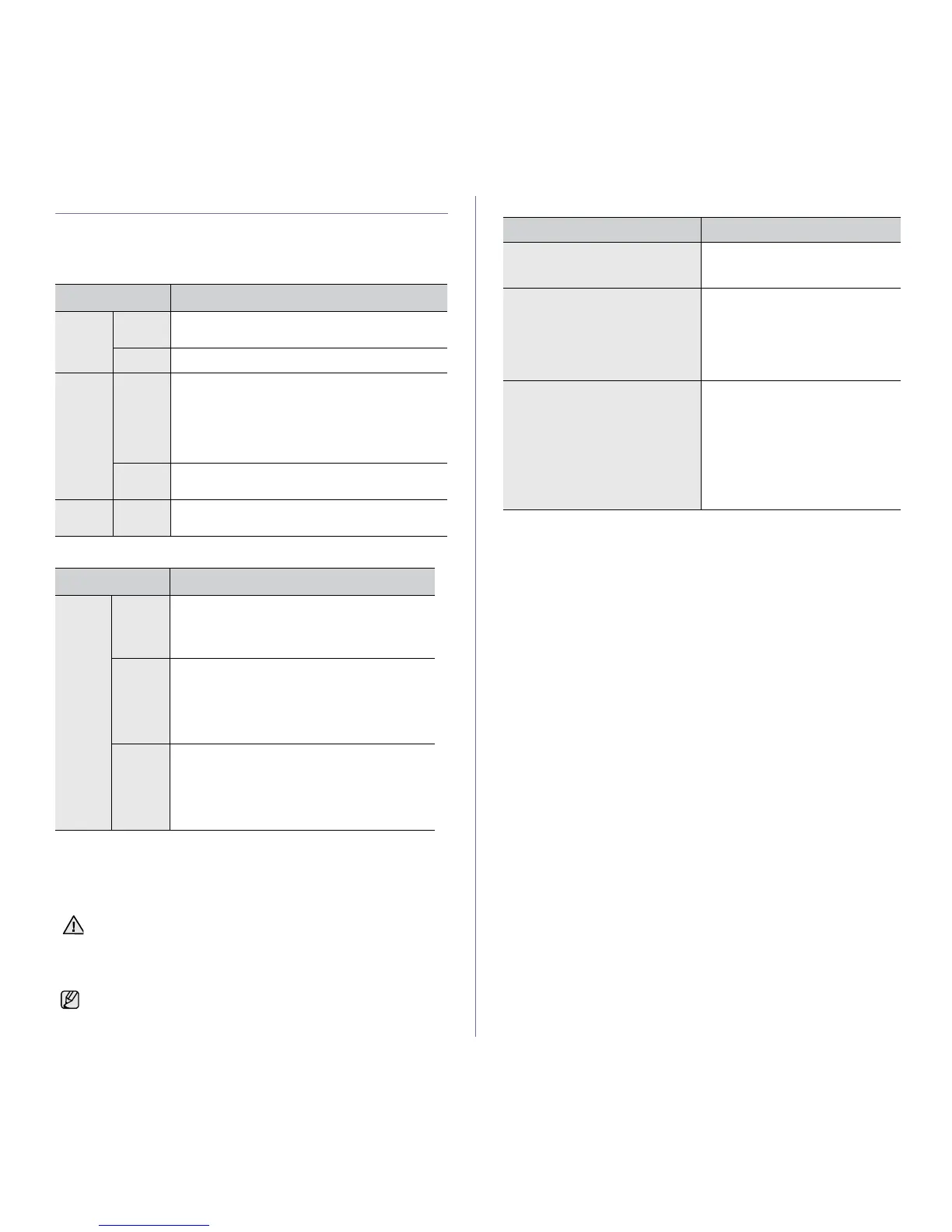
UNDERSTANDING THE CONTROL PANEL
The color of the status and toner LED indicates the machine's current
status.
On-Line/Error LED
Toner LED
]
Cancel button
STATUS DESCRIPTION
Green On The machine is warming up or ready to receive the
data.
Blinking The machine is printing data.
Red On • The machine is experiencing an error, such as
open cover, paper empty, replace imaging unit,
installer error, or invalid error.
• The machine is experiencing a service required
error, such as LSU error, or fuser error. Contact
your sales or service representative.
Blinking The estimated life of imaging unit is close. Prepare
a new imaging unit for replacement.
Orange On The machine is experiencing an error such as
jammed paper.
STATUS DESCRIPTION
Red On A toner cartridge has almost reached its
estimated cartridge life.
a
It is recommended to
replace the toner cartridge. (See "Replacing the
toner cartridge" on page 28)
a. Estimated cartridge life means the expected or estimated toner
cartridge life, which indicates the average capacity of print-outs and
is designed pursuant to ISO/IEC 19752. (See "Specifications" on
page 43.) The number of pages may be affected by operating
environment, printing interval, media type, and media size. Some
amount of toner may remain in the cartridge even when the red LED
turned on and the printer stops printing.
Blinking Small amount of toner is left in the cartridge. The
estimated cartridge life
a
of toner is close.
Prepare a new cartridge for replacement. You
may temporarily increase the printing quality by
redistributing the toner. (See "Redistributing
toner" on page 27.)
Rapidly
blinking
A toner cartridge has almost reached its
estimated cartridge life.
a
Replace the toner
cartridge for the best print quality when this
message appears. Using a cartridge beyond this
stage can result in printing quality issues.(See
"Replacing the toner cartridge" on page 28)
Samsung does not recommend using non-genuine Samsung toner
cartridge such as refilled or remanufactured. Samsung cannot
guarantee non-genuine Samsung toner cartridge's quality. Service or
repair required as a result of using non-genuine Samsung toner
cartridges will not be covered under the machine warranty.
All printing errors will appear in the Smart Panel program window.
STATUS DESCRIPTION
Printing demo page In ready mode, press and hold this
button until the On-Line/Error LED
blinks, and release.
Canceling print job Press this button during printing.
The red LED blinks while the print
job is cleared from both the machine
and the computer, and then the
machine returns to ready mode.
This may take some time depending
on the size of the print job.
Manual print Press this button during printing.
The On-Line/Error LED blinks
while the print job is cleared from
both the machine and the computer,
and then return to ready mode. This
may take some time depending on
the size of the print job.
In Manual Feed mode, you can’t
cancel the print job by pressing this
button.





 To Next Page