39 _Troubleshooting
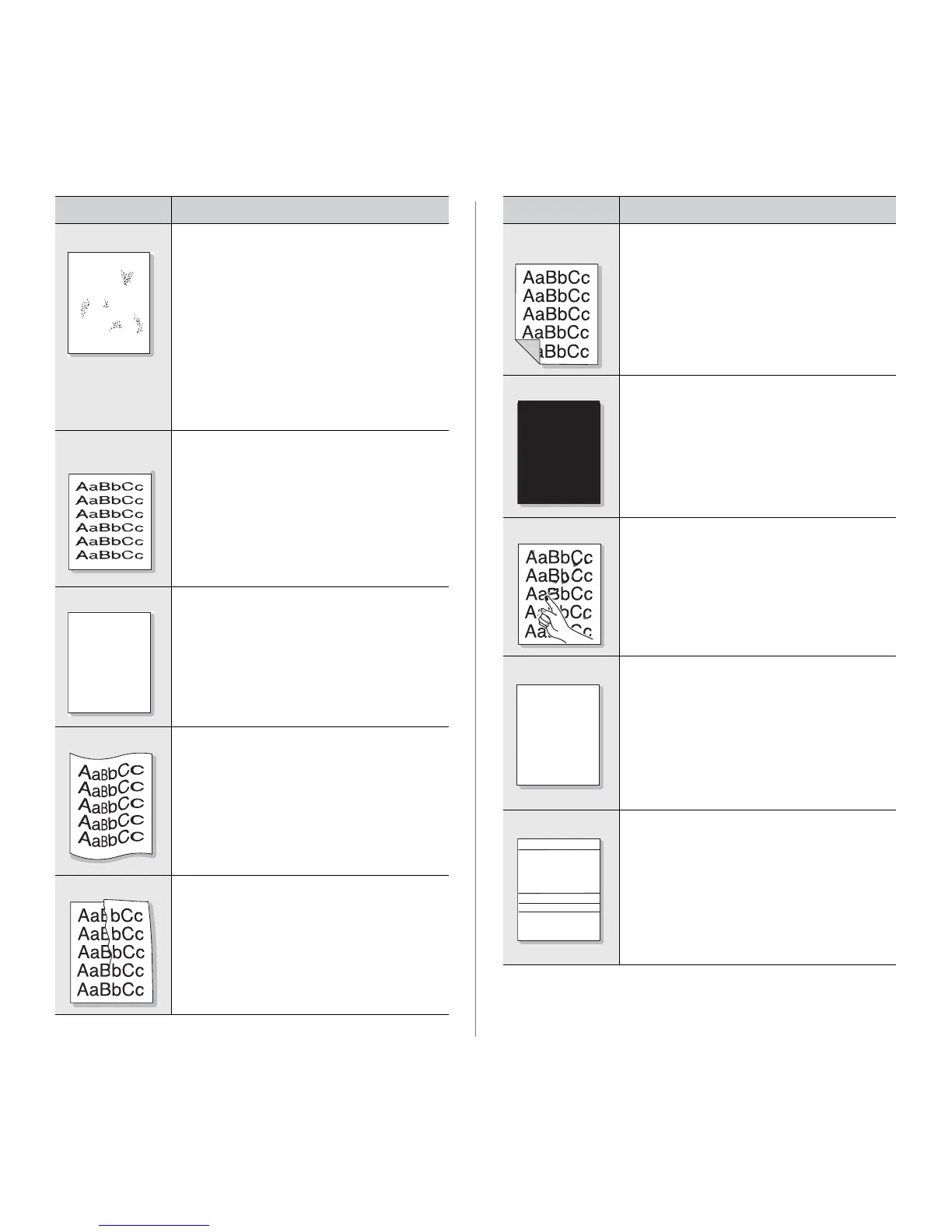
Background scatter
Background scatter results from bits of toner
randomly distributed on the printed page.
• The paper may be too damp. Try printing with a
different batch of paper. Do not open packages
of paper until necessary so that the paper does
not absorb too much moisture.
• If background scatter occurs on an envelope,
change the printing layout to avoid printing over
areas that have overlapping seams on the
reverse side. Printing on seams can cause
problems.
• If background scatter covers the entire surface
area of a printed page, adjust the print
resolution through your software application or
the printer properties.
Misformed
characters
• If characters are improperly formed and
producing hollow images, the paper stock may
be too slick. Try a different paper. See page 18.
Page skew
• Ensure that the paper is loaded properly.
• Check the paper type and quality. See page 18.
• Ensure that the paper or other material is loaded
correctly and the guides are not too tight or too
loose against the paper stack.
Curl or wave
• Ensure that the paper is loaded properly.
• Check the paper type and quality. Both high
temperature and humidity can cause paper curl.
See page 18.
• Turn over the stack of paper in the tray. Also try
rotating the paper 180° in the tray.
Wrinkles or creases
• Ensure that the paper is loaded properly.
• Check the paper type and quality. See page 18.
• Turn over the stack of paper in the tray. Also try
rotating the paper 180° in the tray.
CONDITION SUGGESTED SOLUTIONS
aBbCc
Back of printouts
are dirty
• Check for leaking toner. Clean the inside of the
machine. See page 25.
Black pages
• The printing cartridge may not be installed
properly. Remove the cartridge and reinsert it.
• The imaging unit may be defective and need
replacing. Remove the imaging unit and install a
new one. See page 30.
• The machine may require repair. Contact a
service representative.
Loose toner
• Clean the inside of the machine. See page 25.
• Check the paper type and quality. See page 18.
• Remove the imaging unit and install a new one.
See page 30.
• If the problem persists, the machine may require
repair. Contact a service representative.
Character Voids
Character voids are white areas within parts of
characters that should be solid black:
• If you are using transparencies, try another
type of transparency. Because of the
composition of transparencies, some character
voids are normal.
• You may be printing on the wrong surface of
the paper. Remove the paper and turn it
around.
• The paper may not meet paper specifications.
See page 18.
Horizontal stripes
If horizontally aligned black streaks or smears
appear:
• The printing cartridge may be installed
improperly. Remove the cartridge and reinsert
it.
• The imaging unit may be defective. Remove
the imaging unit and install a new one. See
page 28.
• If the problem persists, the machine may
require repair. Contact a service
representative.
CONDITION SUGGESTED SOLUTIONS





 To Next Page