6
English
How to use
Checking the power connections
Check if the power is connected to the product and the
access point.
Setting up and connecting to a
Wi-Fi access point using your
smartphone
1
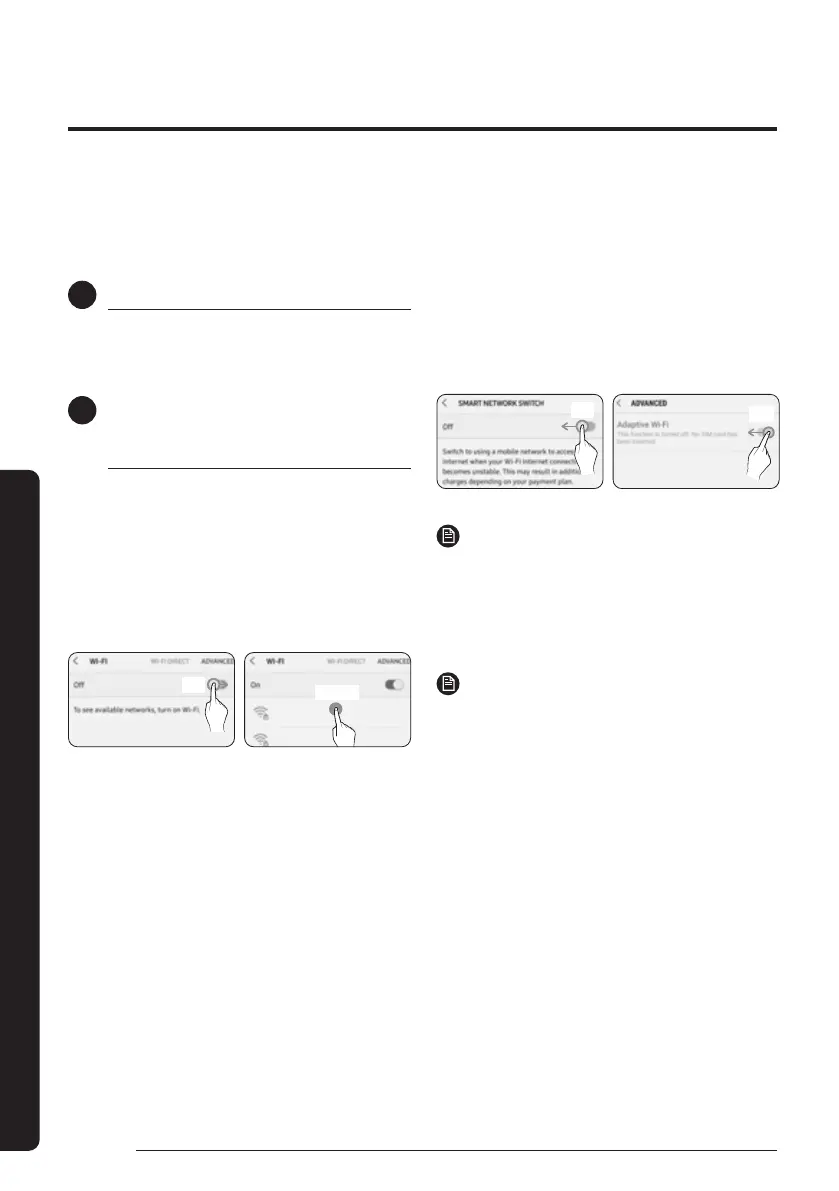
To connect the product to a Wi-Fi network, turn on
Wi-Fi at “Settings > Wi-Fi", and then select the access
point to connect to
• Only alphanumeric characters are supported for
wireless access point names (SSIDs).
If an SSID has a special character, rename it before
con
necting to it.
• Wi-Fi access point: 2.4 GHz Wi-Fi access point only.
On
Select
2
Turning off “SMART NETWORK SWITCH" at “Settings >
Wi-Fi" on your Smartphone
• If “SMART NETWORK SWITCH" or “Adaptive Wi-Fi" is
turned on, you cannot connect to the network. Be sure
to turn off these functions before connecting to the
network.
Off
Off
NOTE
• The setup may differ depending on your smartphone
model, OS version and manufacturer.
3
Checking the Internet connectivity
• After connecting to Wi-Fi, check that your smartphone is
connected to the Internet.
NOTE
• A firewall may prevent your smartphone from
connecting to the Internet. In this case, contact your
Internet service provider for troubleshooting.
To use the SmartThings app, connect the product to the network in the sequence described below.
The images shown may differ depending on your smartphone model, OS version and manufacturer.
You need to set up the Wi-Fi access point only when connecting the product to a Wi-Fi network. Once the product is
con
nected, you can use the SmartThings app via Wi-Fi, 3G, LTE or more wireless networks.
SmartThings app
How to use
DB68-12502A-01_IM_SYS 360 Panel WiFi_GB_EN_.indd 6DB68-12502A-01_IM_SYS 360 Panel WiFi_GB_EN_.indd 6 2023-09-26 오후 3:49:142023-09-26 오후 3:49:14



 To Next Page