9
English
How to use
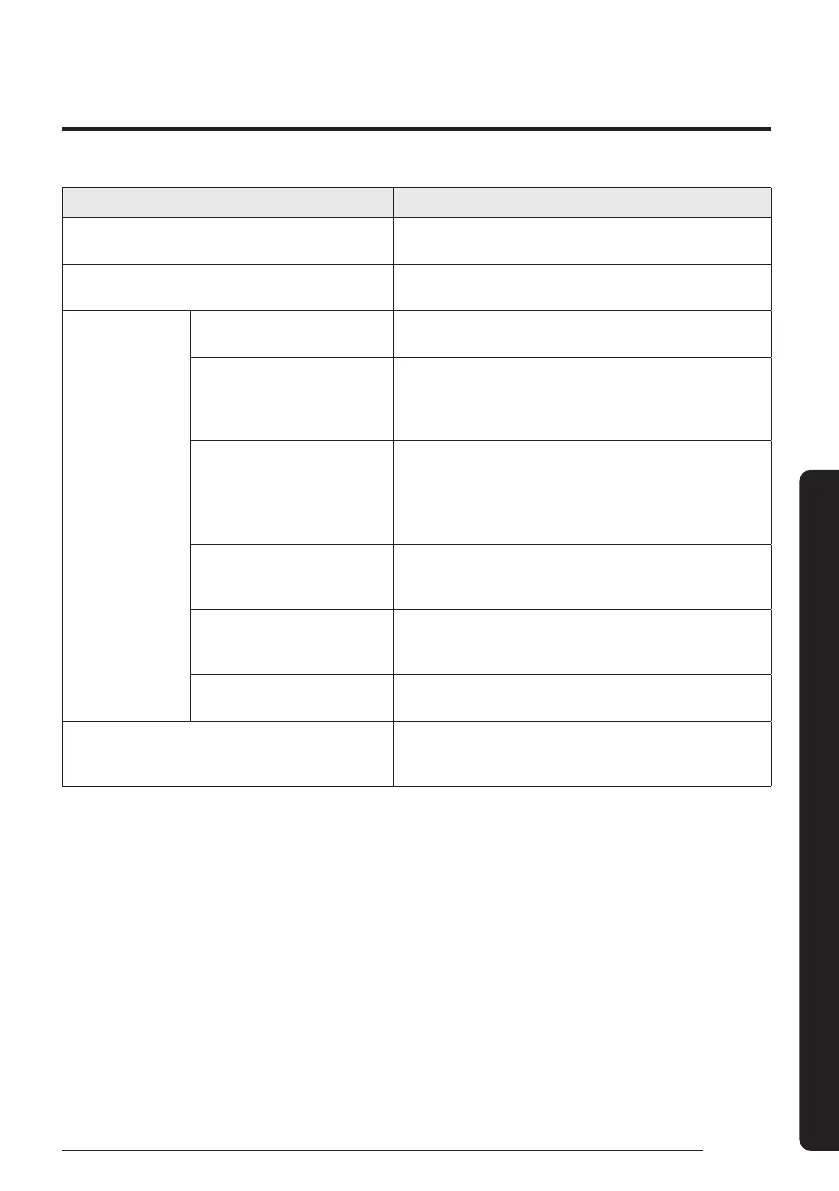
Symptom Measure
The installed SmartThings app cannot access the air
conditioner.
• Make sure you have connected the air conditioner to a
wireless router.
I cannot log in with my Samsung account.
• Try recovering your ID and password from the Samsung
account page.
Adding device(s)
A failure message appears while
adding devices.
• This may fail temporarily due to the distance from the router
or some interferences. Try again later.
I found a failure message in 0
to 1 percent of device addition
process.
• You cannot add any device without deleting it once the
device has already been added to the SmartThings app. To
add the connected device again, first remove it and then
proceed with the process.
I found a failure message in
99 percent of device addition
process.
• If you are using a Samsung smartphone, the server may not be
connected temporarily. Restart the SmartThings app and then
try adding the device again.
• If your phone is not a Samsung product, check that you have
entered a wrong Wi-Fi password. Try adding devices again.
The app displays an authorization
failure before pressing the user
agreement button.
• Check if a Wi-Fi Kit Single is already connected from the
SmartThings app. When there are devices added, first
remove them and try again.
The app displays an authorization
failure on the user agreement
screen.
• Make sure to press the [Power] button within 2 minutes
after the screen appears. Try adding devices again.
The screen requests to initialize
the user account.
• This happens when the user has already added devices.
Follow the instructions provided in the SmartThings app.
After adding a device, the SmartThings app displays the
disconnection event.
• This happens when a device is being added to the server
or it is temporarily disconnected from the router. End the
SmartThings app and then launch it again.
Check the following before requesting a service from the Service Center.
Troubleshooting
DB68-12502A-01_IM_SYS 360 Panel WiFi_GB_EN_.indd 9DB68-12502A-01_IM_SYS 360 Panel WiFi_GB_EN_.indd 9 2023-09-26 오후 3:49:142023-09-26 오후 3:49:14



 To Next Page