EasyManua.ls Logo

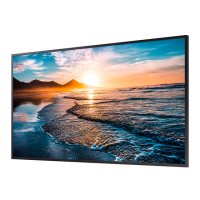
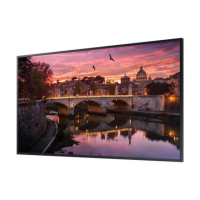
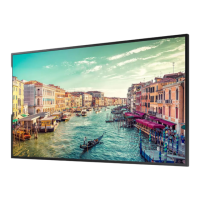
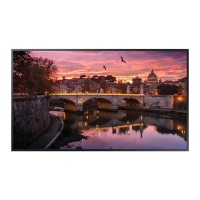
Samsung QHR Series - User Manual

Samsung QHR Series
114 pages
Print Icon
To Next Page IconTo Next Page
Loading...
© Samsung Electronics
Samsung Electronics owns the copyright for this manual. Use or reproduction of this manual in parts or entirety without the authorization of Samsung Electronics is prohibited. Trademarks other than Samsung Electronics are
property of their respective owners.
The colour and the appearance may differ depending on the product, and the content in the
manual is subject to change without prior notice to improve the performance.
This manual provides common information for all Smart Signage models regarding safety precautions, options to connect the product, and product features.
Series: QBN, QBR, QMN, QMR, QEN, OMN, OMN-D, OHN, OHN-DK, VMR-U, QPR-8K, QER, OMR, QHR
Smart Signage User Manual (Common Use)

Table of Contents

Questions and Answers

  • P
    Paula MaloneAug 11, 2025
    How to fix Anynet+ not working on Samsung QHR Digital Signage?
    • M
      Michael HardinAug 11, 2025
      If Anynet+ is not working on your Samsung Digital Signage, first verify that the device is Anynet+ compatible, as the system only supports these devices. Ensure the Anynet+ device's power cord and Video/Audio/HDMI cable connections are properly connected. Also, check that Anynet+ (HDMI-CEC) is enabled in the System menu and that the remote control is Anynet+ compatible. Note that Anynet+ may not function during the initial setup. If you have reconnected the HDMI cable, rescan for devices or power cycle your product. Finally, confirm that the Anynet+ function of the Anynet device is enabled.
  • G
    Gary TrevinoAug 17, 2025
    What to do if connected device is not displayed on Samsung Digital Signage?
    • T
      teresa70Aug 17, 2025
      If your connected device isn't showing up on your Samsung Digital Signage, first confirm that the device supports Anynet+ functions and that the HDMI cable is correctly connected. Check that Anynet+ (HDMI-CEC) is enabled in the System menu and try rescanning for Anynet+ devices. Ensure you are using an HDMI connection, as Anynet+ requires it. Note that some HDMI cables might not support Anynet+ functions. If there was a power failure or the HDMI cable was disconnected, repeat the device scan.
  • C
    Cynthia HernandezAug 23, 2025
    How to start Anynet+ on Samsung Digital Signage?
    • J
      James LangAug 25, 2025
      To start Anynet+ on your Samsung Digital Signage, ensure the Anynet+ device is properly connected to the product. Also, verify that Anynet+ (HDMI-CEC) is set to 'On' in the System menu.
  • D
    Dawn WalshAug 29, 2025
    What to do if the message 'Disconnecting Anynet+ device ...' appears on Samsung Digital Signage?
    • D
      David WoodAug 30, 2025
      If the message 'Disconnecting Anynet+ device ...' appears on the screen of your Samsung Digital Signage, it means you cannot use the remote control while Anynet+ is being configured or while switching to a view mode. Please wait until the configuration or switching process is complete before using the remote control.
  • D
    Dr. Shannon HolmesSep 4, 2025
    How to exit Anynet+ on Samsung QHR?
    • E
      Erica CarlsonSep 4, 2025
      To exit Anynet+ on your Samsung Digital Signage, press the SOURCE button on the product remote control and select a device that is not Anynet+ compatible.

Samsung QHR Series Specifications

General IconGeneral
Resolution3840 x 2160 (4K UHD)
Viewing Angle (H/V)178° / 178°
Operation Hour24/7
Panel TechnologyVA
Screen Size55", 65", 75", 85"
Response Time8ms
HDR SupportHDR10
Operating SystemTizen
ConnectivityHDMI, USB, WiFi, Bluetooth
Speaker10W x 2
Standby Power Consumption0.5W
Operating Temperature0°C to 40°C
Storage Temperature-20°C ~ 45°C
Dimensions (Without Stand)Varies by model
Weight (Without Stand)Varies by model
Warranty3 years

Related product manuals