EasyManua.ls Logo

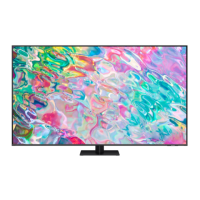
Samsung QM75B - User Manual

Samsung QM75B
107 pages
Print Icon
To Next Page IconTo Next Page
Loading...
User Manual
© Samsung
Samsung owns the copyright for this manual. Use or reproduction of this manual in parts or entirety without the authorization of Samsung is prohibited. Trademarks other than Samsung are property of their respective owners.
QM43B QM50B QM55B QM65B QM75B QM65B-N QM43B-T QM55B-T
The color and the appearance may differ depending on the product, and the content in the
manual is subject to change without prior notice to improve the performance.

Table of Contents

Questions and Answers

  • G
    Gary BauerAug 15, 2025
    Why does Anynet+ not work on my Samsung QM75B?
    • M
      Melissa VanceAug 15, 2025
      If Anynet+ isn't functioning on your Samsung TV, there are several things to check: * First, verify that the connected device is actually an Anynet+ compatible device, as the system only supports these. * Ensure the power cord of the Anynet+ device is securely connected. * Check all Video, Audio, and HDMI cable connections to the Anynet+ device. * Confirm that Anynet+ (HDMI-CEC) is enabled in your Samsung TV's System menu. * Verify that the remote control you're using is Anynet+ compatible. * Be aware that Anynet+ may not operate during the initial setup phase. * If you've reconnected the HDMI cable, perform a device search again or power cycle your TV. * Finally, ensure the Anynet+ function is enabled on the Anynet+ device itself.
  • D
    Donna BurtonAug 18, 2025
    Why is my connected device not displayed on my Samsung TV?
    • J
      jennifer97Aug 18, 2025
      If your connected device isn't showing up, first verify that it supports Anynet+ functions and is properly connected via an HDMI cable. Ensure that Anynet+ (HDMI-CEC) is enabled in the System menu. Try rescanning for Anynet+ devices. Keep in mind that some HDMI cables might not fully support Anynet+. If there was a power outage or the HDMI cable was disconnected, rescan the devices.
  • S
    Samantha PruittAug 21, 2025
    How to fix Anynet+ when it's not working on my Samsung QM75B?
    • L
      Laura CurryAug 21, 2025
      If Anynet+ is not working on your Samsung TV, verify that the connected device is an Anynet+ compatible device and that its power cord is properly connected. Check the video, audio, and HDMI cable connections. Also, ensure that Anynet+ (HDMI-CEC) is enabled in the System menu and that the remote control is Anynet+ compatible. Note that Anynet+ may not function during the initial setup. If you reconnected the HDMI cable, rescan for devices or power cycle your TV. Finally, ensure the Anynet+ function on the external device is enabled.
  • W
    woodandreaAug 25, 2025
    How do I start Anynet+ on my Samsung QM75B?
    • T
      Timothy HamiltonAug 25, 2025
      To start Anynet+ on your Samsung TV, check that the Anynet+ device is correctly connected to the TV. Also, make sure that Anynet+ (HDMI-CEC) is turned on in the System menu.
  • R
    richard94Aug 28, 2025
    What to do to exit Anynet+ on Samsung QM75B TV?
    • A
      April FrazierAug 28, 2025
      To exit Anynet+ on your Samsung TV, press the SOURCE button on the TV's remote control and choose a device that is not Anynet+ compatible.
  • R
    Ryan ParkerSep 1, 2025
    Why does my Samsung TV show 'Disconnecting Anynet+ device...'
    • S
      shawnabrownSep 1, 2025
      When the message 'Disconnecting Anynet+ device...' appears on your Samsung TV screen, it means you cannot use the remote control while Anynet+ is configuring or switching view modes. Please wait until the configuration or switching process is complete before using the remote control.
  • E
    Emily JacksonSep 3, 2025
    What to do if connected device is not displayed on Samsung QM75B TV?
    • M
      Michael LeeSep 4, 2025
      If a connected device isn't showing up on your Samsung TV, here's what to check: 1. Confirm that the device supports Anynet+ functions. 2. Ensure the HDMI cable is properly connected. 3. Verify that Anynet+ (HDMI-CEC) is turned on in the System menu. 4. Try rescanning for Anynet+ devices. 5. Make sure the device is connected via HDMI, as Anynet+ requires this connection. 6. Be aware that some HDMI cables might not support Anynet+. 7. If there was a power interruption or the HDMI cable was disconnected, repeat the device scan.
  • A
    Alexandra SmithSep 7, 2025
    What to do if Samsung QM75B shows 'Disconnecting Anynet+ device' message?
    • M
      Margaret HernandezSep 7, 2025
      If you see the message “Disconnecting Anynet+ device ...” on your Samsung TV, it means you can't use the remote control during Anynet+ configuration or when switching to a view mode. Please wait until the configuration or switching process is complete before using the remote control.
  • B
    Brian JensenSep 12, 2025
    How to exit Anynet+ on a Samsung QM75B?
    • R
      Ronald RichardsSep 12, 2025
      To exit Anynet+ on your Samsung TV, press the SOURCE button on the remote control and select a device that is not Anynet+ compatible.

Summary

Chapter 01 Before Using the Product

Safety Precautions

Essential safety instructions for personal and property protection.

Electricity and Safety

Guidelines for safe handling of electrical connections and power.

Installation Safety

Procedures and safety warnings for product installation.

Chapter 02 Preparations

Checking Components and Parts

Verifying all included components and identifying product parts.

Ports Overview

Description of all available input and output ports on the device.

Chapter 03 Using a Touchscreen Monitor

Touchscreen Monitor Basics

Understanding how the touchscreen monitor functions and basic usage.

Connecting Touchscreen to PC

Steps for connecting the touchscreen monitor to a PC via various cables.

Touchscreen Calibration

How to calibrate touchscreen monitor settings for optimal performance.

Chapter 04 Connecting and Using Source Devices

Pre-connection Checks

Essential checks before connecting any external source device.

Chapter 05 Multiple Display Control

Chapter 07 Menu Settings

Chapter 08 Troubleshooting Guide

Before Contacting Support

Steps to test the product before requesting service.

Samsung QM75B Specifications

General IconGeneral
Haze rate44 %
Color gamut92 %
Pixel pitch0.42975 x 0.42975 mm
Response time8 ms
RGB color spaceDCI-P3
Display diagonal75 \
Display brightness500 cd/m²
Display technologyVA
Native aspect ratio16:9
Vertical scan range48 - 75 Hz
Horizontal scan range30 - 81 kHz
Contrast ratio (typical)4000:1
Dynamic contrast ratio marketing nameMega Contrast
HDCPYes
PurposeUniversal
HDCP version2.2
Operating hours (hours/days)24/7
USB ports quantity2
HDMI ports quantity3
AC input voltage100 - 240 V
AC input frequency50 - 60 Hz
Power consumption (sleep)0.5 W
Power consumption (standby)- W
Power consumption (typical)231 W
Package depth223 mm
Package width1127 mm
Package height1871 mm
Package weight49000 g
Operating temperature (T-T)0 - 40 °C
Operating relative humidity (H-H)10 - 80 %
OrientationHorizontal/Vertical
Mounting typeWall
Product colorBlack
Product designDigital signage flat panel
Bezel width (side)11.5 mm
Placement supportedIndoor
Bezel width (bottom)12.5 mm
Panel mounting interface400 x 400 mm
Internal memory16 GB
Computer system typeSystem on Chip (SoC)
Operating system installedTizen 6.5
Weight and Dimensions IconWeight and Dimensions
Depth49.7 mm
Width1681.1 mm
Height960.1 mm
Weight38300 g

Related product manuals