EasyManua.ls Logo

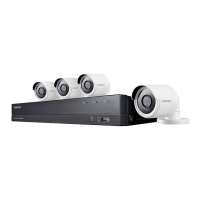
Samsung SDH-P4041 - User Manual

Samsung SDH-P4041
252 pages
Print Icon
To Next Page IconTo Next Page
Loading...
Samsung All-in-One
Security System
User Manual
SDH-P4041

Table of Contents

Questions and Answers

  • T
    Todd MyersSep 10, 2025
    Why can't backup data be played on my PC or DVR from my Samsung SDH-P4041?
    • J
      James LynchSep 10, 2025
      When backing up data, choose the correct player option: either PC or DVR. If using a PC, the backup file format should be SEC. If using the DVR, formatting backup files should be done by the DVR.
  • S
    Susan HortonAug 22, 2025
    What to do if the alarm button doesn't work on my Samsung Security System?
    • A
      andreamillerAug 22, 2025
      Press the [MENU] button to release the alarm. To release the event monitoring mode: Monitoring Mode – set the duration of the event monitoring to Off. To release the alarm sound: Event Record Mode - Alarm (Motion Detection/Video Loss/Tampering Detection) – deactivate the alarm sound. To release the event: Event Record Mode - Alarm (Motion Detection/ Video Loss/Tampering Detection) – set the mode to Off.
  • A
    Allison FreemanAug 25, 2025
    How to fix a Samsung Security System that does not turn on?
    • J
      jacksontylerAug 25, 2025
      First, check if the power supply system is properly connected. Then, check the system for the correct input voltage from the power source. If the problem persists, replace the power supplier with a new one.
  • M
    Matthew CaldwellAug 26, 2025
    What to do if my Samsung SDH-P4041 shows a ‘NO HDD’ error?
    • W
      William LewisAug 27, 2025
      Check the HDD connection. If the problem persists, contact the nearest service center to have the HDD checked by service personnel.
  • M
    mike32Aug 27, 2025
    Why is the recording not working on my Samsung SDH-P4041?
    • D
      Dawn JohnsAug 27, 2025
      If your player does not display a live image, recording will not work, so first ensure there is an image on the screen. Recording also won't work if the recording settings are not properly configured. To start recording manually, press the [REC] button on the remote control. To schedule recording, specify a desired time in Menu – Record – Recording Schedule. Continuous recording will proceed in any conditions at the specified time. Event recording will only occur if the event is of alarm, motion detection, video loss or tampering detection. If there is no event found, continuous recording will perform.
  • W
    William AyalaAug 29, 2025
    What to do if some channels on my Samsung Security System display a black screen?
    • M
      Michael HallAug 29, 2025
      Check if the camera connected to the system properly displays the image and is properly supplied with power. If there is a weak video signal from a video distributor connected to multiple systems, input the video source of the camera directly into the DVR.
  • A
    Andrew BlakeSep 18, 2025
    What to do if the ESC key doesn't exit full screen on my Samsung SDH-P4041 Security System WebViewer?
    • K
      kelly81Sep 18, 2025
      Press the ALT+TAB keys to select ‘ACTIVE MOVIE’ and press the ESC key again.
  • T
    Travis LevineSep 12, 2025
    Why doesn't the channel button work on the live screen of my Samsung Security System?
    • C
      Carol BarnesSep 12, 2025
      The Channel button does not work if the current screen is in the event monitoring mode. Press the [ALARM] button to exit the screen and select a channel.
  • R
    Richard HenrySep 8, 2025
    Why doesn't my Samsung Security System recognize the external SATA HDD?
    • L
      Laurie WhiteSep 8, 2025
      See the compatibility list of external storage devices to check if the connected device is supported by the DVR.
  • E
    Elizabeth TaylorSep 5, 2025
    Why doesn't my Samsung Security System recognize the additional HDD I installed?
    • S
      Shane SmithSep 5, 2025
      See the compatibility list to check if the additional HDD is supported by the DVR.

Samsung SDH-P4041 Specifications

General IconGeneral
BrandSamsung
ModelSDH-P4041
CategorySecurity System
LanguageEnglish

Related product manuals