EasyManua.ls Logo

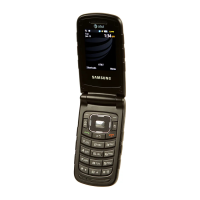
Samsung SGH-A847R - User Manual

Samsung SGH-A847R
70 pages
Print Icon
To Next Page IconTo Next Page
Loading...
Printed in Korea
GH68-35487A
English (LTN). 08/2011. Rev. 1.0
Some of the contents in this manual may differ from your phone
depending on the software of the phone or your service provider.
www.samsung.com

Questions and Answers

  • A
    Austin CollierAug 18, 2025
    What to do if my Samsung SGH-A847R freezes?
    • C
      Caroline WilsonAug 18, 2025
      If your Samsung Telephone freezes or hangs, try closing programs or resetting the device. If the phone is still responsive but a program is frozen, close the program using the task manager. If your phone is frozen and unresponsive, remove the battery, replace the battery, and turn it on.
  • K
    Kathy MosesAug 20, 2025
    Why are my outgoing calls not connecting on my Samsung SGH-A847R?
    • R
      rgriffithAug 20, 2025
      To resolve the issue of outgoing calls not being connected on your Samsung Telephone, ensure that you have pressed the Dial key, accessed the right cellular network, and have not set call barring for the phone number you are dialing.
  • B
    Brenda GambleAug 23, 2025
    Why are my incoming calls not connecting on my Samsung SGH-A847R Telephone?
    • K
      Katherine WadeAug 23, 2025
      To resolve the issue of incoming calls not being connected on your Samsung Telephone, ensure that your phone is turned on and that you have accessed the right cellular network.
  • A
    April MoralesAug 26, 2025
    What to do if Samsung SGH-A847R Telephone battery does not charge properly?
    • D
      Douglas BarrAug 26, 2025
      If the battery does not charge properly or the Samsung Telephone turns off, wipe both gold-colored contacts with a clean, soft cloth and try charging the battery again. If the battery will no longer charge completely, dispose of the old battery properly and replace it with a new battery (refer to your local ordinances for proper disposal instructions).
  • E
    Erica HallAug 28, 2025
    What to do if nobody hears me on my Samsung Telephone?
    • S
      shawna60Aug 28, 2025
      If others cannot hear you speaking on a call using your Samsung Telephone, ensure that you are not covering the built-in microphone and that the microphone is close to your mouth. If using a headset, ensure that it is properly connected.
  • T
    taylorkellyAug 30, 2025
    What to do if Samsung SGH-A847R Telephone calls are being dropped?
    • M
      Michael JimenezAug 30, 2025
      If you are experiencing calls being dropped on your Samsung Telephone, it may be due to weak signals or poor reception. Move to another area and try again.
  • T
    tkimSep 2, 2025
    Why is a connection not established when I connect my Samsung Telephone to a PC?
    • J
      Jonathan RoseSep 2, 2025
      If a connection is not established when you connect your Samsung Telephone to a PC, ensure that the PC data cable you are using is compatible with your phone and that you have the proper drivers installed and updated on your PC.
  • P
    Penny NicholsonSep 4, 2025
    Why is the audio quality poor on my Samsung SGH-A847R Telephone?
    • C
      cookeshannonSep 4, 2025
      If the audio quality is poor on your Samsung Telephone, ensure that you are not blocking the phone’s internal antenna. If you are in areas with weak signals or poor reception, move to another area and try again.
  • A
    Anita PriceSep 7, 2025
    What to do if error messages appear when launching the camera of Samsung Telephone?
    • S
      Sandy LivingstonSep 7, 2025
      If error messages appear when launching the camera on your Samsung Telephone, free some memory by transferring files to a PC or deleting files from your phone. You can also try restarting the phone. If you are still having trouble with the camera application after trying these tips, contact a Samsung Service Center.
  • C
    carrollmichaelSep 9, 2025
    What to do if error messages appear when opening music files on Samsung SGH-A847R?
    • L
      Lisa StephensSep 9, 2025
      If error messages appear when opening music files on your Samsung Telephone, free some memory by transferring files to a PC or deleting files from your phone. Also, ensure that the music file is not Digital Rights Management (DRM)-protected, and if it is, ensure that you have the appropriate license or key to play the file. Finally, ensure that your phone supports the file type.

Summary

Using this manual

Read me first

Contains important usage notes and disclaimers.

Copyright and Trademarks

Copyright Information

Legal notice about the manual's protection.

Trademarks

Lists registered trademarks used in the manual.

Introducing your mobile phone

Phone layout

Details the physical arrangement of keys and components.

Key and Softkey Explanations

Explains the function of specific phone keys and softkeys.

Additional Key Explanations

Provides explanations for remaining phone keys and softkeys.

Assembling and preparing your mobile phone

Install the SIM card and battery

Steps for inserting SIM and battery into the phone.

Charge the battery

Instructions for connecting the phone to a power source.

Insert a memory card

Steps for inserting a memory card into the phone.

Using basic functions

Turn your phone on or off

Procedures for powering the device on and off.

Access menus

How to navigate through the phone's menu system.

Customize your phone

Adjusting phone settings like sound profiles and wallpapers.

Use basic call functions

Performing fundamental call operations like making and answering.

Send and view messages

Managing text and multimedia messages.

Send and view emails

Composing, sending, and reading emails.

Enter text

Inputting text using the keypad and different modes.

Add and find contacts

To add a new contact

Steps for saving new contact information.

To find a contact

Procedures for searching the contact list.

Use basic camera functions

To capture photos

Steps for taking still pictures.

To record videos

Steps for recording video clips.

To view photos

How to access and view saved photos.

To view videos

How to access and view saved videos.

Listen to music

To listen to music files

Procedures for playing music files on the phone.

Music playback controls

Explains keys used for controlling music playback.

Browse the web

To browse web pages

Steps to access and navigate websites.

To bookmark your favorite web pages

Saving frequently visited websites for quick access.

Using advanced functions

Use advanced call functions

Managing calls beyond basic operations.

Use advanced phonebook functions

Advanced contact management features.

Use advanced messaging functions

Advanced features for sending messages.

Use advanced camera functions

Advanced photography and videography features.

Use advanced music functions

Advanced playback and management of music.

Using tools and applications

Use the Bluetooth wireless feature

Managing Bluetooth connectivity for data transfer and pairing.

Record and play voice memos

Recording and listening to voice notes.

Use Java-powered games and applications

Running Java-based apps and games.

Create a world clock

Setting up and viewing world clocks.

Set and use alarms

Configuring and managing alarms.

Use the calculator

Performing calculations with the phone's calculator.

Convert measurements

Converting units of measurement.

Set a countdown timer

Using the timer function for countdowns.

Use the stopwatch

Utilizing the stopwatch for timing events.

Create new tasks

Managing to-do lists and tasks.

Create a text memo

Writing and saving text notes.

Manage your calendar

Organizing events and appointments.

Troubleshooting

Common Code Prompts

Solutions for password, PIN, PUK, and PIN2 prompts.

Network or Service Issues

Resolving problems with network connectivity and calls.

Audio and Connectivity Problems

Troubleshooting audio quality and connection issues.

Battery and Camera Errors

Addressing battery charging problems and camera application errors.

Music and Bluetooth Connectivity Issues

Resolving errors with music files and Bluetooth devices.

PC Connection and System Freezes

Solutions for PC connection failures and phone freezing.

Safety precautions

Electrical Safety Warnings

Precautions against electric shock, fire, and explosion.

Battery and Charger Handling

Guidelines for safe battery and charger use and disposal.

Restricted Area Usage

Safety regulations for use in specific environments.

Vehicle Operation Safety

Guidelines for safe mobile device use while driving.

Device Care and Environmental Protection

Recommendations for keeping the device dry and away from hazards.

Health and Ergonomic Safety

Precautions for eye safety, repetitive motion, and hearing.

Unauthorized Modifications and Service

Warnings against modifying or repairing the device without authorization.

Data and Service Management

Information on data backup, SIM card handling, and copyright.

Specific Absorption Rate (SAR) certification information

FCC Authorization and RF Exposure Guidelines

Information on compliance with radio frequency exposure standards.

Disclaimer

Third-party Content and Services

Disclaimers regarding third-party content and service availability.

Limitation of Liability

Samsung's disclaimers of responsibility for content, services, and customer support.

Samsung SGH-A847R Specifications

General IconGeneral
ModelSGH-A847R
NetworkGSM / HSPA
2G bandsGSM 850 / 900 / 1800 / 1900
GPRSClass 10
EDGEClass 10
StatusDiscontinued
SIMMini-SIM
Display TypeTFT, 256K colors
Resolution240 x 320 pixels, 4:3 ratio (~182 ppi density)
Call recordsYes
Camera2 MP
VideoYes
LoudspeakerYes
3.5mm jackNo
WLANNo
JavaYes, MIDP 2.0
ColorsBlack
Memory Card slotmicroSD (dedicated slot)
Phonebook1000 entries
Alert typesVibration; MP3, WAV ringtones
BluetoothA2DP
USB2.0
MessagingSMS, MMS, Email
BrowserWAP 2.0/xHTML
GamesYes
FeaturesOrganizer, Voice memo
Display Size2.2 inches, 15.0 cm2 (~26.6% screen-to-body ratio)

Related product manuals