EasyManua.ls Logo

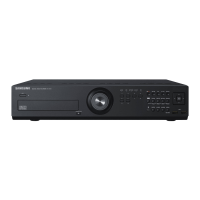
Samsung SRD-830 - User Manual

Samsung SRD-830
132 pages
Print Icon
To Next Page IconTo Next Page
Loading...
8 CHANNEL/
16 CHANNEL DVR
User Manual
SRD-830/830D/830DC/
850/850D/850DC/870/870D/870DC/
1610/1610D/1610DC/1630/1630D/1630DC/
1650/1650D/1650DC/1670/1670D/1670DC

Table of Contents

Other manuals for Samsung SRD-830

Questions and Answers

  • E
    eromanSep 18, 2025
    What to do if ESC key doesn't exit full screen on Samsung SRD-830 DVR WebViewer?
    • S
      sandy84Sep 18, 2025
      If pressing the ESC key in full screen mode of the WebViewer on your Samsung DVR doesn't switch the system to a normal split mode, press the ALT+TAB keys to select ‘ACTIVE MOVIE’ and then press the ESC key again.
  • A
    Anita MasonAug 25, 2025
    What to do if my Samsung SRD-830 DVR displays 'NO HDD' icon?
    • C
      cartermelissaAug 25, 2025
      If your Samsung DVR displays the “NO HDD” icon and an error message, check the HDD for connection. If the problem persists in a normal condition, contact the nearest service center to have the HDD checked by the service personnel.
  • K
    Kristin YoungAug 25, 2025
    What to do if my Samsung DVR does not recognize all installed disks?
    • S
      Shane CobbAug 26, 2025
      If your Samsung DVR does not recognize all the installed disks, it may simply need more time to recognize multiple external HDDs, so try again in a moment. If the problem persists, it may occur due to a mechanical error of the HDD installed, so try again with a different HDD.
  • C
    carla80Aug 26, 2025
    Why does my Samsung DVR display a black screen on some channels?
    • F
      flarsonAug 26, 2025
      If some channels on your Samsung DVR display a black screen even if they receive video sources, first check if the camera connected to the system properly displays the image and if the camera is properly supplied with power. Sometimes, this problem may occur on a channel with weak video signal from a video distributor that is connected to multiple systems. In this case, input the video source of the camera directly into the DVR.
  • J
    Jill RodriguezSep 18, 2025
    Why is the time bar not showing in search mode on my Samsung DVR?
    • D
      daniel13Sep 18, 2025
      The timeline on your Samsung DVR can switch between normal and extension mode. If the time bar is not displayed in Search mode, switch to normal mode or use the left or right button to navigate through the time bar.
  • M
    Mr. Ricardo PetersenSep 23, 2025
    How to exit full screen mode on Samsung SRD-830 WebViewer?
    • R
      Ruben MeyerSep 23, 2025
      Press the ALT+TAB keys to select ‘ACTIVE MOVIE’ and press the ESC key again.
  • J
    John GarciaSep 9, 2025
    How to improve the recording quality on my Samsung SRD-830 DVR?
    • K
      Kevin RiveraSep 9, 2025
      If the image quality of the recording data on your Samsung DVR isn't satisfactory, try increasing the resolution and quality level in Menu – Record – Quality / Resolution. Select a bigger size when specifying the recording size (4CIF>2CIF>CIF). Specify a bigger level for the recording quality. Keep in mind that increasing resolution and recording quality will increase the data size, filling the HDD faster and overwriting existing data sooner.
  • J
    julie04Sep 10, 2025
    What to do if the REC button doesn't work on my Samsung DVR?
    • C
      carpenterelizabethSep 10, 2025
      If you press the [REC] button on the front panel of your Samsung DVR and the REC indicator doesn't flash, and the player doesn't start recording, check if there is free space on the HDD. Also, verify that the record mode is set to ON in the record mode setting.
  • B
    Brandon OlsonSep 3, 2025
    How to fix a Samsung DVR that does not turn on?
    • G
      Gabriella PageSep 3, 2025
      If your Samsung DVR does not turn on and the indicator on the front panel remains off, check whether the power supply system is properly connected. Also, verify the system's input voltage from the power source. If the problem continues, it might be necessary to inspect the power supplier and replace it if needed.
  • A
    austinhartmanSep 1, 2025
    Why does my Samsung SRD-830 say 'Need to reset date/time'?
    • A
      Ariana CarrSep 1, 2025
      If your Samsung DVR displays a message saying “Need to reset date/time,” it means there's an issue with the internal clock's time setting or the clock itself. In this case, it is recommended to contact the retailer or a service center for further assistance.

Summary

Overview

Important Safety Instructions

Read and follow all safety instructions before using the unit to ensure safe operation.

Warning and Precautions

Important warnings and cautions regarding battery, system shutdown, temperature, and security.

Installation

Checking the Installation Environment

Provides recommendations for optimal installation environment and rack mounting.

HDD Addition

Details on how to install additional Hard Disk Drives (HDDs) into the DVR.

Connecting With Other Device

Connecting the Network

Instructions for connecting the DVR to a network via Ethernet.

Live

Getting Started

Guides on how to start and shut down the DVR system.

Login

Instructions for logging into the DVR to access restricted menus and features.

Live Screen Configuration

Explains the status icons displayed on the DVR's live screen interface.

Live Mode

Explains how to switch between different screen layouts and modes.

Spot Out

Explains the Spot Out feature for monitoring specific channels via an external port.

Zoom

How to use the zoom function to enlarge areas on the live screen.

Event Monitoring

Describes how the DVR displays events like sensor triggers or motion detection.

Using the DVR

System Setup

Main menu for configuring system properties like date, time, language, and permissions.

Date;Time;Language

How to set the DVR's date, time, time zone, and language.

Setting the Administrator

How to set and change the administrator's ID and password.

Setting the Group

How to create user groups and assign permissions to them.

Setting the User

Process for adding, editing, or removing users and assigning them to groups.

Setting Permissions

How to set restricted access for general users and network access.

Settings

How to copy and import DVR settings using storage media.

Setting the Device

Settings for connected devices like cameras, storage, remote control, POS, and monitors.

Camera

Configuration options for each connected camera, including video, audio, and name.

Setting the PTZ

How to configure PTZ camera settings like port, ID, and protocol.

Setting the Spot Out

Setting up the DVR to output video information to a separate monitor.

Setting the Recording

Setting up scheduled recording, event recording, and other recording parameters.

Setting the Event

Setting up recording options for sensor, motion, and video loss events.

Backup

Instructions for backing up DVR data to connected devices.

Network Configuration

Configuring network settings for remote access and event notifications.

Controlling a PTZ Device

PTZ Device

Overview of PTZ device activation and basic controls.

Using the PTZ camera

Detailed guide on using PTZ camera functions like PAN, TILT, ZOOM, and presets.

Preset Setting

How to save, rename, and delete PTZ camera presets.

Search & Play

Search

How to access the search menu and initiate recorded video searches.

Playback

Instructions on how to play back recorded video data from the HDD or backup.

Web Viewer

Viewer Setup

Permission Management

Managing user permissions, groups, and admin settings.

System Management

Checking system information like software version and MAC address.

Storage Device

Checking and changing settings for storage devices.

Mailing Service

Configuring SMTP server and event settings for email notifications.

backup viewer

Appendix

Troubleshooting

Provides solutions for common symptoms and problems encountered with the DVR.

Samsung SRD-830 Specifications

General IconGeneral
BrandSamsung
ModelSRD-830
CategoryDVR
LanguageEnglish

Related product manuals