
 To Next Page

M
mallory48Aug 20, 2025
What to do if I forgot my Samsung SRD-876D password?
- JJudy KnoxAug 20, 2025
If you forgot your password for the Samsung DVR, you should contact the DVR administrator for assistance.

What to do if I forgot my Samsung SRD-876D password?
If you forgot your password for the Samsung DVR, you should contact the DVR administrator for assistance.
How to fix a Samsung SRD-876D that does not turn on?
First, verify that the power supply system is correctly connected to your Samsung DVR. Next, check the system for the correct input voltage from the power source. If the problem continues, the power supplier may be defective and need replacement.
What to do if 'NO HDD' icon appears on my Samsung SRD-876D DVR?
First, ensure the HDD is properly connected to your Samsung DVR. If the error persists under normal conditions, it is recommended to have the HDD checked by service personnel at the nearest service center.
Why is my Samsung SRD-876D DVR not recognizing the additional HDD I installed?
The additional HDD may not be supported by the Samsung DVR. Check the compatibility list to confirm if the HDD is supported.
What to do if the REC button doesn't work on my Samsung SRD-876D?
First, check if there is sufficient free space on the HDD for recording on your Samsung DVR. Also, verify that the record mode is set to ON in the record mode settings.
Why doesn't my Samsung SRD-876D DVR recognize the external SATA HDD I connected?
Refer to the compatibility list of external storage devices to verify if the connected device is supported by your Samsung DVR.
Why does the PTZ button not work on my Samsung DVR?
Go to Menu ¨ Camera on your Samsung DVR and check if the current protocols and other settings in the PTZ device are properly configured according to the PTZ camera.
Why doesn't the Channel button work on the Live screen of my Samsung SRD-876D?
The Channel button on your Samsung DVR will not function if the current screen is in event monitoring mode. To exit this mode, press the [ALARM] button, then select a channel.
How to switch to Live playback mode on my Samsung SRD-876D DVR?
To switch to Live mode on your Samsung DVR, press the Stop [@] button on the DVR or the remote control, or click the [ ] icon on the launcher.
Why can't I play backup data from my Samsung SRD-876D DVR on my PC?
When backing up data, remember that you have the option to choose the player: PC or DVR. If using a PC, ensure the backup file format is SEC. If using the DVR, formatting backup files should be done by the DVR itself.
Provides critical guidelines for safe operation and handling of the DVR unit.
Highlights potential hazards related to battery usage and handling.
Provides guidelines for ensuring a suitable environment for product installation.
Step-by-step guide for installing a Hard Disk Drive into the DVR unit.
Process for accessing the DVR interface and its features via user authentication.
Access point for configuring system-wide settings such as date, time, and language.
Procedure for setting or changing the administrator's ID and password.
Creating user groups and assigning permissions for access to DVR features.
Adding, editing, or removing user accounts and configuring their network viewer settings.
Defining restricted access for general users to specific system items.
Configuration options for connected cameras, including video, audio, and naming.
Procedure for backing up desired data to a connected device with schedule options.
Interface and functions for controlling connected PTZ cameras remotely.
Accessing settings for scheduling recordings, event durations, and quality.
Configuring the network connection type, IP address, and protocol.
 General
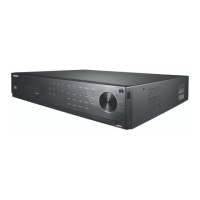
| Model | SRD-876D |
|---|---|
| Operating System | Embedded Linux |
| Video Input Channels | 8 |
| Video Output | HDMI, VGA, BNC |
| Compression | H.264 |
| Hard Drive Bays | 1 |
| Max. Internal HDD Capacity | 6 TB |
| Audio Outputs | 1 |
| Alarm Inputs | 4 |
| Alarm Outputs | 1 |
| USB Interface | 2 x USB 2.0 |
| Motion Detection | Yes |
| Remote Viewing | Yes |
| Power Supply | 12V DC |
| Max. Resolution | 1920 x 1080 |
| Network Interface | 1x RJ-45 (10/100Mbps) |